
Guide
Delete or reorder PDF pages on iPhone
Open the PDF in Preview (iOS 26 and later) and show the page thumbnails. To delete a page, touch and hold its thumbnail and tap Delete Page. To move a page, touch and hold its thumbnail until the menu appears, then drag it above or below another one. Tap Back to save. Preview does this well and for free, so you rarely need anything else.

Delete a page with Preview
Preview is Apple’s PDF app on iPhone from iOS 26. Its page thumbnails do almost everything you’d want to do with pages. These steps follow Apple’s iPhone User Guide.
- Open the Preview app and open the PDF.
- Show the page thumbnails. On iOS 27, tap the Show Sidebar button (if you don’t see it, tap the PDF). On iOS 26, tap the page count (if it doesn’t appear, pinch two fingers together or apart on the page).
- Touch and hold the thumbnail of the page you want to remove.
- Tap Delete Page.
- Repeat for any other page, then tap the Back button to save.
If you delete the wrong page, tap the More button, then tap Undo.
Move pages into the right order
- Open the PDF in Preview and show the thumbnails as above.
- Touch and hold a thumbnail until the menu options appear.
- Keep holding and drag the thumbnail above or below another one.
- Let go where the page belongs, then tap Back to save.
Apple’s guide adds one tip: if you don’t see thumbnails, tap the screen to show the page count, then tap the page count.
Pages most often end up out of order after scanning a double-sided stack. If that’s how you got here, the guide to scanning double-sided pages in the right order saves you the sorting next time.
Add a page where one is missing
The menu that appears when you touch and hold a thumbnail also adds pages:
- Insert Blank Page adds an empty page, for example to keep a printed booklet’s pages in pairs.
- Insert from File adds a PDF or an image from your files. To combine whole documents, the guide to merging PDFs has the full steps.
- Scan Pages opens the scanner. Scan the missing page, tap Done, and it joins the document. Drag it into place if it lands one spot off.
The same menu also has Rotate Left and Rotate Right for a page that’s sideways; the guide to rotating a PDF covers that in full.
Trim a page instead of deleting it
Sometimes only part of a page is unwanted, like a wide margin or a strip of desk around a scan. Crop it rather than deleting it:
- In Preview, scroll to the page and tap the Crop button.
- Drag the blue handles to select the part to keep.
- Tap within the selected area if needed, then tap Crop.
Cropping changes what shows on the page. If the part you cut away holds private details, read how to redact a PDF properly instead.
Keep a copy before big edits
Preview saves your changes into the file you opened. Before you delete several pages, make a copy: tap the Actions Menu button next to the filename, then tap Duplicate, and edit the copy. If you want to send only some pages and keep the full file too, that is really a split, and the guide to splitting a PDF walks through it.
Pages inside Notes and Mail
Two other Apple apps handle pages in their own way.
PDFs and scans in a note
If the PDF or scan lives in a note, you can work on it there. In the note, tap the Menu button on the PDF, choose View As, then Medium or Large. Tap the Thumbnails button, tap the thumbnail of a page, tap the More button, and choose an action such as Rotate Left, Rotate Right, Crop Page or Insert Blank Page. Filters and Crop Page work only on scanned documents.
A scan you’re about to email
When you scan a document from inside a Mail message (the Insert Attachment Actions button, then Scan Document), you can tidy it before you send. Tap the saved scan, then tap the Rotate button to turn it, the Crop button to trim it, or the Delete Scan button to remove it and scan again.
Check the file before you send it
A deleted page is easy to miss and a page out of order is easy to send. Before the PDF leaves your phone:
- Scroll through every thumbnail once, top to bottom.
- Check the page count against what the other person expects.
- Open the copy you’re about to send, not the one you think you edited.
Where Scanner One helps, and where it doesn’t
For deleting a page or moving one, Preview is all you need: it is free, it’s on your iPhone from iOS 26, and it adds nothing to the file.
Scanner One helps while you’re still scanning. A scan can have many pages, and you can reorder them. You put the pages in order inside the scan, so the document comes out in the right order.
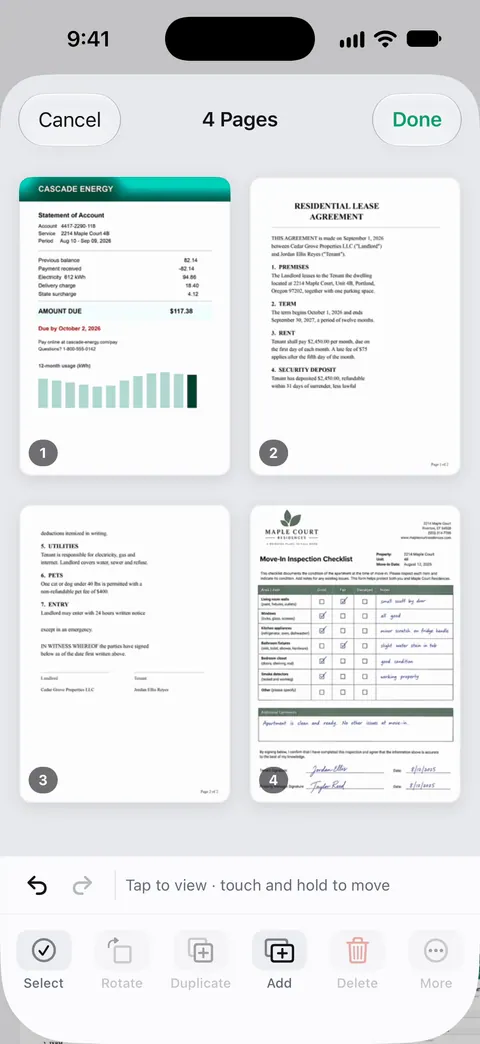
Once the document is in Scanner One: A document’s Pages screen moves pages into a new order, rotates them, duplicates them, deletes them and adds new ones. Pages you pick can be copied into a new document or into another one. That is quicker than duplicating a file and deleting the rest.
The limits, plainly:
- If you go on to merge, split or compress the file: Free accounts can run the PDF tools and the Word, Excel and CSV exports 3 times a week, from one shared allowance. Pro removes every limit.
- On a free account, pages you share, print or export carry a small “Scanned with Scanner One” label at the bottom right. Pro removes it. A PDF edited in Preview carries no label.
- For a PDF that someone emailed you and that you only need to trim, Preview is quicker than bringing the file into another app.
The PDF tools page lists what else Scanner One does with pages.
Questions and answers
How do I delete one page from a PDF on iPhone?
Open the PDF in Preview, show the thumbnails, touch and hold the page and tap Delete Page. Tap Back to save. On iOS 26, tap the page count to show the thumbnails; on iOS 27, tap the Show Sidebar button.
Can I undo a deleted page?
Apple’s guide says to tap the More button, then tap Undo, to undo a change in Preview. If you’ve already closed the file, the page is gone from it, so keep a copy with Duplicate before big edits.
Why can’t I see the page thumbnails?
On iOS 27, tap the PDF once to bring back the Show Sidebar button. On iOS 26, tap the screen to show the page count, then tap it; if it still doesn’t appear, pinch two fingers on the page.
Can I add a page in the middle of a PDF?
Yes. Touch and hold the thumbnail where you want it, then tap Insert Blank Page, Insert from File for a PDF or image, or Scan Pages to scan paper in. Drag the new page if it lands one place off.
Sources
What this page says about Scanner One was checked against the app on .
- Apple iPhone User Guide, Add, delete, rotate, move, or crop PDF pages in Preview on iPhone — Delete Page, moving pages, Insert Blank Page, Insert from File, Scan Pages and Undo; thumbnails from the page count on iOS 26 and the Show Sidebar button on iOS 27; undated guide page for iOS 26 and 27, read 2026-11-13
- Apple iPhone User Guide, Work with PDFs in Notes on iPhone — page actions for PDFs and scans inside a note; undated guide page for iOS 26 and 27, read 2026-11-13
- Apple iPhone User Guide, Add email attachments in Mail on iPhone — deleting a page from a scan before it is attached; undated guide page for iOS 26 and 27, read 2026-11-13
- Scanner One on the App Store — the app’s own listing: multipage scans you can reorder
Get Scanner One
Scanner One is free, with generous limits: scanning, clean PDFs and text search never stop.

Scanner OneScan, sign and ask anything
Scanner One is free, with generous limits: scanning, clean PDFs and text search never stop.