
Comparison
The best PDF editor apps for iPhone, compared
On iOS 26 and later, Apple’s Preview edits more than most people need for free: fill and sign forms, highlight, add, delete, rotate and reorder pages, lock with a password and compress on export. For changing the words already in a PDF, you need a paid plan: PDF Expert Premium, Acrobat Premium, a Xodo subscription or Smallpdf Pro. Scanner One, our app, has PDF tools with a weekly free allowance, and Pro adds edit text and redaction.

Scanner One is our app, and its PDF tools are one of the six options below. Facts about other apps come from their App Store pages, Apple’s iPhone User Guide and developer sites, read on November 13, 2026.
What “editing a PDF” means
Most people searching for a PDF editor want one of four things, and only the last one needs a paid plan almost everywhere:
- Fill and sign a form someone sent.
- Mark it up: highlight, comment, draw an arrow.
- Rearrange it: merge, split, delete, rotate or reorder pages; make it smaller.
- Change the words already on the page: fix a typo, update a date, change a number.
Start with Preview
On iOS 26 and 27, Apple’s Preview app covers the first three. Its iPhone User Guide describes:
- Filling and signing: open a PDF form, tap the Form Filling button, tap a field, and use the Add button for a signature or text box.
- Marking up: select text and tap Highlight, then pick a color, underline or strike through; tap Markup, then Add, for stickers, signatures, shapes or text.
- Pages: tap the Show Sidebar button, touch and hold a thumbnail, then Insert Blank Page, Insert from File, Scan Pages or Delete Page; drag thumbnails to reorder; Rotate Left or Rotate Right from the More button.
- Lock: Actions menu next to the file name, then Lock, then enter the password twice.
- Smaller files: Export with Optimize Images for Screen turned on.
Apple’s guide doesn’t describe changing the existing text of a PDF. For that, read on. Our guides cover merging PDFs and making a PDF smaller.
PDF editors compared
Checked on November 13, 2026, on the US App Store.
| App | Free, per the developer | In the paid plan | In-app purchases listed | Data used to track you |
|---|---|---|---|---|
| Preview (Apple) | Fill, sign, annotate, page edits, lock, compress | Nothing to buy | None | Part of iOS |
| PDF Expert | Read, annotate, fill and sign | Edit text and images, convert, merge, split, compress, redact, AI | $9.99 to $79.99 | None |
| Acrobat Reader | Read, comment, fill in and sign | Create, edit text, convert, combine, compress, OCR, password | $6.99 to $69.99 | Identifiers |
| Xodo | Compress, rotate, split, extract, scan, fill and sign | All 30+ tools unlimited, Office conversion, redaction, merge, OCR | $11.99 to $107.99 | Usage Data |
| Smallpdf | Free within a daily task limit | Pro: unlimited conversions across all tools | $7.99 to $119.99 | Identifiers |
| Scanner One (ours) | Free accounts can run the PDF tools and the Word, Excel and CSV exports 3 times a week, from one shared allowance. | Pro adds redaction, the smart eraser, edit text, auto-export and five alternate app icons. | $4.99 a month, $29.99 a year, $59.99 once | No account, no tracking |
Each app, honestly
PDF Expert: the most complete
PDF Expert’s description lists reading, annotating, filling forms with checkboxes and radio buttons, and signing before the section headed Premium Features. Premium adds editing text and images, creating and converting PDFs, merging, splitting, compressing, PDF Copilot AI and redaction. Its pricing page offers a yearly plan for iPhone, iPad and Mac; its lifetime license is for the Mac only. The label lists no data used to track you.
Pick it if you work with PDFs daily, especially across iPhone, iPad and Mac.
Acrobat Reader: the reference reader
Acrobat Reader’s description says you don’t need a subscription to read, fill in or sign PDFs, or an Adobe account to read them. Acrobat Premium, with a free trial, adds creating PDFs, editing text and images, converting to Word, Excel or PowerPoint, combining, compressing, OCR and password protection. The label lists Identifiers as used to track you; it needs iOS 18.3.
Pick it if the PDFs you get come from Adobe-heavy offices.
Xodo: many tools before you pay
Xodo’s description lists compressing, rotating, splitting and extracting pages, scanning to PDF, and filling and signing before its subscription section. The monthly or annual Xodo Mobile subscription unlocks unlimited access to all 30+ tools, including PDF to Office conversion, redaction, merging and searchable scans. The label lists Usage Data as used to track you.
Pick it for page work without paying, with a subscription in reserve.
Smallpdf: web tools in an app
Smallpdf’s description says it is free within a daily task limit, and that Pro, with a free trial, gives unlimited conversions across all tools. It also says uploaded files are deleted 1 hour after processing unless saved locally or to the cloud. The label lists Identifiers as used to track you.
Pick it if you already use Smallpdf on a computer.
Scanner One: PDF tools next to your scans
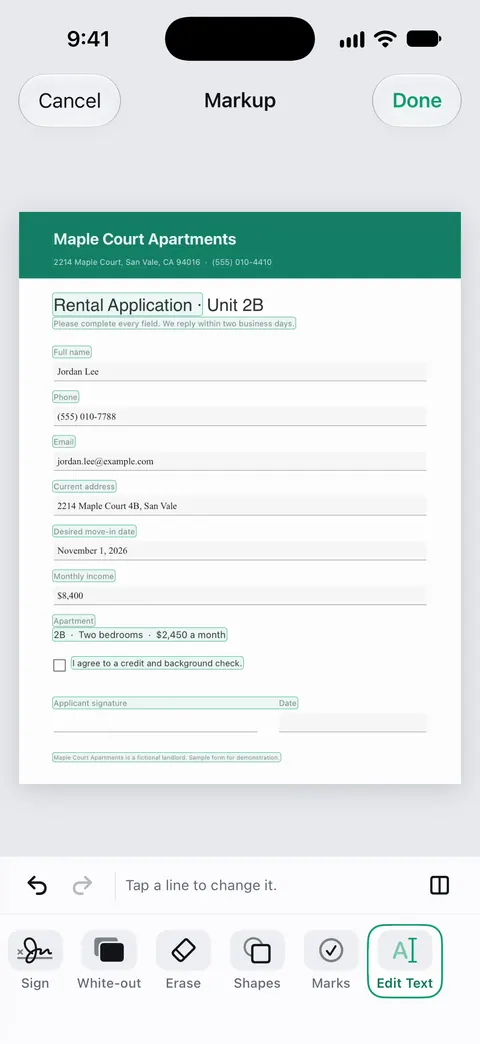
The PDF tools merge, split, compress, password-protect, add page numbers and watermarks, and extract text. Scanner One exports to Word, keeping headings, lists and tables, and to Excel and CSV. You can sign and annotate documents. Redaction is permanent.
Pick this if
- You fill, sign or rearrange now and then: Preview.
- You edit PDFs for work every day: PDF Expert or Acrobat Premium.
- You want many tools before paying: Xodo.
- Your PDFs start as paper: Scanner One, where the scan, the text and the tools are in one place.
Where Scanner One helps, and where it doesn’t
Where it helps: The PDF tools merge, split, compress, password-protect, add page numbers and watermarks, and extract text. Scanner One makes searchable PDFs. Redaction is permanent. Pro adds redaction, the smart eraser, edit text, auto-export and five alternate app icons.
Where it doesn’t: Free accounts can run the PDF tools and the Word, Excel and CSV exports 3 times a week, from one shared allowance. Free accounts can sign and mark up 3 documents a month. On a free account, pages you share, print or export carry a small “Scanned with Scanner One” label at the bottom right. Pro removes it. Edit text and redaction are Pro features, not free ones. Scanner One runs on iPhone and iPad. PDF Expert and Acrobat also work on a computer. For fills, signatures and page changes on iOS 26 and later, Preview is free. See Scanner One’s PDF tools and how to redact a PDF properly.
Questions and answers
Can I edit a PDF on iPhone for free?
Yes, for most edits. On iOS 26 and later, Preview fills and signs forms, highlights and annotates, adds, deletes, rotates, moves and crops pages, locks a PDF and compresses it on export. Changing the existing text of a PDF is the job the free tools don’t describe; the apps here sell it in their paid plans.
How do I edit the text in a PDF on iPhone?
Use an editor whose paid plan includes text editing: PDF Expert Premium, Acrobat Premium and Scanner One Pro all list it. For a scan, the text has to be recognized first; see our guide on editing text in a scanned document.
Which PDF editor has no subscription?
Preview is free and built in. PDF Expert’s lifetime license is for the Mac only. Scanner One Pro Lifetime is a one-time purchase of $59.99 in the US.
Do online PDF editors keep my files?
It varies. Smallpdf’s App Store description says uploaded files are deleted 1 hour after processing unless you save them. In Scanner One: Documents stay on your iPhone unless you share them or turn on iCloud Sync.
Sources
What this page says about Scanner One was checked against the app on .
- Apple iPhone User Guide, Get started with Preview on iPhone — what Preview does: fill and sign, scan, lock, edit images, highlight; guide for iOS 26 and 27
- Apple iPhone User Guide, Add, delete, rotate, move, or crop PDF pages in Preview — page editing steps in Preview; guide for iOS 26 and 27
- PDF Expert on the App Store — free features listed before Premium, Premium features, in-app purchases, privacy label; read 2026-11-13
- Acrobat Reader on the App Store — free read, fill and sign; Acrobat Premium features; privacy label; read 2026-11-13
- Xodo on the App Store — tools listed before the subscription, what the subscription unlocks, privacy label; read 2026-11-13
- Scanner One on the App Store — the app’s own listing
Get Scanner One
Scanner One is free, with generous limits: scanning, clean PDFs and text search never stop.

Scanner OneScan, sign and ask anything
Scanner One is free, with generous limits: scanning, clean PDFs and text search never stop.