
Guide
Turn photos into a PDF on iPhone
Open the photo in the Preview app (iOS 26 and later), tap the Actions Menu button next to the filename, tap Export, choose PDF and save. To put several photos in one PDF, open that PDF, show the page thumbnails, touch and hold a thumbnail and tap Insert from File for each extra photo. If the photo is of a paper document, scanning the paper gives a cleaner PDF.

Turn one photo into a PDF with Preview
Preview is Apple’s PDF and image app on iPhone from iOS 26. It opens images from the Files app, so a photo in your Photos library needs a copy in Files first: open the photo, tap the Share button and choose Save to Files.
- Open the Preview app, tap Browse, and open the image.
- Tap the Actions Menu button next to the filename, then tap Export.
- Choose PDF as the format.
- On iOS 26, you can drag the slider to adjust the file size. On iOS 27, you get these switches instead:
- Optimize Images for Screen lowers the image resolution for screen viewing and makes a smaller file.
- Save Images as JPEG stores the picture as JPEG, also smaller.
- Embed Text runs text recognition and makes the PDF searchable, useful for a photo of a page.
- Tap the Done button, choose where to save the file, rename it in the Save As field if you like, then tap Save.
The photo stays in Photos as it was. The PDF is a new file in the folder you picked.
Put several photos into one PDF
Preview can add images to an existing PDF, which is how you build one file from many photos.
- Make a PDF from the first photo, as above.
- Open that PDF in Preview.
- Show the page thumbnails. On iOS 27, tap the Show Sidebar button (if it doesn’t appear, tap the PDF). On iOS 26, tap the page count; if it doesn’t appear, pinch on the page.
- Touch and hold a thumbnail, then tap Insert from File and choose the next photo.
- Repeat for each photo.
- To change the order, touch and hold a thumbnail until the menu appears, then drag it above or below another one.
- To remove a page you added by mistake, touch and hold its thumbnail and tap Delete Page.
Insert from File also accepts PDFs, so the same steps combine documents. The guide to merging PDFs covers that case.
If the photo is of a paper document, scan it instead
A photo of a letter shows the letter and everything around it: the table, your thumb, a shadow, a page that leans. A scan crops to the page, straightens it and evens out the light. If you still have the paper, scanning is quicker and looks better.
In Preview, tap Scan Documents on the start screen, hold the iPhone over the page and let it capture automatically, then tap the Done button. Preview puts all the pages you scanned into one PDF. Notes and Files can scan too; the guide to scanning to PDF compares them, and scanning several pages into one PDF covers long documents.
If all you have is the photo, crop it before you export: in Preview, tap the Crop button, drag the borders to the edge of the paper, then tap Crop.
Keep the PDF small enough to send
iPhone photos are large, and a PDF of 10 of them can be too big for an email. A few habits help:
- On iOS 27, turn on Optimize Images for Screen and Save Images as JPEG when you export.
- On iOS 26, move the size slider to the left before you export.
- Crop each photo to the part that matters before you add it.
- Send a link instead of an attachment for very large files.
The guide to making a PDF small enough to email has the email size limits and more ways to shrink a file.
JPG, HEIC or PNG: does the format matter?
Not for making a PDF. Preview opens the usual image formats and exports them as PDF the same way, so you don’t need to convert a photo to JPG first.
The format matters when someone asks for a JPG rather than a PDF, for example an upload form that only accepts pictures. Then export the image from Preview as JPEG instead of PDF. When you send photos straight from the Photos app, the Share button has an Options screen where Most Compatible may convert files to JPEG for the person receiving them.
One more thing to know: a PDF of a photo is still a picture. You can’t search or copy its words unless text recognition has run on it, which is what Preview’s Embed Text switch does on iOS 27.
Going the other way
To turn the pages of a PDF back into JPG or PNG images, for an upload form that only takes pictures, see how to turn a PDF into JPG images. Preview does that too.
Where Scanner One helps, and where it doesn’t
For one photo now and then, Preview is enough: it is free, built in, and leaves the page as it is. On a computer, or for several photos at once in any browser, our free photos to PDF tool makes one PDF without uploading anything.
Scanner One helps when photos and paper end up in the same document, or when you do this often. From Home you can bring in pictures from Photos and files from the Files app, or scan an ID card. The To PDF tool turns files and photos into PDFs.
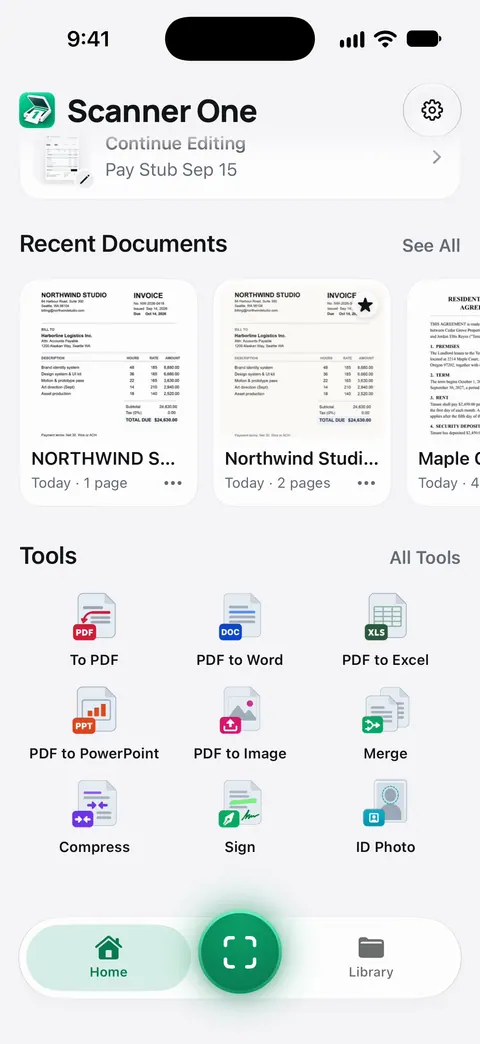
For paper you still have, scanning in the app does the cropping for you. Point your camera at any piece of paper. Scanner One finds the edges, straightens the page, cleans it up and saves a real PDF. A scan can have many pages, and you can reorder them.
The limits:
- Free accounts can run the PDF tools and the Word, Excel and CSV exports 3 times a week, from one shared allowance. That covers tools such as merging and compressing the PDF afterwards. Pro removes every limit.
- On a free account, pages you share, print or export carry a small “Scanned with Scanner One” label at the bottom right. Pro removes it.
- A photo that is blurred or taken at a steep angle stays that way in any PDF. Retake it, or scan the paper.
Questions and answers
Can I turn a photo into a PDF on iPhone without an app?
Yes. On iOS 26 and later, open the photo in Preview, tap the Actions Menu button, tap Export and choose PDF. It is free and adds nothing to the page.
How do I put several photos into one PDF?
Make a PDF from the first photo, open it in Preview, show the thumbnails, then touch and hold a thumbnail and tap Insert from File for each extra photo. Drag thumbnails to change the order.
Why is my PDF so big?
Each iPhone photo carries a lot of detail, and a PDF keeps it. On iOS 27, Preview’s PDF export can reduce image resolution for screen viewing and save images as JPEG, both of which make the file smaller.
Should I photograph a document or scan it?
Scan it. A scanner finds the edges, crops out the table and straightens the page, so the PDF looks like paper rather than a photo of paper.
Sources
What this page says about Scanner One was checked against the app on .
- Apple iPhone User Guide, Export or compress PDFs and images in Preview on iPhone — exporting an image as PDF; the size slider on iOS 26 and the extra PDF options on iOS 27; undated guide page for iOS 26 and 27, read 2026-11-13
- Apple iPhone User Guide, Add, delete, rotate, move, or crop PDF pages in Preview on iPhone — Insert from File (a PDF or image), moving and deleting pages, showing thumbnails on iOS 26 and 27; undated guide page, read 2026-11-13
- Apple iPhone User Guide, Open and view PDFs and images in Preview on iPhone — browsing and opening images in Preview; undated guide page for iOS 26 and 27, read 2026-11-13
- Apple iPhone User Guide, Scan text and documents in Preview on iPhone — scanning pages into one PDF in Preview; undated guide page for iOS 26 and 27, read 2026-11-13
- Apple iPhone User Guide, Get started with Preview on iPhone — cropping an image in Preview; Preview combines scanned pages into one PDF; undated guide page for iOS 26 and 27, read 2026-11-13
- Apple iPhone User Guide, Share photos and videos on iPhone — the Options screen when sharing, where Most Compatible may convert files to JPEG; undated guide page for iOS 26 and 27, read 2026-11-13
- Apple iPhone User Guide, Download a PDF from Safari to your iPhone — the Save to Files option in the share sheet; undated guide page for iOS 26 and 27, read 2026-11-13
- Scanner One on the App Store — the app’s own listing
Get Scanner One
Scanner One is free, with generous limits: scanning, clean PDFs and text search never stop.

Scanner OneScan, sign and ask anything
Scanner One is free, with generous limits: scanning, clean PDFs and text search never stop.