
Guide
Text recognition in Arabic, Hebrew, Japanese and other languages: what works
Apple’s Live Text list (read on 13 November 2026) includes Japanese, Chinese, Korean, Thai, Russian, Ukrainian and most European languages, but not Arabic or Hebrew. Magnifier’s text detection lists Arabic, and system-wide translation lists both Arabic and Hebrew. For a page Live Text can’t read, use a scanner app with its own text recognition: Scanner One’s runs on the device, in 29 languages. Whatever you use, test one page in your language before you scan a stack.

What Apple’s built-in text readers support
iPhone has several features that read text in a picture, and each has its own language list. Apple publishes them on its iOS and iPadOS Feature Availability page. This table is what that page listed when we read it on 13 November 2026. “Listed” means the language appears on Apple’s list for that feature; Apple adds languages over time, so check the page for the current list.
| Feature | Arabic | Hebrew | Japanese | Chinese | Korean |
|---|---|---|---|---|---|
| Live Text (Photos, Camera, Quick Look) | Not listed | Not listed | Listed | Listed (Simplified and Traditional) | Listed |
| Notes: searchable text in images and scans | Not listed | Not listed | Listed | Listed (Simplified and Traditional) | Listed |
| Magnifier: on-device text detection | Listed | Not listed | Listed | Listed (Mandarin) | Listed |
| Translate app | Listed | Not listed | Listed | Listed (Mandarin) | Listed |
| System-wide translation | Listed | Listed | Listed | Listed (Mandarin) | Listed |
The Live Text list also includes Cantonese, Czech, Danish, Dutch, English, French, German, Indonesian, Italian, Malay, Norwegian, Polish, Portuguese, Romanian, Russian, Spanish, Swedish, Thai, Turkish, Ukrainian and Vietnamese.
The Notes list is shorter than the Live Text list. It names Chinese, English, French, German, Italian, Japanese, Korean, Portuguese, Russian, Spanish and Ukrainian. So a Polish, Dutch, Thai or Vietnamese page can be copied with Live Text, yet a scan of it in Notes may not turn up when you search for a word on it.
Two things follow. Live Text and Notes, the tools most people use to copy and search text in scans, do not cover Arabic or Hebrew. And the translation features work on text you can already select, so they don’t help with a photo of a Hebrew page until something has read the words.
Turn on Live Text for every language it supports
Live Text has one switch for all its languages. Apple’s steps:
- Open Settings.
- Tap General, then Language & Region.
- Turn on Live Text.
Then open a photo of the page, tap the Detect Text button and select the text. The guide to copying text from a photo has the full steps.
Arabic and Hebrew pages on iPhone
With the built-in tools, your options for a right-to-left page are narrower.
- To hear an Arabic page: open Magnifier, tap the Detection Mode button, touch and hold it and make sure Text is selected, then point the camera at the page. In Magnifier’s settings, under Detect, turn on Detect Languages so it can read languages other than your iPhone’s own. Apple warns not to rely on Detection Mode in high-risk situations.
- To translate text you can select: a PDF that already has a text layer (a document made on a computer, not a scan) lets you select the text, then tap Translate. System-wide translation lists both Arabic and Hebrew.
- To copy or search the text of a scan: you need a text reader that supports the language. That means a scanner or PDF app with its own text recognition, or typing the important parts by hand.
Tips that help in any language
Text recognition does best with a clean, flat, well-lit page. These help with every script and matter most with dense ones such as Chinese, Japanese and Arabic.
- Use even light. Daylight from a window or a lamp from the side. Avoid the phone’s shadow across the page.
- Hold the phone square to the page. A slanted photo squeezes the letters at one end.
- Get close enough. Small characters with many strokes need more pixels. Move the phone closer rather than zooming.
- Keep it flat. Text near a fold or a book’s spine is read poorly.
- Expect more errors in handwriting. Printed text is read far better than handwriting in every language.
- Check mixed-language lines. A Hebrew or Arabic line with English words, numbers or dates in it can come out in a different order when pasted. Compare dates and amounts with the page.
- Search to test. After scanning, search for a distinctive word from the page. If it’s found, the text was read.
Where Scanner One helps, and where it doesn’t
If your papers are in a language on Apple’s Live Text list, the built-in tools are free and good: copy text with Live Text, and search scans in Notes.
Scanner One adds its own text recognition to every scan. Text recognition runs on the device, in 29 languages. Text recognition runs on every page for everyone, free or Pro. That text is what makes each document searchable: Search looks inside the text of every document and shows the matching line and page.
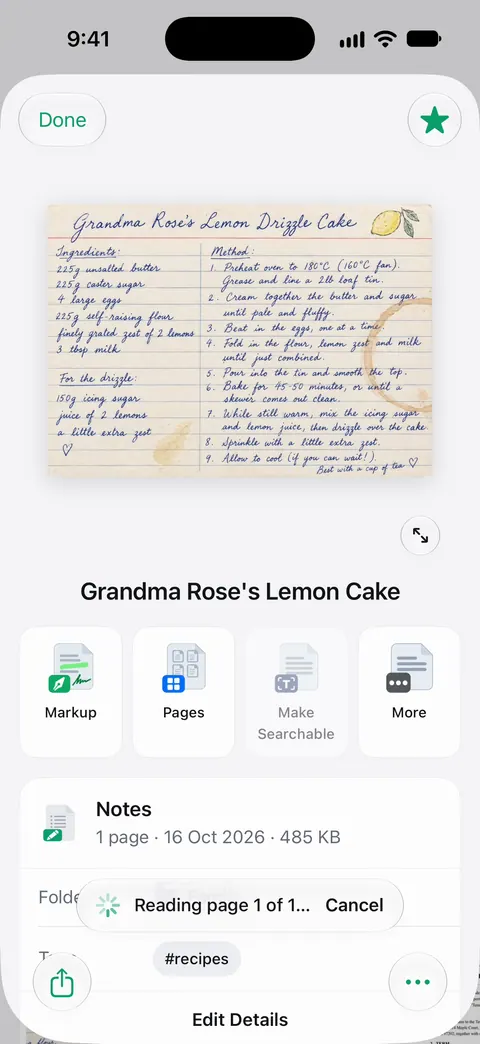
Our advice is the same for any app, ours included: scan one page in your language, search for a word you can see on it, and look at the text it found, before you scan a whole box. Handwriting, faded print and pages that mix scripts are where every text reader makes mistakes.
The app itself is translated too, which is separate from the languages it reads: Scanner One is available in 34 languages, including English, Spanish, Portuguese, French, German, Italian, Dutch, Swedish, Danish, Norwegian, Finnish, Polish, Czech, Greek, Ukrainian, Russian, Turkish, Arabic, Hebrew, Hindi, Thai, Vietnamese, Indonesian, Japanese, Korean and Chinese. The languages feature page has more, and the guide to making a scanned PDF searchable covers files you already have.
Questions and answers
Can iPhone’s Live Text read Arabic?
Arabic was not on Apple’s Live Text language list when we read it on 13 November 2026. Magnifier’s on-device text detection does list Arabic, so Magnifier can read Arabic text aloud from the camera. Apple updates its lists, so check the Feature Availability page.
Does iPhone read Hebrew text in photos?
Hebrew was not on Apple’s lists for Live Text, Notes searchable text or Magnifier text detection on 13 November 2026. It is on the system-wide translation list, which translates text you can already select or type.
Is Japanese supported?
Yes. Apple lists Japanese for Live Text and for searchable text in Notes scans. Vertical text and handwriting are harder for any reader than printed horizontal text, so check the result.
Which languages does Scanner One read?
Text recognition runs on the device, in 29 languages. Text recognition runs on every page for everyone, free or Pro. The fastest check is to scan one page in your language and search for a word on it.
Sources
What this page says about Scanner One was checked against the app on .
- Apple, iOS and iPadOS Feature Availability — the language lists for Live Text, Notes searchable text in images and scans, Magnifier text detection, the Translate app and system-wide translation; read 2026-11-13
- Apple iPhone User Guide, Interact with content in a photo or video on iPhone — turning on Live Text for all supported languages, and that it isn’t available in all regions or languages; iOS 27 guide, undated, read 2026-11-13
- Apple iPhone User Guide, Detect text around you and have it read out loud using Magnifier on iPhone — Magnifier’s Detection Mode, the Detect Languages setting, and that text detection isn’t available in all languages; iOS 27 guide, undated, read 2026-11-13
- Apple iPhone User Guide, Search through your notes on iPhone — Notes searches text in scanned documents in supported languages; iOS 27 guide, undated, read 2026-11-13
- Scanner One on the App Store — the app’s own listing: on-device text recognition and the number of languages
Get Scanner One
Scanner One is free, with generous limits: scanning, clean PDFs and text search never stop.

Scanner OneScan, sign and ask anything
Scanner One is free, with generous limits: scanning, clean PDFs and text search never stop.