
Guide
Copy all the text out of a PDF on iPhone
If the PDF has real text, open it in Preview or the Files app, touch and hold a word, drag the grab points to the end of what you need, and tap Copy. Then paste it into Notes or Mail. If you can’t select anything, the PDF is a scan: in Preview, export it as a PDF with Embed Text turned on, which runs text recognition, then copy from the new copy. For many pages with tables, converting to Word keeps more of the layout.

First, check whether the PDF has text
PDFs come in two kinds, and the steps differ:
- Text PDFs were made by a computer: a bank statement you downloaded, a contract someone emailed, a form from a website. The words are real text.
- Image PDFs came from a scanner, a phone camera or a fax. Each page is a picture of text, and there’s nothing to select until text recognition reads it.
The quick test: open the PDF and touch and hold a word. If it highlights, it’s a text PDF. Another test is search: in Preview, tap the Search button and type a word you can see. If Preview finds nothing, the page is an image.
Copy text from a text PDF
- Open the PDF in Preview, or tap it in the Files app.
- Touch and hold the first word you want. It highlights, with a grab point at each end.
- Drag the end grab point to the last word you need.
- Tap Copy. (The gesture is a three-finger pinch closed.)
- Open Notes, Mail or another app, touch and hold where you want it, and tap Paste (or pinch open with three fingers).
For a long document, copy a page or a section at a time. A whole report in one selection is hard to control on a phone screen.
Find the passage before you copy
In a long PDF, search first, then copy only what you need.
- In Preview, open the PDF and tap the Search button.
- Type a word from the passage. A phrase is searched as that exact phrase.
- Tap the Search Options button for Whole Words or Match Case if you get too many matches.
- Tap the Next Result button until you reach the right place, close the search, and select from there.
PDFs in Mail and Notes
You don’t have to save a PDF to Files first. Apple notes that you can tap a PDF attached to an email in Mail to open it in Preview. In Notes, a PDF in a note opens full screen when you tap its Menu button and choose Quick Look; from there you can select text the same way. To keep a copy, the same menu can share or copy the PDF.
When the PDF is a scan
An image PDF needs a text layer first. Preview can add one:
- Open the PDF in Preview.
- Tap the Actions Menu button next to the filename, then Export.
- Choose PDF, and turn on Embed Text. Apple says this runs text recognition on the images and makes the PDF searchable.
- Tap Done, choose where to save the copy, and tap Save.
- Open the new copy and copy the text as above.
For one page, Live Text is another route. Take a screenshot of the page (or open a page image in Photos), tap the Detect Text button, touch and hold the text, tap Select All, then Copy Text. The guide to copying text from a photo has the details.
Text recognition is good on clean print and weaker on faint copies, small type and handwriting. Read through what you paste, especially names and numbers.
Where to paste it
- Notes for reading, searching or sharing as text.
- Mail or Messages to send a passage to someone.
- Pages or another word processor to edit it.
- The Translate app to translate it: see translating a document on iPhone.
Expect to lose formatting. Bold, columns and tables become plain lines. Tables are the worst: each cell may land on its own line.
Keep the layout: convert instead
If you need the text with its headings, lists and tables intact, copying is the wrong tool. Converting the PDF to a Word document keeps much more of the structure, and you can edit it there. The guide to converting a PDF to Word shows the options. For figures in tables, see turning a PDF into an Excel sheet. And if you need to change the words inside the PDF itself, see editing text in a scanned document.
Where Scanner One helps, and where it doesn’t
For a paragraph or a page of a text PDF, Preview and the Files app are all you need. Preview’s Embed Text handles the occasional scan.
Scanner One saves steps when you do this often, or with scans. Text recognition runs on every page for everyone, free or Pro. Text recognition runs on the device, in 29 languages. So a scan in Scanner One already has the text layer that Preview would add.
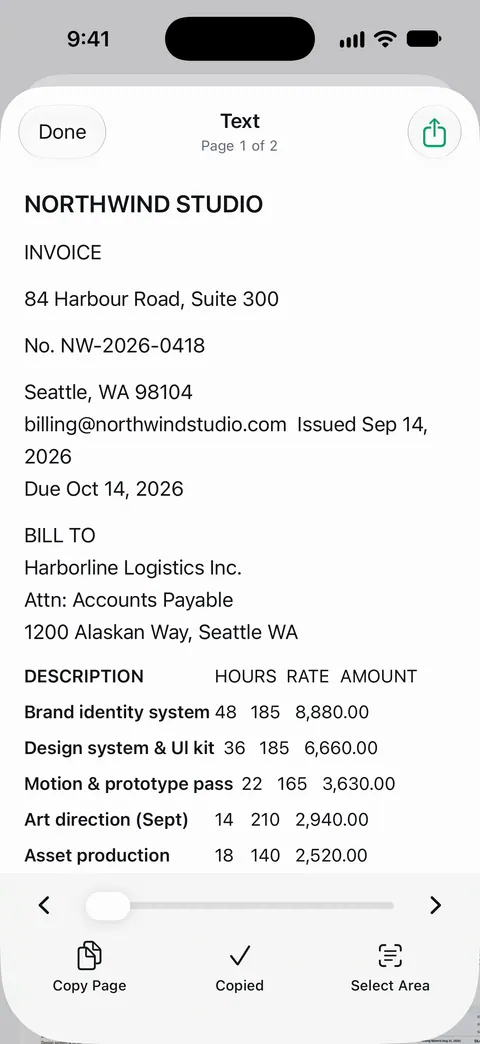
To take all of the text out at once rather than selecting it: The PDF tools merge, split, compress, password-protect, add page numbers and watermarks, and extract text. Share & Export saves a document as a PDF, Word, Excel, PowerPoint, JPG, PNG, a long image, plain text, Markdown, Rich Text, a web page or CSV. And when layout matters: Scanner One exports to Word, keeping headings, lists and tables, and to Excel and CSV.
For PDFs from elsewhere: Other apps can send a file to Scanner One with Save to Scanner One in their share sheet. Then Make Searchable reads the lines of a page that had no text.
The limits, plainly:
- Free accounts can run the PDF tools and the Word, Excel and CSV exports 3 times a week, from one shared allowance. Pro removes every limit.
- On a free account, pages you share, print or export carry a small “Scanned with Scanner One” label at the bottom right. Pro removes it.
- Faint print and handwriting are read less reliably by every text reader. Check what you export.
The Word, Excel and CSV feature page shows what the exports keep.
Questions and answers
Why can’t I select any text in my PDF?
The PDF is most likely a scan or a photo saved as a PDF: it holds pictures of the pages, not text. Run text recognition first, for example with Preview’s Embed Text option when you export it as a PDF.
Can I copy text from a password-protected PDF?
You need to open it with the password first. Some PDFs are also set by their author to block copying; then ask the sender for a copy you can use.
Why does the pasted text come out in a jumble?
PDFs store text by position, not as paragraphs. Columns, tables and headers can paste in the wrong order or with odd line breaks. Copy one column at a time, or convert the PDF to Word to keep the structure.
Can Scanner One export all the text at once?
The PDF tools merge, split, compress, password-protect, add page numbers and watermarks, and extract text. Share & Export saves a document as a PDF, Word, Excel, PowerPoint, JPG, PNG, a long image, plain text, Markdown, Rich Text, a web page or CSV. Free accounts can run the PDF tools and the Word, Excel and CSV exports 3 times a week, from one shared allowance.
Sources
What this page says about Scanner One was checked against the app on .
- Apple iPhone User Guide, Select, edit, and move text on iPhone — selecting text with taps and grab points, and the copy and paste gestures; iOS 27 guide, undated, read 2026-11-13
- Apple iPhone User Guide, Open and view PDFs and images in Preview on iPhone — opening PDFs in Preview and finding text in a PDF; iOS 27 guide, undated, read 2026-11-13
- Apple iPhone User Guide, Export or compress PDFs and images in Preview on iPhone — exporting a PDF with Embed Text to run text recognition and make it searchable; iOS 27 guide, undated, read 2026-11-13
- Apple iPhone User Guide, Work with PDFs in Notes on iPhone — viewing a PDF in a note full screen with Quick Look, and copying or sharing it from its menu; iOS 27 guide, undated, read 2026-11-13
- Apple iPhone User Guide, Interact with content in a photo or video on iPhone — Live Text in Photos and Quick Look, with Select All and Copy Text; iOS 27 guide, undated, read 2026-11-13
- Scanner One on the App Store — the app’s own listing: extract text, exports to Word and plain text
Get Scanner One
Scanner One is free, with generous limits: scanning, clean PDFs and text search never stop.

Scanner OneScan, sign and ask anything
Scanner One is free, with generous limits: scanning, clean PDFs and text search never stop.