
Guide
Get plain text or Markdown out of a PDF on iPhone
Open the PDF in Preview, select the text and tap Copy, then paste it into a new note. In Notes, tap the Share button and Export as Markdown to get a Markdown file. For a plain .txt file, paste into Pages instead and export as Plain Text. If you can’t select anything, the PDF is a scan: on iOS 27, export it from Preview as a PDF with Embed Text on, then copy from the new file.

This page is about the file format at the end: a .txt or .md file you can paste into an AI tool, a notes app, a website or a script. For copying a passage from a PDF into a message, the guide to copying text out of a PDF is quicker.
Plain text or Markdown: which you need
| Format | What it keeps | Good for |
|---|---|---|
| Plain text (.txt) | The words, nothing else | Forms, scripts, search, anything that chokes on formatting |
| Markdown (.md) | Words plus headings, lists, bold and tables, marked with simple symbols | AI chat tools, note apps like Obsidian, documentation, websites |
| Rich Text (.rtf) | Words with fonts and basic formatting | Pasting into a word processor |
If you’re giving a document to an AI tool, Markdown is usually the better choice: the headings and tables tell the tool how the document is organized. Before you do, read whether it’s safe to upload documents to AI. A lease or a pay stub holds more about you than you might notice.
Step 1: check the PDF has text
Open the PDF in Preview or Files and touch and hold a word. If it highlights, the PDF has real text. If nothing happens, or the whole page is selected like a picture, it’s a scan with no text layer. Our free searchable PDF checker tells you in your browser, and the guide why you can’t copy text from a PDF explains the difference.
If it’s a scan
On iOS 27, Preview can add the text:
- Open the PDF in Preview, tap the Actions Menu button next to the filename, then tap Export.
- Choose PDF and turn on Embed Text, which runs text recognition and makes the PDF searchable.
- Save the new copy and use it for the steps below.
On iOS 26 that switch isn’t there. See making a scanned PDF searchable for other ways.
Step 2: copy the text
- In Preview, double-tap and hold the first word you need, then drag the grab points to the end. (A triple-tap selects a paragraph.)
- Tap the selection, then tap Copy.
- For a long document, copy a few pages at a time. Selecting 40 pages in one go is fiddly on a phone.
Step 3a: save it as Markdown with Notes
- Open Notes and start a new note. Paste the text.
- Tidy it as you go: turn section titles into headings with the formatting button and make lists into bulleted lists, because those are what Markdown keeps.
- Tap the Share button, then tap Export as Markdown. If you don’t see it, tap the View More button first.
- Choose where to send or save the .md file, such as Files, or share it straight to another app.
Step 3b: save it as plain text with Pages
- Open Pages and create a blank word processing document. Paste the text.
- Tap the More button in the toolbar, tap Export, then tap Plain Text.
- Choose where to send or save the .txt file.
Apple notes that the Plain Text export keeps only body text: text boxes, shapes, images, lines, tables and charts are left out, and page layout documents can’t be exported as plain text at all. Start from a blank word processing document to avoid that.
What gets lost, and what to fix
Copying from a PDF is not the same as the author’s original file. Look for:
- Columns read across instead of down, mixing two columns line by line.
- Line breaks in the middle of sentences, one per printed line.
- Headers, footers and page numbers repeated through the text.
- Tables that arrive as a run of words. In Markdown you can rebuild a small one with | between cells; for a big one, an export that keeps tables saves the work.
- Hyphenated words split at the end of a line.
- Footnotes dropped into the middle of a paragraph.
A few minutes of cleanup makes a big difference to whatever reads the file next, person or AI tool.
Where Scanner One helps, and where it doesn’t
For a page or two from a PDF with real text, Preview plus Notes or Pages does the job for free.
Scanner One helps when the PDF is a scan or a long document, because it gives you the file directly. Text recognition runs on every page for everyone, free or Pro. Share & Export saves a document as a PDF, Word, Excel, PowerPoint, JPG, PNG, a long image, plain text, Markdown, Rich Text, a web page or CSV. The PDF tools merge, split, compress, password-protect, add page numbers and watermarks, and extract text.
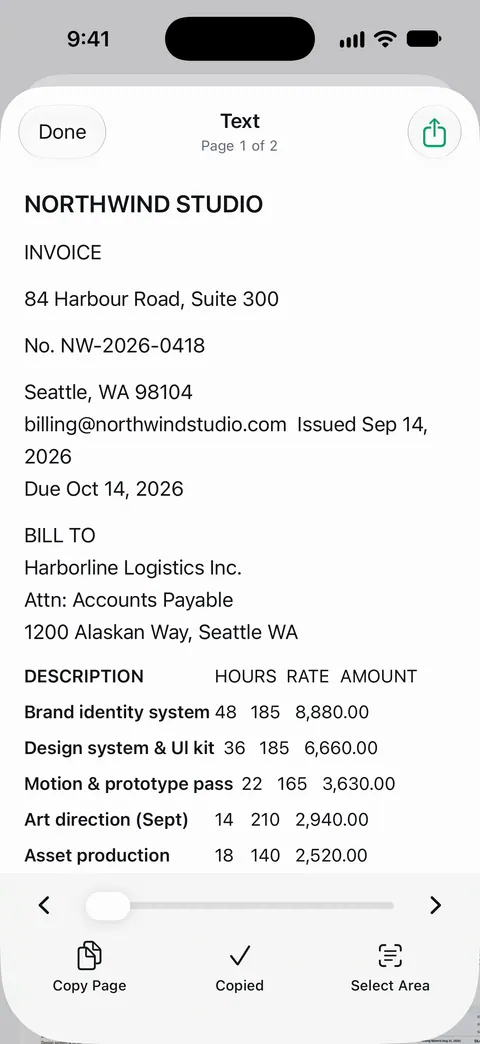
As the screenshot shows, the app reads a scanned page as a title, paragraphs and a table rather than as loose lines. Open the exported file and check that the structure came through the way you need it.
The limits:
- Free accounts can run the PDF tools and the Word, Excel and CSV exports 3 times a week, from one shared allowance.
- Text recognition can misread faint print, handwriting and small type, in any app. Read the result before you rely on it.
- If the AI tool you use is in the cloud, the file goes to that company when you upload it. Documents stay on your iPhone unless you share them or turn on iCloud Sync.
Questions and answers
What’s the difference between plain text and Markdown?
Plain text is just the words. Markdown is plain text with simple marks for structure: a # before a heading, a - before a list item, | between table cells. Both open in any text editor; Markdown keeps more of the document’s shape.
Why do AI tools work better with Markdown than with a PDF?
A PDF stores text as positioned pieces on a page, and tools sometimes read columns, headers and tables in the wrong order. Clean Markdown hands over the words in reading order with headings and tables marked.
Can Notes export Markdown on iPhone?
Yes. Apple’s Notes guide describes Export as Markdown in the note’s Share menu. If you don’t see it, tap the View More button first.
Why can’t I select text in my PDF?
It’s a picture of a page, usually a scan or a photo. It needs text recognition first. Preview’s Embed Text on iOS 27 or a scanner app with text recognition adds the text layer.
Sources
What this page says about Scanner One was checked against the app on .
- Apple iPhone User Guide, Export or print notes on iPhone — Share button, Export as Markdown (View More if it isn’t shown), Open in Pages, Export as PDF; undated guide page, read 2026-11-13
- Pages User Guide for iPhone, Convert to Word, PDF, or another file format — Plain Text export: body text only, no text boxes, images, tables or charts; page layout documents can’t be exported as TXT; RTF; undated guide page, read 2026-11-13
- Apple iPhone User Guide, Select, edit, and move text on iPhone — selecting a word, a paragraph or a block, copy and paste gestures; undated guide page, read 2026-11-13
- Apple iPhone User Guide, Export or compress PDFs and images in Preview on iPhone — Embed Text (PDF) runs OCR to make the PDF searchable, on iOS 27; undated guide page, read 2026-11-13
- Scanner One on the App Store — the app’s own listing
Get Scanner One
Scanner One is free, with generous limits: scanning, clean PDFs and text search never stop.

Scanner OneScan, sign and ask anything
Scanner One is free, with generous limits: scanning, clean PDFs and text search never stop.