
Guide
Scan a document to PDF on iPhone, then send it
Open the Files app, go to a folder, tap the More button and choose Scan Documents. Capture each page, tap Done, then Save: you now have a PDF file. To send it, touch and hold the file, tap Share and pick Mail, Messages or AirDrop. Preview (iOS 26 and later) also scans to PDF and can export it searchable or smaller. A Notes scan is a PDF too, but it lives inside the note until you share it.

The quickest way to a PDF file: the Files app
If what you need is a PDF you can attach, upload or send, start in Files. It saves the scan as a file in a folder from the first step, so there is nothing to export later.
- Open the Files app and go to the folder where the PDF should live, such as a folder in iCloud Drive.
- Tap the More button, then tap Scan Documents.
- Hold the iPhone over the page. It captures the page automatically when it finds the edges. To do it yourself, tap the Shutter button or press a volume button, drag the corners to fit the page, then tap Keep Scan.
- Scan any other pages in order, then tap Done.
- Choose a location and tap Save.
The file gets a default name that won’t mean much to anyone else. Rename it now: touch and hold the file, tap Rename, and type a name the other person will understand, such as “Lease application, J Rivera”. A clear name saves a back-and-forth email later. Tips for names that you can still find a year from now are in naming scanned documents.
Scan to PDF with Preview (iOS 26 and later)
Preview takes a little longer but gives you more control over the PDF itself.
- Open Preview and tap Scan Documents.
- Capture each page. To take them yourself, tap Auto so it reads Manual, then tap the Shutter button.
- Tap a thumbnail to crop, rotate or adjust the coloring of that page.
- Tap Done. Preview puts the pages together in one PDF.
From the Actions menu next to the file name you can Rename it, Move it to another location, Lock it with a password or Export it. Export is where Preview pulls ahead:
- Embed Text runs text recognition on the page images, so the PDF is searchable and you can select its words. Useful when the person receiving it needs to copy a reference number. More in making a scanned PDF searchable.
- Optimize Images for Screen lowers the image resolution for a smaller file.
- Save Images as JPEG also shrinks the file.
Scan to PDF with Notes
A scan made in Notes is a PDF too, but it is attached to a note rather than sitting in a folder. To get the file out:
- Open the note with the scan.
- Tap the Menu button on the scan.
- Choose Share, then pick where it goes: Mail, Messages, AirDrop or Save to Files.
Share the scan itself, not the note. Apple’s guide warns that exporting a note as a PDF keeps only the first page of a multipage scan, which is easy to miss when you send a 4-page form.
Send the PDF
Once the PDF is in Files or Preview, sending it takes a few taps.
- In Files, touch and hold the PDF, then tap Share. In Preview, open the PDF and tap the Share button.
- Choose how to send it: Mail, Messages, AirDrop, or another app such as a messaging or cloud app.
- Add a line of text and tap Send.
Preview’s Share button also offers Collaborate, which shares one copy through iCloud instead of sending a copy. For a form you are returning, send a copy.
If the file is too large for the email, Apple suggests either compressing it or letting Mail send it with Mail Drop when the onscreen prompt offers it. Files has a Compress option, but it makes a ZIP file, which some offices and online forms won’t accept. Shrinking the PDF in Preview usually works better. More options are in making a PDF small enough to email and the ways to send a PDF from iPhone.
Check it before you send
A minute here avoids a second request:
- Open the PDF and swipe through every page. Look for cut-off edges, a thumb in the corner or a page that came out blurry.
- Check the order, especially for forms with a signature on the last page. If pages are in the wrong order, see scanning several pages into one PDF.
- Look at it on a small screen. If you can’t read the small print on your iPhone, the other person can’t either. Rescan in better light.
Where Scanner One helps, and where it doesn’t
The built-in route gets you a PDF. Point your camera at any piece of paper. Scanner One finds the edges, straightens the page, cleans it up and saves a real PDF. Then it reads the text, names the document, tags it and puts it in the right folder. Scanner One makes searchable PDFs. So you don’t need a separate export step to make the words searchable.
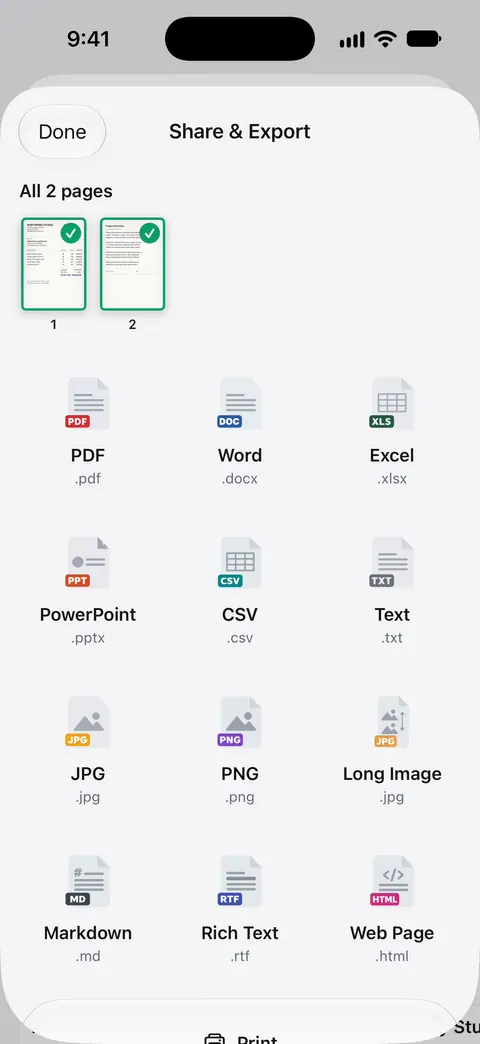
Sending is one menu away. Share & Export saves a document as a PDF, Word, Excel, PowerPoint, JPG, PNG, a long image, plain text, Markdown, Rich Text, a web page or CSV. Share & Export can also print a document or email it to you. If the file is too big, Compress shrinks it. The PDF tools merge, split, compress, password-protect, add page numbers and watermarks, and extract text.
The limits, honestly: Free accounts can run the PDF tools and the Word, Excel and CSV exports 3 times a week, from one shared allowance. On a free account, pages you share, print or export carry a small “Scanned with Scanner One” label at the bottom right. Pro removes it. If you send scans to an employer, a landlord or an agency and want them unmarked, that label matters, and Pro is what removes it ($29.99 a year or $59.99 once).
When the built-in way is enough: for a single PDF you send once, Files or Preview does the job well and costs nothing. Scanner One is worth it when you scan regularly and want each PDF named, filed and searchable without the extra steps. More scanning guides are in Guides.
Questions and answers
Is an iPhone scan a PDF or a photo?
A PDF. Notes, Files, Preview and Mail all save document scans as PDFs. A photo taken with the Camera app is an image, not a PDF, though Preview can export an image as a PDF.
How do I get a scan out of Notes as a PDF file?
In the note, tap the Menu button on the scan and choose Share, then send it or save it to Files. Avoid exporting the whole note as a PDF: Apple notes that this keeps only the first page of a multipage scan.
How do I make my scanned PDF smaller?
Open it in Preview, tap the Actions menu next to the file name, tap Export, choose PDF and turn on Optimize Images for Screen or Save Images as JPEG. Both make the file smaller at some cost in detail.
Is a scanned PDF searchable?
Not always. To be sure, export it from Preview as a PDF with Embed Text turned on, which runs text recognition and makes the words searchable and selectable.
Sources
What this page says about Scanner One was checked against the app on .
- Apple Support, How to scan documents on your iPhone or iPad (article 108963) — the Files steps: More button, Scan Documents, choose a location, Save; published 2026-02-13
- iPhone User Guide (iOS 27), Send files from the Files app — sending a file with Share, the Compress tip, and scanning from a folder; read 2026-11-13
- iPhone User Guide (iOS 27), Scan text and documents in Preview — the Preview scanning steps; read 2026-11-13
- iPhone User Guide (iOS 27), Export or compress PDFs and images in Preview — Embed Text, Optimize Images for Screen and Save Images as JPEG; read 2026-11-13
- iPhone User Guide (iOS 27), Work with PDFs in Notes — the Menu button on a PDF in a note: copy, share, rename or delete it; read 2026-11-13
- iPhone User Guide (iOS 27), Export or print notes — a note exported as a PDF keeps only the first page of a multipage scan; read 2026-11-13
- iPhone User Guide (iOS 27), Add email attachments in Mail — Mail Drop when a file is over your email account’s size limit; read 2026-11-13
- Scanner One on the App Store — the app’s own listing
Get Scanner One
Scanner One is free, with generous limits: scanning, clean PDFs and text search never stop.

Scanner OneScan, sign and ask anything
Scanner One is free, with generous limits: scanning, clean PDFs and text search never stop.