
Guide
Scan double-sided pages in the right order
Flip as you go. Start one scan in Notes, Files or Preview, capture the front of sheet 1, turn it over in the same spot and capture its back, then do the same with sheet 2, and so on. Tap Done after the last back. The PDF comes out in reading order: front 1, back 1, front 2. Skip blank backs as you go, or delete them later in Preview by touching and holding the page thumbnail and tapping Delete Page.

The order that needs no fixing: flip as you go
Phone scanners capture one side at a time, so a double-sided document becomes a sequence of fronts and backs. The order you capture them in is the order of the PDF. The simplest way to get reading order is to turn each sheet over right after scanning its front.
- Put the stack face up on one side of the table, sheet 1 on top.
- Start a scan: in Notes, tap the Attachments button in a note, then Scan Documents; in Files, tap the More button, then Scan Documents; in Preview, tap Scan Documents.
- Put sheet 1 in front of the camera, front side up. Wait for the capture.
- Turn sheet 1 over in the same spot and capture the back.
- Move sheet 1 to a “done” pile, face down, and put sheet 2 in the same spot.
- Repeat until the last back, then tap Done (in Files, choose a location and Save).
The PDF reads front 1, back 1, front 2, back 2, exactly like the paper. Turning the sheet in the same spot keeps the phone in position, so the iPhone captures each side within a second or two.
Turn the sheet the same way every time
Turn each sheet like a book page, left to right. If you sometimes flip it top to bottom instead, some backs come out upside down. If that happens, open the PDF in Preview, show the thumbnails, tap the More button and choose Rotate Left or Rotate Right for the page, twice for a full turn.
What to do with blank backs
Many double-sided documents have a few blank backs: the last page of a section, a cover. You have two choices:
- Skip them while scanning. Look before you capture: if the back is blank, move on to the next sheet.
- Delete them afterwards. In Preview, open the PDF, tap the Show Sidebar button to see the thumbnails, touch and hold the blank page and tap Delete Page.
Keep a blank back only when it matters, such as a numbered form where the receiver checks that “page 4 of 8” exists, or a back marked “This page intentionally left blank”.
The other order: all fronts, then all backs
You may have scanned all the fronts first, perhaps because automatic capture was running smoothly. You can still fix the order:
- Open the PDF in Preview and show the thumbnails.
- Touch and hold the first back until the menu appears, then drag it up to sit right after front 1.
- Repeat for each back.
For a few sheets this is quick. For 20 sheets, it’s 20 careful drags, and rescanning in flip-as-you-go order is often faster. More on moving and removing pages is in deleting or reordering PDF pages.
If you want to scan the backs in one go anyway, turn the whole “done” pile over like a book and check that the top sheet now shows the back of sheet 1. If it shows the back of the last sheet instead, the backs will come out in reverse order.
Stacks with some one-sided pages
Real stacks mix things up: a 2-sided letter, a 1-sided form, a 2-sided statement. Flip as you go still works: for each sheet, capture the front, glance at the back, and capture it only if there’s something on it. The PDF ends up in reading order, without blank pages, and you never have to go back.
Stapled papers and booklets
- Stapled sets: take the staple out carefully if you can. A stapled corner stops each sheet from lying flat, and the curl shows on the scan. Put the staple back, or a paper clip, when you’re done.
- Booklets folded in the middle and stapled on the fold (programs, small manuals) have their pages spread across sheets out of reading order. Scan them open, one spread at a time, like a book: see scanning a book without the curve.
Check before you send
- Count pages: a 5-sheet double-sided form should give 10 pages, minus any blank backs you skipped.
- Swipe through in Preview and check that each back follows its front and that nothing is upside down.
- Look at the signature page. Signature lines are often on the back of the last sheet, which is the page most often forgotten.
For multipage scanning in general, including adding a page you missed, see scanning several pages into one PDF. An ID card’s two sides are a special case with its own guide: both sides of an ID card on one page.
Where Scanner One helps, and where it doesn’t
A scan can have many pages, and you can reorder them. The Pages sheet shows every page as a thumbnail, and you drag a page to its new place, as in the screenshot.
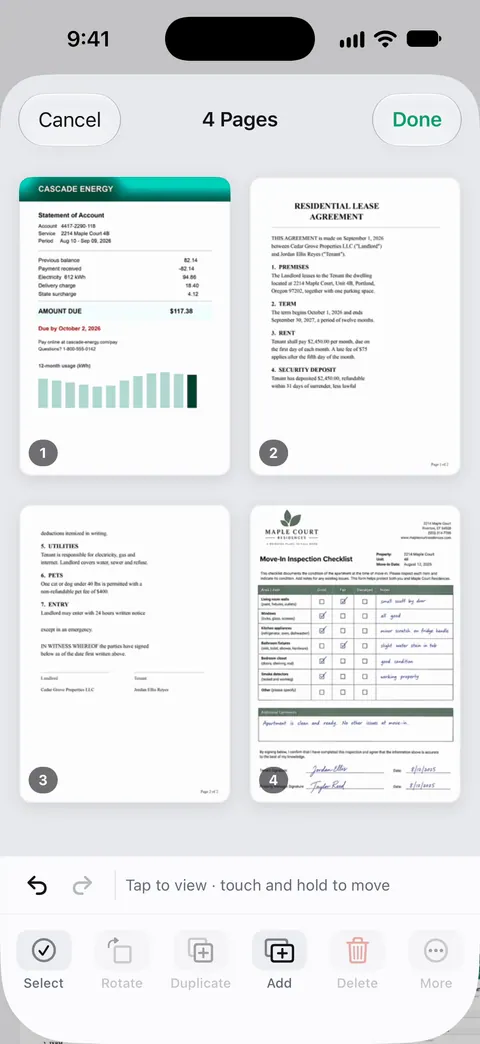
If a set of pages belongs in its own file, such as the appendix of a contract: Pages you pick can be copied into a new document or into another one. The PDF tools merge, split, compress, password-protect, add page numbers and watermarks, and extract text. Splitting and the other PDF tools count against a free allowance: Free accounts can run the PDF tools and the Word, Excel and CSV exports 3 times a week, from one shared allowance.
What it doesn’t do: it can’t see both sides of a sheet at once, so you still turn each one over. Scanning itself isn’t limited: Scanner One is free, with generous limits: scanning, clean PDFs and text search never stop. More scanning guides are in Guides, and the scanning page shows the camera and review screens.
Questions and answers
Can the iPhone scan both sides of a page at once?
No. A phone camera sees one side at a time, so you turn each sheet over and capture the back as the next page.
Should I scan blank back pages?
Usually not: they add pages and size for nothing. Keep them only when the receiver needs to see that a back was blank, for example on a form where every page is numbered.
I scanned all the fronts, then all the backs. How do I fix the order?
Open the PDF in Preview, show the thumbnails, and drag each back to sit after its front. For a long document, rescanning in flip-as-you-go order is often quicker.
What about a stapled booklet?
A booklet folded and stapled in the middle has its pages spread across sheets out of order. Scan it as a book, one open spread at a time, rather than sheet by sheet.
Sources
What this page says about Scanner One was checked against the app on .
- iPhone User Guide (iOS 27), Scan text and documents in Notes — scan additional pages, then Done: one PDF in the note; read 2026-11-13
- iPhone User Guide (iOS 27), Scan text and documents in Preview — repeat the capture for each page; read 2026-11-13
- iPhone User Guide (iOS 27), Add, delete, rotate, move, or crop PDF pages in Preview — moving pages by dragging thumbnails, Delete Page, Scan Pages and Undo; read 2026-11-13
- Scanner One on the App Store — the app’s own listing
Get Scanner One
Scanner One is free, with generous limits: scanning, clean PDFs and text search never stop.

Scanner OneScan, sign and ask anything
Scanner One is free, with generous limits: scanning, clean PDFs and text search never stop.