
Guide
Scan several pages into one PDF
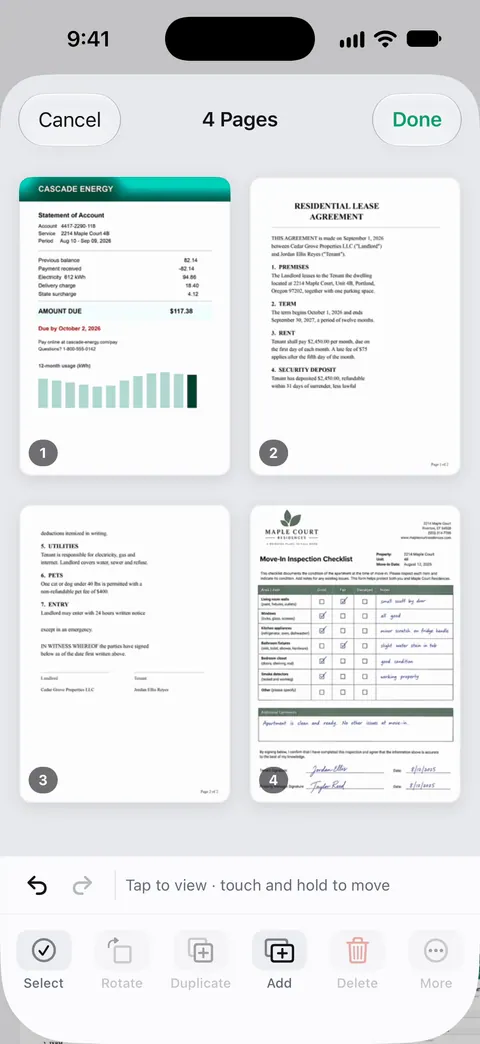
Start a scan in Notes, Files or Preview and keep going: after each page is captured, hold the next page under the camera instead of tapping Done. Tap Done only after the last page, and all the pages are saved as one PDF. To add a page you missed, open the PDF in Preview, show the thumbnails, touch and hold one and tap Scan Pages. Drag thumbnails to fix the order.

Scan all the pages in one go
Every built-in scanner on iPhone treats one scanning session as one document. The trick is simply not to tap Done until the last page.
- Start the scan:
- Notes: in a note, tap the Attachments button, then Scan Documents.
- Files: open a folder, tap the More button, then Scan Documents.
- Preview (iOS 26 and later): tap Scan Documents on the start screen.
- Put page 1 under the camera. The iPhone captures it automatically when it finds the edges, and a thumbnail appears at the bottom.
- Take page 1 away, put page 2 in the same spot, and wait for the next capture. Keep going.
- After the last page, tap Done. In Files, choose a location and tap Save.
You get one PDF with every page in the order you scanned it. Notes keeps it inside the note; Files and Preview save it as a file.
Make long documents easier
- Stack the pages face up on one side and move each finished page face down to the other side. You will never scan a page twice or skip one.
- Keep the phone in one place. Rest your elbows on the table and move only the paper. The iPhone then captures each page within a second or two.
- Switch to manual capture when automatic capture keeps grabbing a page before you’ve lined it up. In Preview, tap Auto so it reads Manual; in Notes and Files, switch off automatic capture and use the Shutter button.
- Check the thumbnails as you go. Tap one to crop, rotate or recolor it before you finish.
For pages printed on both sides, there is an order that saves you from shuffling later: see scanning double-sided pages.
Add a page you forgot
It happens: the signature page was under a coffee cup. Preview can add pages to a PDF that already exists.
- Open the PDF in Preview.
- Tap the Show Sidebar button to show the page thumbnails. If you don’t see it, tap the page first.
- Touch and hold the thumbnail the new page should follow.
- Tap Scan Pages, scan the page, then tap Done.
The same menu has Insert from File, to add a PDF or image you already have, and Insert Blank Page.
If the scan is in Notes, share it to Files first (tap the Menu button on the scan, then Share, then Save to Files) and open that copy in Preview. Apple’s current Notes guide lists page actions such as Rotate, Filters, Crop Page and Insert Blank Page for a scan, but not adding a new scanned page.
Put the pages in the right order
- Open the PDF in Preview and show the thumbnails.
- Touch and hold a thumbnail until the menu appears.
- Drag it above or below another thumbnail.
To remove a blank back or a duplicate, touch and hold its thumbnail and tap Delete Page. To undo a change, tap the More button, then Undo. There’s more on this in deleting or reordering PDF pages.
Combine PDFs you already scanned separately
If you scanned a contract as 3 separate PDFs, you don’t need to rescan. In Preview, open the first one, touch and hold its last thumbnail, tap Insert from File and pick the next PDF. Repeat until everything is in one file, then rename it. Other ways to do this, and what to watch for, are in merging PDFs on iPhone.
Before you send a long PDF
- Count the pages against the original. Preview shows the page count when you tap the screen.
- Check the size. Every page is an image, so a 20-page scan can be too big for some email accounts. See making a PDF small enough to email.
- Name it by what it is, not by the default name it got. The receiver will thank you, and you’ll find it again.
One PDF or several?
One PDF per document is the rule that keeps things findable: the whole lease in one file, the whole tax return in another. Don’t combine unrelated papers just because you scanned them together; a 30-page “Scans Tuesday” file is hard to send in parts. If someone asks for “everything in one file”, combine copies for them and keep your own documents separate.
Where Scanner One helps, and where it doesn’t
Scanning many pages is where a dedicated app saves the most time. A scan can have many pages, and you can reorder them. Scanner One finds the edges of the page automatically and corrects the perspective. As you save, it reads the text of each page, so a long document is searchable from the start: Search looks inside the text of every document and shows the matching line and page.
PDFs you already have can be combined too. The PDF tools merge, split, compress, password-protect, add page numbers and watermarks, and extract text. In the Library you can select two documents and tap Merge.
The free limits that apply: Scanner One is free, with generous limits: scanning, clean PDFs and text search never stop. Merging, splitting and the other PDF tools do count against an allowance: Free accounts can run the PDF tools and the Word, Excel and CSV exports 3 times a week, from one shared allowance. On a free account, pages you share, print or export carry a small “Scanned with Scanner One” label at the bottom right. Pro removes it.
When the built-in way is enough: if you scan a long document now and then, Notes, Files or Preview handle it well, and Preview’s page tools cover adding and reordering. More guides about PDFs and pages are in Guides, and the full list of tools is on the PDF tools page.
Questions and answers
How many pages can I scan into one PDF on iPhone?
Apple doesn’t publish a page limit for Notes, Files or Preview. Long documents make large files, though, so for 30 pages or more, check the size before you email it.
I scanned each page as a separate PDF. How do I combine them?
Open the first PDF in Preview, show the thumbnails, touch and hold the last one and tap Insert from File to add the next PDF. Repeat for each file. Our guide to merging PDFs covers other ways.
How do I change the order of scanned pages?
In Preview, open the PDF, tap the Show Sidebar button to see thumbnails, then touch and hold a thumbnail and drag it above or below another.
Can I add a page to a scan in Notes later?
Apple’s current Notes guide lists Insert Blank Page for a scan, not inserting a new scan. The dependable way is to share the scan to Files, open it in Preview and use Scan Pages.
Sources
What this page says about Scanner One was checked against the app on .
- iPhone User Guide (iOS 27), Scan text and documents in Notes — scan additional pages, then tap Done; saved as one PDF in the note; read 2026-11-13
- iPhone User Guide (iOS 27), Scan text and documents in Preview — repeat the capture for each page, then Done; read 2026-11-13
- iPhone User Guide (iOS 27), Add, delete, rotate, move, or crop PDF pages in Preview — Scan Pages, Insert from File, Delete Page and dragging thumbnails to reorder; read 2026-11-13
- iPhone User Guide (iOS 27), Work with PDFs in Notes — page actions on a scan in a note: Rotate, Filters, Crop Page, Insert Blank Page; read 2026-11-13
- Scanner One on the App Store — the app’s own listing
Get Scanner One
Scanner One is free, with generous limits: scanning, clean PDFs and text search never stop.

Scanner OneScan, sign and ask anything
Scanner One is free, with generous limits: scanning, clean PDFs and text search never stop.