
Guide
Keep paper tickets and boarding passes on your iPhone
If the airline or venue offers an Add to Apple Wallet button in its app or confirmation email, use it: that pass is the real one and appears on your Lock Screen near departure. In iOS 27 you can also create a Wallet pass from a photo of a ticket’s barcode or QR code on supported iPhones, or build one manually. For any paper ticket, also scan it flat with Scan Documents so you have a sharp copy of the code, and keep the paper until you’re through.

This page is about getting a paper ticket or boarding pass onto your phone so you can show it or keep a copy. If you just need to read a code that’s already in a photo or a PDF, see reading a QR code from a photo.
The order to try things in
- The issuer’s own mobile pass. If the airline, rail company or venue offers one, that’s the real ticket. It updates with gate changes and is the one their readers are set up for.
- A Wallet pass you create from the ticket’s barcode or QR code (iOS 27).
- A clean scan of the paper, as a backup copy and for your records.
Keep the paper ticket until you’re through the gate or the event is over, whichever you use.
Add the real pass to Apple Wallet
Apple’s Wallet guide says you can add tickets for movies, concerts and events, and boarding passes, directly from confirmation emails or supported apps. In practice that means:
- Open the airline or venue app, its check-in page in Safari, or the confirmation email.
- Look for Add to Apple Wallet and tap it, then follow what’s on screen.
To show it, open Wallet and tap the pass, then present the code to the reader. Apple notes that some passes can appear on the Lock Screen automatically near your departure or event time: in Wallet, tap the pass, open its details and turn on Suggest on Lock Screen if it’s offered.
If you printed a boarding pass at home but checked in online, the airline’s app often has the same pass ready to add.
Create a pass from a paper ticket (iOS 27)
iOS 27 adds a way to make your own Wallet pass from anything with a barcode or QR code. Apple describes it for cards that have no digital pass, like a library card or gym membership, but it also helps for paper tickets you want on your phone.
From a photo, with Apple Intelligence (iPhone 15 Pro, iPhone 15 Pro Max, or iPhone 16 and later, in supported languages and regions):
- Take a photo or screenshot that includes the ticket’s barcode or QR code.
- Tap Add to Wallet, then follow the instructions on screen.
- To see the original image later, tap View Original Photo on the pass.
Manually, on any iPhone running iOS 27:
- Open Wallet, tap the Add button, then tap Create a Pass.
- Tap Create Pass Manually and choose a template.
- Tap the fields to fill in the details, then tap Done.
A pass you create is your own copy of the code, not a ticket issued by the airline or venue. Whether a reader accepts it is up to them.
Scan the paper ticket as a backup
A scan is the most faithful copy of the paper: the code, the seat, the terms and the fine print, exactly as printed.
- Smooth the ticket flat on a dark surface. Boarding passes on thin paper and thermal tickets curl, and a curl bends the code.
- In Files, tap the More button and tap Scan Documents (or use Notes: Attachment button, then Scan Documents).
- Hold the phone straight above the ticket and let it capture. Keep the flash off if the ticket is glossy.
- Tap the Done button, pick a folder such as Travel, and tap Save.
Then zoom in and check that the whole code is inside the scan, with a clear margin of white around it, and that it’s sharp. A code with a corner cut off often won’t read.
Thermal tickets fade with heat and time, so scan them early if you want a record for expenses or a refund claim.
Showing a scan or photo at the gate
If you end up showing an image rather than a Wallet pass:
- Turn the screen brightness up and zoom so the code fills the width of the screen.
- Hold the phone flat and still under the reader, about a hand’s width away.
- Have it open before you reach the front, offline. A file in iCloud Drive that hasn’t downloaded won’t open without signal: touch and hold it in Files and tap Keep Downloaded before you leave.
Tickets saved as photos mix with your camera roll and are easy to lose. Keeping scans out of your photo library explains where else to keep them. For the rest of what you need on your phone before a trip, see flight tomorrow: documents on your phone and the international travel documents checklist.
Where Scanner One helps, and where it doesn’t
QR codes and barcodes are found on every page. So a scanned ticket shows its code as something you can read and copy, not only as part of the picture. Scanner One finds the edges of the page automatically and corrects the perspective.
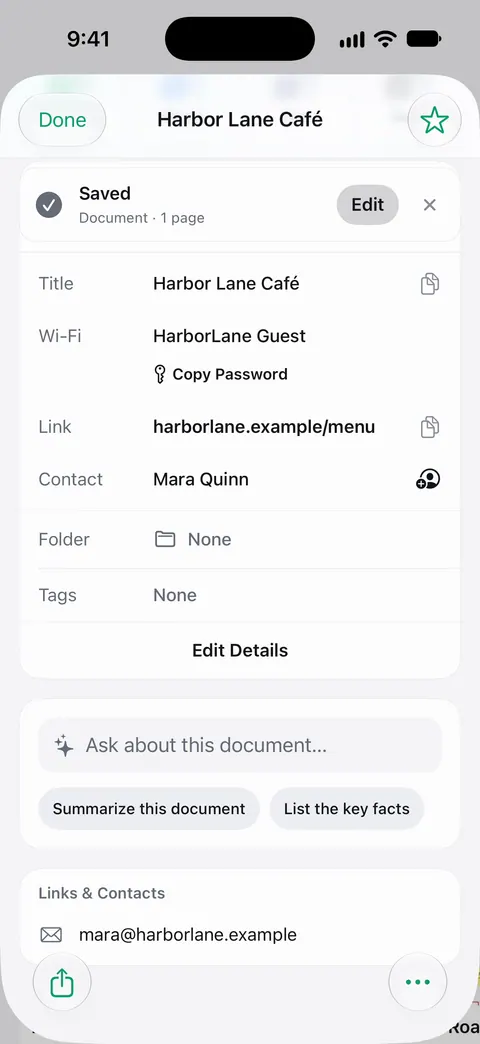
Search looks inside the text of every document and shows the matching line and page. That helps find a booking reference or a seat number months later, for an expense report or a refund.
What it doesn’t do: it doesn’t add passes to Apple Wallet, it can’t make a scan into an official ticket, and it can’t promise an airline or venue will accept an image. If you share a scan from a free account, On a free account, pages you share, print or export carry a small “Scanned with Scanner One” label at the bottom right. Pro removes it.
When the built-in way is enough: if the issuer offers a Wallet pass, use that and nothing else. For a paper ticket you only need to keep, Files with Scan Documents is enough. More in Guides.
Questions and answers
Will the gate accept a photo or scan of my paper boarding pass?
It depends on the airline and airport. The gate reader scans the code, so a sharp image often works, but only the airline can promise it. Use the airline’s own mobile pass when it offers one, and keep the paper as a backup.
How do I add a boarding pass to Apple Wallet?
Look for Add to Apple Wallet in the airline’s app, its check-in page or the confirmation email, and tap it. The pass then sits in Wallet and can appear on your Lock Screen near departure.
Can I turn a paper ticket into a Wallet pass?
In iOS 27, on an iPhone with Apple Intelligence, you can take a photo of a ticket’s barcode or QR code and tap Add to Wallet. You can also create a pass manually in Wallet. Apple suggests this for cards with no digital pass, so treat it as a convenience, not as an official ticket.
Why won’t my scanned ticket’s code read at the gate?
Usually the screen is too dim, the image is blurred, or the code was cropped. Turn the brightness up, zoom the code to fill the screen, and hold the phone flat and still under the reader.
Sources
What this page says about Scanner One was checked against the app on .
- iPhone User Guide (iOS 27), Set up cards and passes in Wallet — tickets and boarding passes are added from confirmation emails or supported apps and can appear on the Lock Screen; read 2026-11-13
- iPhone User Guide (iOS 27), Create passes in Wallet — make a pass from a photo or screenshot with a barcode or QR code (Apple Intelligence, iPhone 15 Pro or later), or create one manually; read 2026-11-13
- iPhone User Guide (iOS 27), Use passes, cards, and keys in Wallet — presenting a barcode or QR code to a scanner, Suggest on Lock Screen; read 2026-11-13
- iPhone User Guide (iOS 27), Scan a QR code with your iPhone camera — Camera and Control Center scan QR codes for tickets and more; read 2026-11-13
- Apple Support, Scan documents on your iPhone or iPad (article 108963) — Scan Documents in Notes and Files; page dated 2026-02-13
- iPhone User Guide (iOS 27), Transfer files from iPhone to a storage device, a server, or the cloud — Keep Downloaded keeps a file on the iPhone for offline use; read 2026-11-13
- Scanner One on the App Store — the app’s own listing
Get Scanner One
Scanner One is free, with generous limits: scanning, clean PDFs and text search never stop.

Scanner OneScan, sign and ask anything
Scanner One is free, with generous limits: scanning, clean PDFs and text search never stop.