
Guide
Sign an emailed document on iPhone and send it back
In Mail, tap the PDF attachment, then tap the Markup button. Tap the Add button, tap Add Signature, sign with your finger and drag the signature onto the line. Tap Done, then choose Reply to send the signed copy back to the sender. For a form with fields, tap the AutoFill button, then Form Filling, fill it in, tap Done and Reply. You can also open the attachment in Preview, fill and sign it there, and attach it to your reply.

Someone emails you a PDF: “Please sign and return.” On an iPhone you don’t need to print, scan or save anything. This page covers the round trip from the email back to the sender. If the paper is in your hand rather than your inbox, the page on sending a signed form without a printer is the better fit.
Sign it right in Mail
The quickest way, from Apple’s steps for annotating attachments:
- Open the email and tap the PDF attachment so it opens.
- Tap the Markup button.
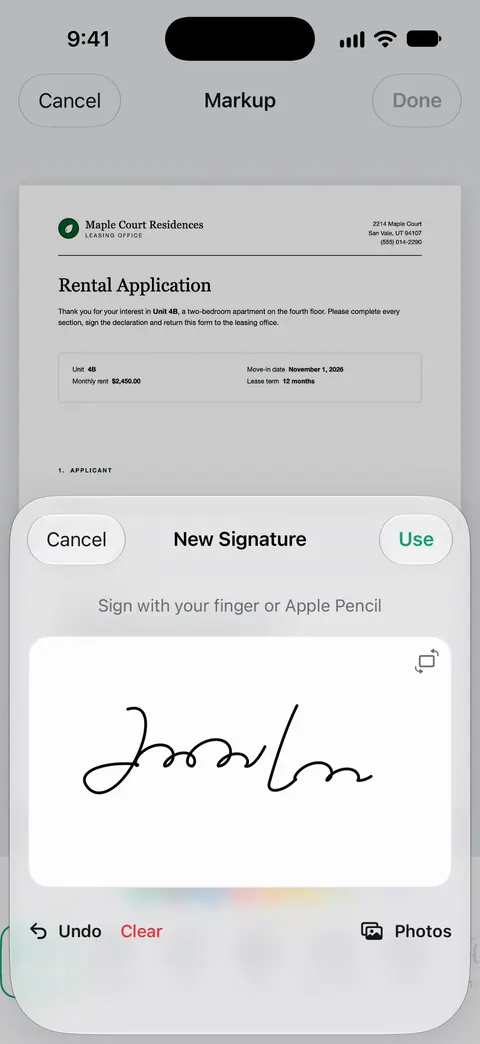
- Tap the Add button, then tap Add Signature. Pick a saved signature, or sign with your finger and tap Done.
- Drag the signature onto the line. Drag a blue dot on its box to resize it.
- To add the date or your printed name, tap the Add button, tap Add Text Form Box and type.
- Tap Done, then choose what to do with the signed file: reply to the sender, start a new message, save it to your files, or discard it.
Choose the reply, add a line (“Signed copy attached, thanks”), and send.
If the attachment is a form with fields
Forms with real fields (boxes that light up when you tap them) can be filled without leaving Mail:
- In the message, tap the attachment to open it.
- Tap the AutoFill button, then tap Form Filling.
- Tap a blank field and type. Tap the next field and keep going.
- Tap Done, then tap Reply to and the sender’s name.
If the form also needs a signature where there’s no field, use Markup as in the section above. A form with no fields at all is covered in the guide to filling a PDF with no fillable fields.
Use Preview for longer documents
For a long contract or a form with many fields, Preview (iOS 26 and later) gives you more room and saves your work as you go. Apple’s steps:
- In Mail, open the email and tap the attachment.
- Tap Preview in the toolbar to open it in the Preview app.
- Fill out or sign the PDF. Tap the Form Filling button for fields, or the Add button for a signature or text box.
- Go back to Mail and open the original email.
- Tap the Reply button, tap the Attachment button, then tap Attach File.
- Find the updated PDF and tap it to attach it.
- Add a line of text if you like, then tap the Send button.
Save a copy for yourself
Once you send it, the signed copy lives in your Sent folder, which is a poor filing system. Keep your own:
- From Markup, choose to save the file to Files before you reply, or reply first and then touch and hold the attachment in the Sent message and choose Save to Files.
- Name it so you’ll find it later: “Lease renewal 2027, signed.”
- Put it in a folder for signed documents, or wherever you keep that kind of paper.
Before you hit send
- Check every page. Contracts often want initials on each page, not only a signature at the end. The guide to initialing every page covers that.
- Open the attachment in your reply. Make sure it’s the signed version, not the original.
- Check the To line. If the email went to several people, decide whether everyone should get the signed copy.
- Check the size. If the file is too big, Mail offers Mail Drop. Or make the PDF smaller first.
- Reply to the real sender. If an unexpected email asks you to sign something, especially with a link to “review” it, check with the person by phone or another way before you open or sign anything.
When the attachment isn’t a PDF
- A Word file (.docx): Markup won’t sign it. Convert it to a PDF first; the guide to signing a Word document has the steps.
- A link to a signing service: follow the link and sign there. The sender’s system tracks it, and a separately signed PDF won’t count.
- A file you can’t find: in a mailbox, tap the Toggle Filtering button, tap Filtered by, and turn on Only Mail with Attachments to show just the emails that carry files.
- A photo of a document: Markup works on images too, but a PDF is usually what the sender wants back. The guide to sending a PDF from iPhone covers formats.
Where Scanner One helps, and where it doesn’t
For a one-off “sign and return,” Mail’s Markup is the fastest route on any iPhone. It’s free and adds nothing to the page.
Scanner One helps if you want the signed copy filed with the rest of your papers, not left in Mail. Other apps can send a file to Scanner One with Save to Scanner One in their share sheet. In Mail, touch and hold the attachment, tap Share, then choose Save to Scanner One. You can sign and annotate documents.
Then send it back from Share & Export. Share & Export saves a document as a PDF, Word, Excel, PowerPoint, JPG, PNG, a long image, plain text, Markdown, Rich Text, a web page or CSV. Share & Export can also print a document or email it to you.
The limits, plainly:
- Free accounts can sign and mark up 3 documents a month. Pro removes every limit.
- On a free account, pages you share, print or export carry a small “Scanned with Scanner One” label at the bottom right. Pro removes it. For a signed document going back to someone, Mail’s Markup adds no label.
- It’s an extra step compared with signing in Mail, so it’s worth it mainly when you want to keep the document.
Questions and answers
How do I sign a PDF attachment in the iPhone Mail app?
Tap the attachment, tap the Markup button, tap the Add button and Add Signature. Sign, drag the signature onto the line, tap Done, then choose to reply to the sender.
Why don’t I see the Markup button on the attachment?
Tap the attachment so it opens full screen first. Apple’s steps cover photo, video and PDF attachments, so convert a Word file to a PDF before signing it.
Does the reply include the original email?
Replying from Markup creates a reply to the sender with the signed file attached. Check the To line before sending, especially if the email went to several people.
What if the signed file is too big to email?
Apple says that if a file exceeds your email account’s size limit, Mail offers to send it with Mail Drop. You can also make the PDF smaller before attaching it.
Can I sign an attachment in Scanner One?
Yes, once it’s in the app. Other apps can send a file to Scanner One with Save to Scanner One in their share sheet. You can sign and annotate documents. Free accounts can sign and mark up 3 documents a month.
Sources
What this page says about Scanner One was checked against the app on .
- Apple iPhone User Guide, Annotate email attachments on iPhone — tap the attachment, tap the Markup button, then Done and reply to the sender, start a new message, save to Files or discard; undated, read 2026-11-13
- Apple iPhone User Guide, Download email attachments in Mail on iPhone — Save to Files, Share; filling a form in Mail with the AutoFill button and Form Filling, then Done and Reply; filtering for mail with attachments; undated, read 2026-11-13
- Apple iPhone User Guide, Reply to an email with a PDF attachment in Preview on iPhone — opening an attachment in Preview from Mail, then Reply, the Attachment button and Attach File; undated, read 2026-11-13
- Apple iPhone User Guide, Fill out forms, sign documents, and create signatures on iPhone — Add Signature, Add Text Form Box, saved and labeled signatures; undated, read 2026-11-13
- Apple iPhone User Guide, Add email attachments in Mail on iPhone — Attach File, and Mail Drop when a file exceeds the account’s size limit; undated, read 2026-11-13
- Scanner One on the App Store — the app’s own listing: Save to Scanner One, signing, Share & Export
Get Scanner One
Scanner One is free, with generous limits: scanning, clean PDFs and text search never stop.

Scanner OneScan, sign and ask anything
Scanner One is free, with generous limits: scanning, clean PDFs and text search never stop.