
Guide
Add or insert pages into a PDF on iPhone
Open the PDF in the Preview app and show the page thumbnails (tap the Show Sidebar button on iOS 27, or the page count on iOS 26). Touch and hold the thumbnail of the page you want the new one next to, then tap Insert Blank Page, Insert from File (another PDF or an image) or Scan Pages (scan paper with the camera). Drag the new thumbnail to move it, and use Undo in the More menu if something goes wrong.

You have a PDF that is missing a page: the signed last page of a contract, the back of a form, a receipt that belongs with an expense report. This page covers adding pages to a PDF. Taking pages out or putting them in a new order is the neighbour job, covered in the guide to deleting or reordering PDF pages.
Three kinds of page you can add
Preview, Apple’s PDF app on iPhone from iOS 26, can insert three things:
| What you want to add | Preview option | Good for |
|---|---|---|
| An empty page | Insert Blank Page | A page to write or type notes on, a separator |
| A PDF or an image from Files | Insert from File | A page from another document, a photo of a receipt |
| Paper in front of you | Scan Pages | A signed page, the back of a form, a page you forgot |
Insert a page with Preview
These are Apple’s steps.
- Open the Preview app, then open the PDF.
- Tap the Show Sidebar button to show the page thumbnails. If you don’t see the button, tap the PDF. On iOS 26, tap the page count instead (tap the screen first if the page count is hidden).
- Touch and hold the thumbnail of the page the new one should go next to.
- Choose one:
- Insert Blank Page for an empty page.
- Insert from File to pick a PDF or image from Files.
- Scan Pages to scan with the camera. Scan the paper, then tap the Done button.
- Check where the new page landed. To undo a change, tap the More button, then tap Undo.
- Tap the Back button to save the PDF.
Move the new page into place
If the inserted page isn’t where you want it:
- With the thumbnails showing, touch and hold the page’s thumbnail until the menu options appear.
- Drag it above or below another thumbnail, then let go.
If a scanned page came in sideways, show the thumbnails, tap the More button, then tap Rotate Left or Rotate Right. The guide to rotating a PDF covers pages that are upside down.
Keep a clean copy first
Inserting changes the file in place. Before you start on anything you’ve been sent, make a copy: in Preview, tap the Actions Menu button next to the filename, then tap Duplicate. Work on the duplicate. If you get muddled, you still have the original, untouched.
Adding pages while you’re still scanning
If you’re scanning paper into a new PDF and realize there’s one more page, you don’t need to insert anything later. In Notes and Files, Apple’s scanner lets you add more scans before you tap Done: keep scanning, and every page goes into the same document. The guide to scanning several pages into one PDF and the guide to double-sided documents cover getting the order right the first time.
For a PDF that lives inside a note, Notes has its own page tools: with the PDF shown at Medium or Large size, tap the thumbnail for a page, tap the More button, and choose Insert Blank Page.
Adding a whole document, not one page
When the thing you want to add is a full PDF (an appendix, a second statement, a bundle of receipts), inserting file by file gets slow. Combining the files is the better tool: the guide to merging PDFs on iPhone shows how, and our free merge PDF tool runs in your browser if you’d rather not use an app.
And when you only want one page from a long PDF, take that page out first. The guide to splitting a PDF covers it, then insert the single page with Insert from File.
Check before you send
- Count the pages. Tap the page count and make sure the total is what you expect.
- Flip through every thumbnail. Look for a blank page that slipped in, a duplicate, or a page facing the wrong way.
- Check page numbers printed on the pages. If the document is numbered, an inserted page can make the printed numbers jump. If the numbering matters, the guide to adding page numbers shows how to add fresh ones after inserting.
- Check the size. A scanned page in color can make a small PDF much bigger. If it must fit an email or upload limit, make the PDF smaller last.
Where Scanner One helps, and where it doesn’t
Preview’s Insert Blank Page, Insert from File and Scan Pages cover this well, and they’re free. If you have iOS 26 or later, start there.
Scanner One helps when the PDF is one of your scans. A scan can have many pages, and you can reorder them. The Pages sheet shows every page so you can drag one to a new place.
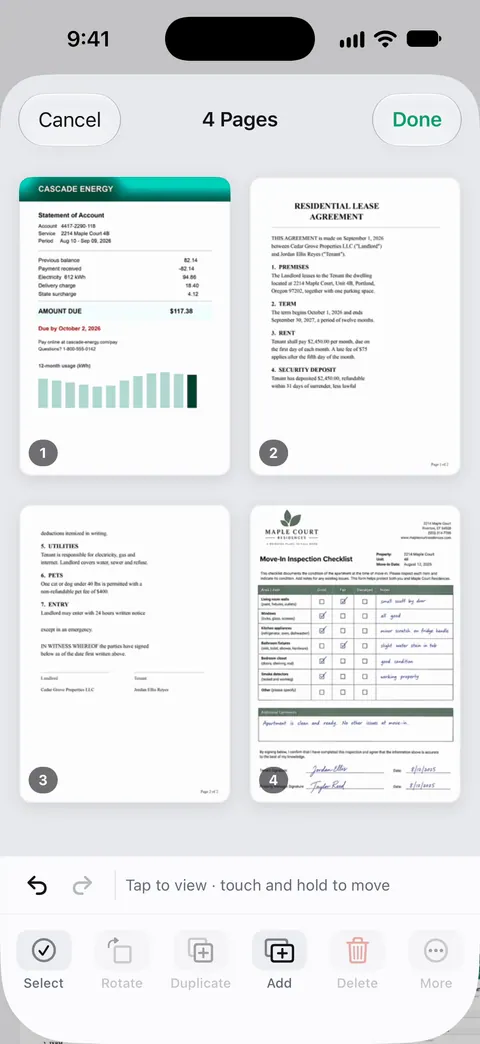
To add a whole document, or a separate scan, to another one, use Merge and then reorder the pages. The PDF tools merge, split, compress, password-protect, add page numbers and watermarks, and extract text. Merge also works from the Library: select the documents, then tap Merge.
The limits, plainly:
- Free accounts can run the PDF tools and the Word, Excel and CSV exports 3 times a week, from one shared allowance. Pro removes every limit.
- On a free account, pages you share, print or export carry a small “Scanned with Scanner One” label at the bottom right. Pro removes it. If that label matters, Preview adds none.
- For a PDF you only need to fix once, Preview is the quicker route.
Questions and answers
How do I add a scanned page to an existing PDF on iPhone?
Open the PDF in Preview, show the thumbnails, touch and hold the page the new one should follow, and tap Scan Pages. Scan the paper, tap Done, and the scan is added to the same PDF.
Can I add a page from one PDF to another?
Yes. In Preview, touch and hold a thumbnail and tap Insert from File, then pick the other PDF or an image. To bring in only one page of a long PDF, split that page out first, or merge the two files and delete the pages you don’t need.
Where does the inserted page go?
Next to the thumbnail you touched and held. If it lands in the wrong place, touch and hold its thumbnail and drag it above or below another page.
Why don’t I see Insert Blank Page?
You need the thumbnails showing first. Tap the Show Sidebar button (tap the PDF if it isn’t visible), or tap the page count on iOS 26, then touch and hold a thumbnail rather than the page itself.
Is merging PDFs free in Scanner One?
Free accounts can run the PDF tools and the Word, Excel and CSV exports 3 times a week, from one shared allowance. Pro removes every limit.
Sources
What this page says about Scanner One was checked against the app on .
- Apple iPhone User Guide, Add, delete, rotate, move, or crop PDF pages in Preview on iPhone — Show Sidebar, Insert Blank Page, Insert from File, Scan Pages, moving a page by dragging its thumbnail, Rotate, Undo; undated, read 2026-11-13
- Apple iPhone User Guide, Open and view PDFs and images in Preview on iPhone — showing thumbnails by tapping the page count; undated, read 2026-11-13
- Apple iPhone User Guide, Save, rename, or move PDFs and images in Preview on iPhone — Duplicate from the Actions Menu button, and saving with the Back button; undated, read 2026-11-13
- Apple iPhone User Guide, Work with PDFs in Notes on iPhone — page actions for a PDF in a note, including Insert Blank Page; undated, read 2026-11-13
- Apple Support, How to scan documents on your iPhone or iPad (article 108963) — adding more scans before tapping Done in Notes and Files; published 2026-02-13
- Scanner One on the App Store — the app’s own listing: multipage scans you can reorder, merging PDFs
Get Scanner One
Scanner One is free, with generous limits: scanning, clean PDFs and text search never stop.

Scanner OneScan, sign and ask anything
Scanner One is free, with generous limits: scanning, clean PDFs and text search never stop.