
Guide
Scan on a Mac with your iPhone
On the Mac, Control-click where the scan should go, such as a Finder folder, a note or an email, and choose Scan Documents (you may need to choose Insert from iPhone or iPad first). Your iPhone’s camera opens. Scan the pages, tap Keep Scan for each, then Save, and the PDF appears on the Mac. Both devices need Wi-Fi and Bluetooth on, the same Apple Account, and to be within 30 feet (10 meters).

What Continuity Camera does
Continuity Camera lets your iPhone (or iPad) act as the Mac’s document scanner. You start the scan on the Mac, the iPhone’s camera opens with the same scanner you know from Notes, and the finished PDF appears on the Mac, right where you clicked. There’s nothing to email or AirDrop afterwards.
Apple’s guide adds one important detail: scans you take this way aren’t saved on the iPhone. If you also want a copy on your phone, scan there instead (see the end of this page).
Before you begin
Check these once, and most problems never happen:
- Wi-Fi and Bluetooth on on both the Mac and the iPhone.
- The same Apple Account on both, using two-factor authentication.
- Close together: within 30 feet (10 meters) of each other.
- Up to date: Apple asks that the Mac run the latest version of macOS. The minimums are macOS Mojave 10.14 and iOS 12.
- VPN: if you use one, its settings mustn’t block local networking, which some Continuity features need.
Scan into a Mac app
Apple lists these apps as supporting Continuity Camera: Finder, Freeform, Keynote 8.2 or later, Mail, Messages, Notes, Numbers 5.2 or later, Pages 7.2 or later and TextEdit.
- On the Mac, open the app and put the cursor where the scan should go, for example in the body of an email.
- Control-click there and choose Scan Documents from the shortcut menu. If you don’t see it, choose Insert from iPhone or iPad first. Or use the File menu (or Insert menu): choose Insert from iPhone or iPad, then Scan Documents.
- The camera opens on your iPhone. Hold it over the page and wait: the iPhone finds the edges and corrects the angle. To capture manually, tap the Shutter button or a volume button, then drag the corners to fit the page.
- Tap Keep Scan (or Retake), scan any more pages, then tap Save.
The scan appears in the Mac window as a PDF. Depending on the app, you can then mark it up, crop it or apply a filter there.
Scan into a folder
To get a PDF file rather than a scan inside a document:
- Control-click the desktop, or inside a folder in a Finder window.
- Choose Scan Documents (after Insert from iPhone or iPad if needed).
- Scan on the iPhone and tap Save.
The scan appears there as a file. Rename it in the Finder straight away; a folder full of generic names is hard to search.
Uses that save time
- Reply to an email with a signed form: in Mail on the Mac, click Reply, Control-click in the message, and scan the signed pages straight in.
- Keep paper notes with typed ones: in Notes on the Mac, scan the handwritten page into the same note as your typed summary.
- File a letter as it arrives: Control-click the right folder in the Finder, for example “Insurance”, and scan the letter into it. Rename it with the date and sender.
- Add a page to a Pages or Numbers document: an expense sheet in Numbers can hold the scanned receipt next to the row it belongs to.
- A photo instead of a scan: the same menu has Take Photo, for something that isn’t flat paper, such as a damaged parcel for a claim.
When it doesn’t work
Apple’s checklist, in order:
- Both devices signed in to the same Apple Account.
- Wi-Fi and Bluetooth on, on both.
- Within 30 feet (10 meters).
- The devices meet the minimum system requirements.
If those are all fine, turn Bluetooth off and on again on both devices, unlock the iPhone, and try once more. Turn off a VPN for a moment if you use one.
Other ways to get an iPhone scan onto a Mac
- iCloud Drive: scan with the Files app into a folder in iCloud Drive. Apple notes that iCloud Drive shows up in the Finder on a Mac signed in to the same Apple Account, so the PDF is there a moment later, and the iPhone keeps a copy too. See scanning to iCloud Drive, Google Drive or Dropbox.
- Send it: scan in Notes, Files or Preview and send the PDF with AirDrop or Mail. See sending a PDF from iPhone.
- An iPad works too: Continuity Camera accepts an iPad as the camera. See scanning on iPad.
Where Scanner One helps, and where it doesn’t
Be clear about the limit first: Scanner One doesn’t run on a Mac. Scanner One runs on iPhone and iPad. For scanning straight into a Mac app, Apple’s Continuity Camera is the tool, and it’s free.
Where the app helps is the copy Continuity Camera doesn’t keep. When you scan on the iPhone in Scanner One, the document stays in your Library, and you share the PDF to the Mac from there. Point your camera at any piece of paper. Scanner One finds the edges, straightens the page, cleans it up and saves a real PDF. Scanner One makes searchable PDFs. Share & Export saves a document as a PDF, Word, Excel, PowerPoint, JPG, PNG, a long image, plain text, Markdown, Rich Text, a web page or CSV.
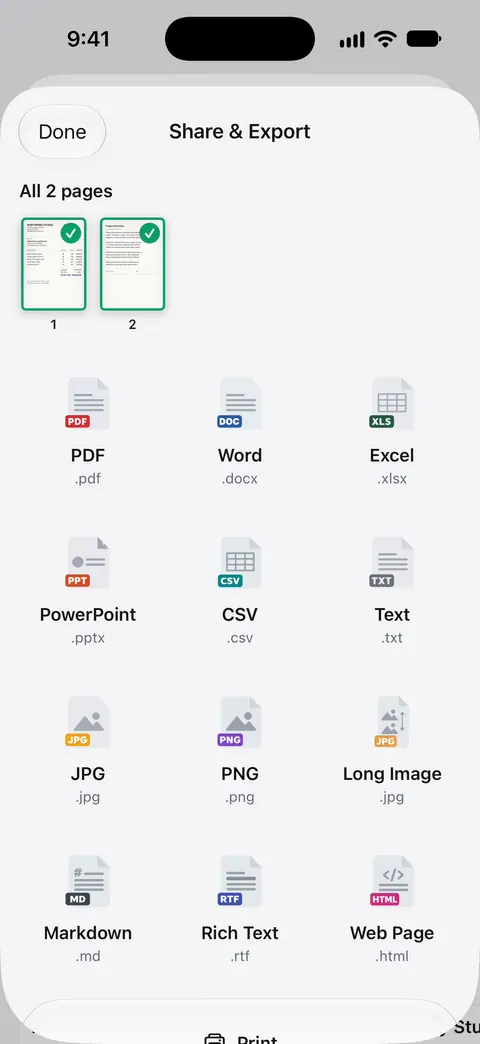
For a steady flow of scans to one folder, there’s auto-export, which saves new documents as PDFs to a folder you choose. It’s part of Pro: Pro adds redaction, the smart eraser, edit text, auto-export and five alternate app icons. On a free account, pages you share, print or export carry a small “Scanned with Scanner One” label at the bottom right. Pro removes it. Documents stay on your iPhone unless you share them or turn on iCloud Sync.
When the built-in way is enough: when the scan belongs in a Mac document or folder and you don’t need it on your phone, Continuity Camera is the quickest route. More on keeping copies safe in backing up scanned documents.
Questions and answers
Which Mac apps can I scan into with my iPhone?
Apple lists Finder, Freeform, Keynote 8.2 or later, Mail, Messages, Notes, Numbers 5.2 or later, Pages 7.2 or later, and TextEdit.
Is the scan also saved on my iPhone?
No. Apple notes that scans you take on your iPhone with Continuity Camera aren’t saved on the iPhone. They appear only where you inserted them on the Mac.
Why doesn’t Insert from iPhone or iPad appear on my Mac?
Check that both devices have Wi-Fi and Bluetooth on, are signed in to the same Apple Account with two-factor authentication, and are within 30 feet (10 meters). A VPN that blocks local networking can also get in the way.
Can I scan to a folder on my Mac instead of into a document?
Yes. Control-click the desktop or a folder in a Finder window and choose Scan Documents. The scan appears there as a PDF file.
Sources
What this page says about Scanner One was checked against the app on .
- Apple Support, Continuity Camera: Use your iPhone or iPad to scan documents or take a picture on your Mac (article 102332) — the supported apps, the steps from the shortcut menu or the File or Insert menu, and the system requirements; published 2026-10-26
- iPhone User Guide (iOS 27), Insert sketches, photos, and scans from your iPhone on Mac — before you begin, scanning into the desktop or a folder, scans aren’t saved on the iPhone, and troubleshooting; read 2026-11-13
- iPhone User Guide (iOS 27), Set up iCloud Drive — iCloud Drive is in the Finder on a Mac signed in to the same Apple Account; read 2026-11-13
- Scanner One on the App Store — the app’s own listing
Get Scanner One
Scanner One is free, with generous limits: scanning, clean PDFs and text search never stop.

Scanner OneScan, sign and ask anything
Scanner One is free, with generous limits: scanning, clean PDFs and text search never stop.