
Guide
Rotate a PDF on iPhone
Open the PDF in Preview (iOS 26 and later). On iOS 27, tap the Show Sidebar button to show the thumbnails first. Tap the More button, then tap Rotate Left or Rotate Right, and tap Back to save. The page stays turned when you share the file. For a scan inside a note or a Mail message, use the Rotate option there. The built-in tools are all you need for this.

Rotate a PDF with Preview
Preview is Apple’s PDF app on iPhone from iOS 26. A rotation in Preview is saved into the file, so the page opens the right way for whoever you send it to. These steps follow Apple’s iPhone User Guide.
On iOS 27
- Open the Preview app and open the PDF.
- Tap the Show Sidebar button to show the page thumbnails. If the button doesn’t appear, tap the PDF.
- Tap the More button, then tap Rotate Left or Rotate Right.
- Tap again to keep turning: two rotations in the same direction turn an upside-down page the right way up.
- Tap the Back button to save.
On iOS 26
- Open the Preview app and open the PDF.
- Tap the More button, then tap Rotate Left or Rotate Right.
- Tap the Back button to save.
Turn only one page
A PDF often has one landscape page among portrait ones, like a wide table in a report. To turn only that page, show the thumbnails (the Show Sidebar button on iOS 27, the page count on iOS 26), then touch and hold the thumbnail of the sideways page. The menu that appears includes Rotate Left and Rotate Right, as well as Delete Page and the insert options. If the page should go entirely, the guide to deleting or reordering pages has the steps.
If a rotation goes the wrong way, tap the More button, then tap Undo.
Rotate a scan in Notes
Scans made in Notes stay in the note, and you can turn their pages there:
- In the note, tap the Menu button on the scan or PDF, tap View As, then choose Medium or Large.
- Tap the Thumbnails button.
- Tap the thumbnail of the page you want to turn, tap the More button, then tap Rotate Left or Rotate Right.
The same menu has Crop Page, Filters and Insert Blank Page for scans.
Bring any PDF into a note to turn it
Notes isn’t only for scans made in Notes. To work on a PDF from Files or Mail there, touch and hold the file, tap the Share button, tap Notes, choose a note, then tap Save. Rotate its pages as above. To send the turned PDF on, tap the Menu button on the PDF in the note and choose the share action. Keep in mind that the turned copy lives in the note: the original file in Files stays as it was.
Turn a photo before it becomes a PDF
If your PDF is going to be made from photos, fix each photo first, because a sideways photo makes a sideways page. In Preview, open the image, tap the More button, and choose to rotate or flip it. Then make the PDF; the guide to turning photos into a PDF has the steps.
Rotate a scan before you email it
If you scan a document from inside a Mail message, you can fix it before you send. In the message, tap the Insert Attachment Actions button above the keyboard, tap Scan Document and scan the pages. Then tap the saved scan and tap the Rotate button. The scan goes out the right way up.
The same goes for scanning in Preview: before you tap Done, tap the thumbnails to crop, rotate or adjust the coloring of the scan.
Why pages come out sideways
Most sideways pages come from one of these:
- A landscape page scanned in portrait. Tables, certificates and wide statements are printed sideways. The scan is right, but it reads sideways on a phone. Rotating the page fixes how it reads.
- Pages fed upside down. In a double-sided stack, every second page can end up upside down. The guide to scanning double-sided pages has a better routine.
Rotate before you print, too. A sideways page in a PDF can print small or cut off, and the guide to printing a PDF from iPhone covers the print settings.
Check it before you send
Open the saved file once more and scroll through it. A rotation you made on screen but didn’t save won’t be in the copy you share. If you rotated a page in a copy of the file, send that copy.
A quick check that catches most problems:
- Close the PDF with the Back button, then open it again from Preview’s Recents.
- Scroll from the first page to the last with the phone held upright.
- Look at each page: the text should sit upright, with the top of the page at the top of the screen.
- Only then tap the Share button and send it.
Where Scanner One helps, and where it doesn’t
For rotating pages, use Preview, Notes or Mail. They are free and built in. If the document already lives in Scanner One, there is no need to leave it: A document’s Pages screen moves pages into a new order, rotates them, duplicates them, deletes them and adds new ones.
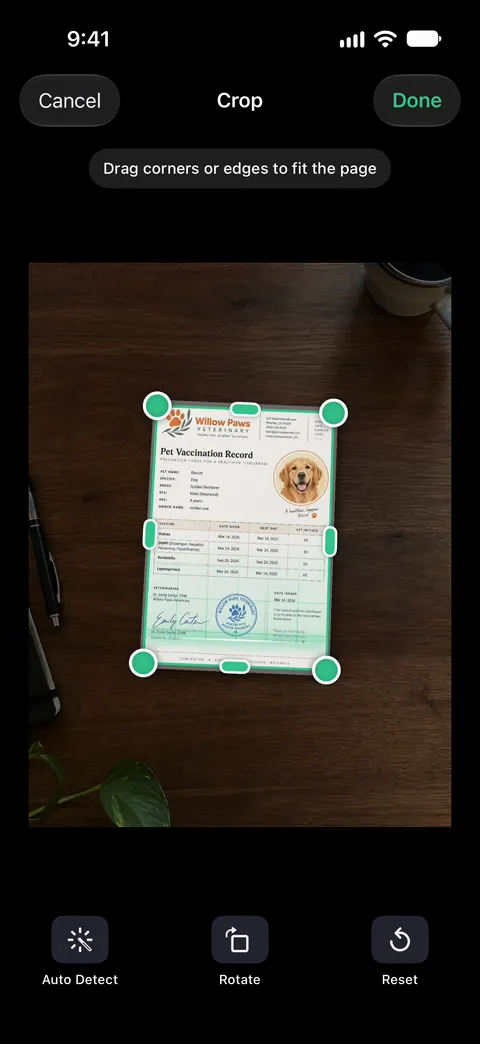
Where Scanner One helps is the step before: getting a straight, square page from the camera in the first place. Scanner One finds the edges of the page automatically and corrects the perspective. The guide to scanning to PDF compares that with the built-in scanners.
The limits, plainly:
- If you go on to use the PDF tools on a document, such as merge, split or compress: Free accounts can run the PDF tools and the Word, Excel and CSV exports 3 times a week, from one shared allowance. Pro removes every limit.
- On a free account, pages you share, print or export carry a small “Scanned with Scanner One” label at the bottom right. Pro removes it. A PDF rotated in Preview carries no label.
- For a PDF someone sent you that only needs turning, stay in Preview.
Questions and answers
How do I rotate just one page of a PDF?
In Preview, show the thumbnails and touch and hold the page that’s sideways. The menu that appears includes Rotate Left and Rotate Right, so only that page turns.
Will the PDF stay rotated when I send it?
Yes, once you save. Rotating in Preview changes the file itself, so tap Back to save before you share it, then open the shared copy once to check.
Why does my PDF turn sideways when I tilt my phone?
That is the screen turning, not the PDF. Lock the screen’s orientation in Control Center if you want it to stay put while you read.
Can Scanner One rotate a PDF?
Use Preview, Notes or Mail to rotate a PDF: all three do it for free and save the turn into the file. Scanner One’s part comes earlier, while you scan. Scanner One finds the edges of the page automatically and corrects the perspective.
Sources
What this page says about Scanner One was checked against the app on .
- Apple iPhone User Guide, Add, delete, rotate, move, or crop PDF pages in Preview on iPhone — Rotate Left and Rotate Right from the More button and the thumbnail menu; Show Sidebar button on iOS 27, page count on iOS 26; undated guide page for iOS 26 and 27, read 2026-11-13
- Apple iPhone User Guide, Work with PDFs in Notes on iPhone — rotating a page of a PDF or scan inside a note; undated guide page for iOS 26 and 27, read 2026-11-13
- Apple iPhone User Guide, Add email attachments in Mail on iPhone — the Rotate button for a scan made inside a Mail message; undated guide page for iOS 26 and 27, read 2026-11-13
- Apple iPhone User Guide, Scan text and documents in Preview on iPhone — rotating a scan from its thumbnail before you tap Done; undated guide page for iOS 26 and 27, read 2026-11-13
- Apple iPhone User Guide, Get started with Preview on iPhone — rotating or flipping an image from the More button; undated guide page for iOS 26 and 27, read 2026-11-13
- Scanner One on the App Store — the app’s own listing: edges and perspective corrected while scanning
Get Scanner One
Scanner One is free, with generous limits: scanning, clean PDFs and text search never stop.

Scanner OneScan, sign and ask anything
Scanner One is free, with generous limits: scanning, clean PDFs and text search never stop.