
Guide
Save a web page as a PDF on iPhone
In Safari, open the page, tap the Page Menu button (the More button on iOS 26) and tap Share, or tap the Share button if your tabs are at the bottom or top. Tap Markup, then tap Done and choose Save File To, name the file and tap Save. A full-page screenshot is another way: tap the screenshot thumbnail, tap Full Page, then save it as a PDF to Files. Both are built in and free.

You might save a web page as a PDF to keep an order confirmation, a booking, the terms you agreed to, a policy page as it reads today, or an article to read offline. iPhone does this well on its own.
Save a page as a PDF with Markup
This is Apple’s documented way, and it lets you highlight or circle the part that matters before you save.
- Open the page in Safari.
- Tap the Page Menu button, then tap Share. If your Tabs layout is Bottom or Top, tap the Share button instead. (On iOS 26, it’s the More button, then Share.)
- Tap Markup. The page opens as a document with the Markup tools at the bottom.
- Highlight, draw or write if you want to. You can also leave it as it is.
- Tap the Done button (on iOS 26, tap the More button, then Done), then choose Save File To.
- Enter a name for the file and tap Save.
The PDF is in the Files app, in the folder you chose.
Save exactly what you see: a full-page screenshot
A full-page screenshot captures the page as it looks on your screen, top to bottom.
- Open the page in Safari and close any cookie banner or pop-up.
- Take a screenshot: press the side button and the volume up button together (on an iPhone with a Home button, the side button and the Home button).
- Tap the screenshot thumbnail, then tap Full Page. Drag on the preview at the right to see the whole page.
- To drop the parts you don’t need, tap the Crop button and drag the handles.
- Tap the Selected button, tap Save PDF to Files, and choose a location.
Those are the iOS 26 steps in Apple’s guide. On iOS 27, Apple’s page describes Full Page and Crop the same way and says to tap the Selected button and choose an option.
Which way to use
| Method | Best for | Keep in mind |
|---|---|---|
| Markup, then Save File To | Articles, terms, policies; pages you want to annotate | Sites may lay out the page differently from the screen |
| Full Page screenshot | Receipts, bookings, account pages, proof of how a page looked | Captures pop-ups and banners if they’re on screen |
| Save to Files on a linked PDF | Statements, tickets, forms the site offers as PDF | Only for links that open a PDF |
When the page links to a PDF
Many sites offer the real document as a PDF: a bank statement, a ticket, a tax form. Save that rather than the web page around it.
- Open the PDF link in Safari.
- Tap the Page Menu button, then Share (or the Share button with Bottom or Top tabs).
- Tap Save to Files, enter a name, and tap Save.
Pages that change: prices, terms and listings
Some pages are worth saving precisely because they will change: a price you were quoted, the return policy on the day you bought, a rental listing that describes the flat, the terms of a promotion. If a dispute comes up later, the site will show today’s version, not the one you relied on.
- Save on the day, right after you buy, book or sign up. A capture from a week later proves less.
- Use the full-page screenshot for these. It shows the page as you saw it, including the price box and any small print near it.
- Make sure the address and date are visible. Before taking the screenshot, tap the address bar so the full web address shows at the top, and keep the PDF’s file name dated.
- Save the linked terms too. A checkout page often links to separate terms and a refund policy. Open each and save it the same way.
Make the saved page useful later
- Name it with the date first: “2026-11-13 Hotel booking Lisbon”. The date matters most for proof of what a page said.
- Close banners and log-in prompts before saving, so they don’t cover the content.
- Check the PDF for the parts you need: an order number, a price, the date, the terms. Long pages can be cut short if the site loads content as you scroll; scroll to the bottom once before saving.
- Save the email confirmation too, if there is one. The guide to saving an email as a PDF covers that.
To print the page or send it on, see printing a PDF from iPhone and sending a PDF from iPhone. For pages outside Safari, such as an in-app receipt, use screenshots combined into a PDF.
Where Scanner One helps, and where it doesn’t
Safari’s Markup and the full-page screenshot are enough for saving web pages. You don’t need an app for this.
Scanner One helps if you save pages as records and want to find them again with your other papers. Instead of Save File To, you can pick the app in the share sheet. Other apps can send a file to Scanner One with Save to Scanner One in their share sheet. Search looks inside the text of every document and shows the matching line and page.
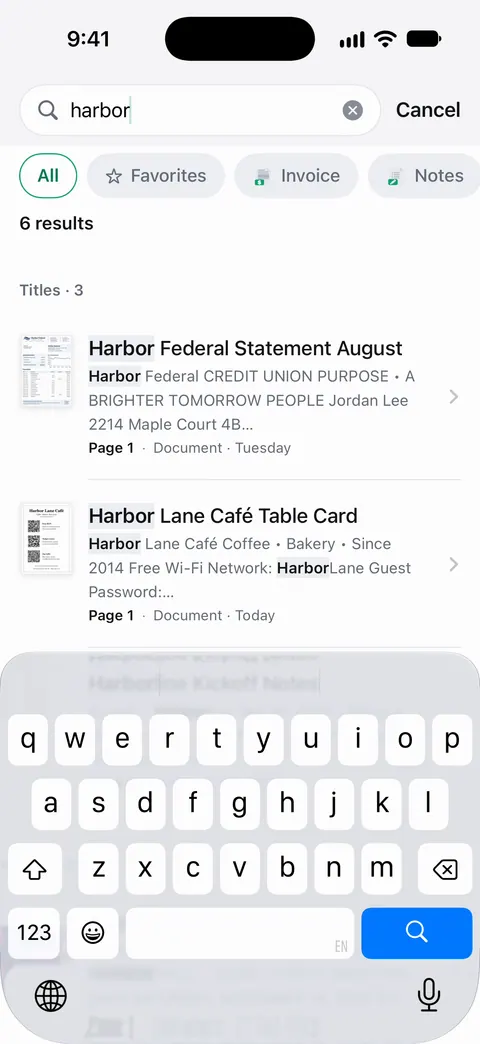
So a booking reference or a product name finds the saved page alongside the scanned receipts and letters it belongs with. More in finding a document by a word inside it.
The limits:
- On a free account, pages you share, print or export carry a small “Scanned with Scanner One” label at the bottom right. Pro removes it.
- Scanner One doesn’t browse the web or capture pages itself. Safari makes the page; the app keeps it.
Questions and answers
How do I save a whole web page as a PDF on iPhone?
Use Markup from Safari’s share sheet, then Save File To. Or take a screenshot, tap Full Page, and save it as a PDF to Files. Both capture the whole page, not just the screen.
Where does the PDF go?
To the Files app, in the folder you pick when you tap Save. Open Files and look in Recents if you’re not sure where it landed.
Why does my saved page look different from the website?
Sites lay out pages differently for print and for screens, and pop-ups, cookie banners and menus can end up in the capture. Close banners first, and use the full-page screenshot if you want exactly what you see.
Can I save a page that needs me to log in?
Yes. Both methods save what’s on your screen in Safari, so log in first, open the page, then save it. Check that the PDF shows your details before you rely on it.
Sources
What this page says about Scanner One was checked against the app on .
- Apple iPhone User Guide, Annotate and save a webpage as a PDF in Safari on iPhone — Page Menu or Share button, Markup, Done, Save File To; iOS 26 version checked (More button, then Done); undated guide page, read 2026-11-13
- Apple iPhone User Guide, Download a PDF from Safari to your iPhone — saving a PDF a page links to with Share, then Save to Files; undated guide page, read 2026-11-13
- Apple iPhone User Guide, Take a screenshot on iPhone (iOS 26) — Full Page for an entire webpage in Safari, Crop, Save PDF to Files; undated guide page, read 2026-11-13
- Apple iPhone User Guide, Take a screenshot on iPhone (iOS 27) — Full Page, Crop and the Selected button on iOS 27; undated guide page, read 2026-11-13
- Scanner One on the App Store — the app’s own listing
Get Scanner One
Scanner One is free, with generous limits: scanning, clean PDFs and text search never stop.

Scanner OneScan, sign and ask anything
Scanner One is free, with generous limits: scanning, clean PDFs and text search never stop.