
Guide
Scan a floor plan, map or blueprint with your phone
Unroll the sheet, flatten it with weights outside the edges, and put it on the floor in even daylight. Scan the whole sheet in one capture with Scan Documents in Notes, Files or Preview, then scan close-ups of the title block, dimensions and any area you need to read, as more pages of the same PDF. A phone scan is good for reading and sharing, not for measuring: it isn’t to scale. For a print-ready, full-size copy, use a print shop’s large-format scanner.

This page is about plans and maps: architectural drawings, floor plans from a sale or rental listing, site plans, survey maps and old printed maps. For tall receipts, posters and other big pages in general, see scanning large documents, which covers scanning in sections.
Know what a phone copy is good for
A phone scan of a plan is great for:
- Reading it on site or at the shop without carrying the roll.
- Sending it to a contractor, landlord, insurer or family member.
- Keeping a record of the plans that came with a house.
It isn’t good for:
- Measuring from the drawing. The scan isn’t to scale. Use the written dimensions.
- Printing a full-size copy for a permit, a builder or framing. A large-format scanner at a print shop does that properly.
Prepare the sheet
- Unroll it the other way. Plans stored rolled curl back. Roll it gently against its curl for a minute.
- Lay it on the floor or a big table, on a dark, plain surface if you can. The scanner needs to see where the paper ends.
- Weigh the corners with books or cans placed outside the edges of the sheet, so they don’t cover the drawing or confuse the edge finder.
- Light it evenly. Large sheets show uneven light more than small pages. Daylight from a window, your shadow off the paper, overhead lights off if they cause hot spots. Glossy prints and vellum reflect: turn the flash off and move until the reflection leaves the sheet. See the best light for scanning.
Scan the whole sheet first
- Open Notes (Attachment button, then Scan Documents), Files (More button, then Scan Documents) or Preview (Scan Documents).
- Stand above the middle of the sheet, phone held flat, high enough that all four edges fit with a margin. On a large sheet, standing on a sturdy step stool helps.
- Let the iPhone capture it when it detects the page edges, or capture it yourself and drag the corners to the corners of the sheet.
- Keep this as the first page. It’s the overview the reader looks at first.
Zoom in on the result. On a big sheet, small lettering such as dimensions and room labels often isn’t sharp in a single capture. That’s what the next step is for.
Then scan close-ups of what people need to read
Stay in the same scan and add pages, so everything lands in one PDF.
- The title block: the box, usually at a corner, with the project, address, sheet number, scale, date and revision. It tells a reader which plan this is.
- Dimensions and labels for the rooms or areas that matter to you.
- The legend or key, on maps and site plans.
- Notes and revision clouds, any handwritten changes or stamped approvals.
For each close-up, switch to manual capture (in Preview, tap Auto so it reads Manual), hold the phone closer, tap the Shutter button and drag the corners to the part you want. Overlap neighboring close-ups a little.
Tap the Done button when you’re finished.
Why not one stitched image
The built-in document scanners save each capture as a page; they don’t stitch pages into one picture. The Camera’s Pano mode does stitch: you pan slowly along the center line, and Apple notes you can pan vertically by turning the phone to landscape. On a flat sheet it can curve straight walls and grid lines, so use it only for a quick overview, never for a plan someone will rely on.
Multi-sheet sets
A set of drawings has several sheets: site plan, floor plans, elevations, details. Scan each sheet as its own section, overview then close-ups, in sheet-number order. Keep it all in one PDF for the set, or one PDF per sheet if the set is large.
To fix the order afterwards, open the PDF in Preview, tap the page count to show thumbnails, then touch and hold a page and drag it into place. Rotate landscape sheets so they read the right way up, with Rotate Left or Rotate Right.
If you scanned sheets into separate files, merging PDFs combines them.
Name it and share it
Name the file with the address and what it is: “12 Oak Rd, floor plans, 2019 set.pdf”. A big color scan can be a large file; making a PDF smaller to email helps before you send it. In the message, say that the copy isn’t to scale and which page has the title block.
Plans that come with a house purchase belong with your other home papers; see the documents to buy a house checklist. If you handle plans every week, scanning documents for contractors covers the wider workflow.
Where Scanner One helps, and where it doesn’t
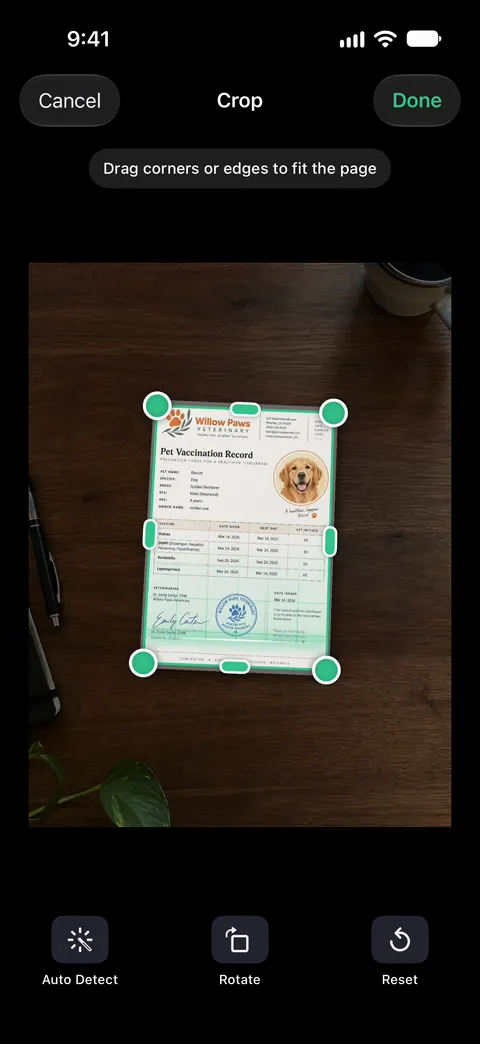
Scanner One finds the edges of the page automatically and corrects the perspective. On a sheet on the floor shot from a slight angle, that gets you a square overview.
A scan can have many pages, and you can reorder them. So the overview, then the close-ups, can be put in an order a reader can follow. The PDF tools merge, split, compress, password-protect, add page numbers and watermarks, and extract text. Merge combines separate sheets into one set; Compress shrinks a big color scan before you send it. Free accounts can run the PDF tools and the Word, Excel and CSV exports 3 times a week, from one shared allowance. Share & Export saves a document as a PDF, Word, Excel, PowerPoint, JPG, PNG, a long image, plain text, Markdown, Rich Text, a web page or CSV.
What it doesn’t do: it doesn’t stitch captures into one seamless image, it doesn’t make a copy to scale, and a phone is no substitute for a large-format scanner when you need a full-size print. If you share from a free account, On a free account, pages you share, print or export carry a small “Scanned with Scanner One” label at the bottom right. Pro removes it.
When the built-in way is enough: for a floor plan you want to read or send, Notes or Preview with an overview and a few close-ups does the job. More in Guides.
Questions and answers
Can I measure from a phone scan of a blueprint?
No, not reliably. The scan’s size depends on how far the phone was, and small tilts stretch it slightly. Use the written dimensions on the plan, and get the original or a large-format scan when measurements matter.
Can the iPhone stitch several photos of a big plan into one image?
The document scanners in Notes, Files and Preview save each capture as its own page; they don’t stitch. Pano mode in the Camera does stitch, but it’s made for scenes and can bend straight lines on a flat sheet, so treat it as a quick overview.
How do I flatten a rolled blueprint?
Roll it the opposite way for a minute, then lay it flat with weights such as books at the corners, placed outside the edge of the paper. Leave it for a while before you scan if it keeps curling.
Where can I get a full-size scan of a blueprint?
Print and copy shops and some libraries have large-format scanners that take a whole sheet flat. They give a print-ready, evenly lit copy at full size.
Sources
What this page says about Scanner One was checked against the app on .
- iPhone User Guide (iOS 27), Scan text and documents in Notes — automatic capture when page boundaries are detected, manual capture, adjusting corners, additional pages, saved as a PDF; read 2026-11-13
- iPhone User Guide (iOS 27), Add, delete, rotate, move, or crop PDF pages in Preview — rotate, move and crop pages, insert scanned pages; read 2026-11-13
- iPhone User Guide (iOS 27), Take panoramic photos — Pano mode, panning along the center line, vertical pans in landscape; read 2026-11-13
- iPhone User Guide (iOS 27), Open and view PDFs and images in Preview — zooming, thumbnails and Go to Page; read 2026-11-13
- Scanner One on the App Store — the app’s own listing
Get Scanner One
Scanner One is free, with generous limits: scanning, clean PDFs and text search never stop.

Scanner OneScan, sign and ask anything
Scanner One is free, with generous limits: scanning, clean PDFs and text search never stop.