
Guide
Scan documents on iPad
On supported iPad models with iPadOS 27, open Camera in Photo mode, point it at the page and tap Scan Document; when you tap Done you can save to Files, open it in Preview or share it. Notes (Attachments button, Scan Documents), Files (More button, Scan Documents) and Preview (Scan Documents) also scan on iPad, the same way as on iPhone. Rest your elbows on the table to keep the iPad steady.

Which scanner to use on iPad
| Scan in | Good for | Where it ends up |
|---|---|---|
| Camera (supported models, iPadOS 27) | A quick page you’ll save or send right away | Wherever you choose after Done: Files, Preview or a share |
| Notes | Papers you want next to your notes | A PDF inside the note |
| Files | A PDF in a particular folder | The folder you pick |
| Preview | A PDF you’ll rename, lock, crop or export | A PDF file you can move |
All four use the same kind of camera screen: it finds the page edges, straightens the page and captures it when you hold still.
Scan with the Camera app (iPadOS 27)
On supported iPad models, the Camera app spots documents by itself. Apple’s iPhone guide doesn’t describe this; on iPhone you scan from Notes, Files or Preview.
- Open Camera and make sure it’s in Photo mode.
- Point the iPad at the page and tap Scan Document. The iPad captures the page automatically. To capture it yourself, tap Manual, then the Shutter button.
- On supported models, turn on the flash: Apple’s tip is that it removes shadows.
- Scan the other pages the same way.
- Tap the thumbnails at the bottom to edit or delete a scan, then tap the Back button.
- Tap Done, then choose what to do with it:
- Save to Files: tap Done, tap Save to Files, then Save.
- Open in Preview: tap Preview.
- Search the scan: tap the Search button.
- Share it with AirDrop, Mail or Messages: tap the Share button.
- Delete it: tap Done, then Delete.
Scan with Notes on iPad
- Open Notes and open a note.
- Tap the Attachments button, then Scan Documents.
- Adjust Flash (on supported models) or Filters, then hold the iPad over the page.
- Keep it steady and the iPad captures the page when it finds the edges. For manual capture, tap Manual, then the Take Picture button, adjust the corners and tap Keep.
- Scan the other pages, then tap Done.
The document is saved as a PDF in the note. To get the file out, tap the Menu button on the scan and choose Share.
Scan with Files or Preview
Files: tap the More button, then Scan Documents, capture the pages, tap Done, choose a location and tap Save. The PDF lands in that folder.
Preview: tap Scan Documents, capture each page (tap Auto to switch to Manual if you want to press the Shutter yourself), tap the thumbnails to crop, rotate or adjust the coloring, then tap Done. Preview makes one PDF you can rename, lock and export.
Hold a big device steady
The iPad’s size is the main difference from scanning on a phone.
- Rest your elbows on the table and lean over the page. Holding a 13-inch iPad out at arm’s length is how scans blur.
- Move the paper, not the iPad, for multipage documents. Keep the iPad in place and slide each new page under it.
- Use a stand if you have one. Some folding cases hold the iPad at an angle that’s close enough to flat; the scanner corrects a slight tilt.
- Mind your shadow. A big device casts a big shadow. Light from the side, or the flash on supported models, helps. See getting rid of shadows on scans.
- Check the pages on the big screen. It’s the iPad’s advantage: zoom in on small print before you tap Done.
Sign and send from the iPad
The iPad is a comfortable place to sign. In Notes, tap the document, tap Markup, tap the Add button and choose Signature, then place and size it. You can also sign by hand with your finger or an Apple Pencil on a compatible iPad. More in signing a PDF, which works the same on iPad.
Use the iPad as a scanner for your Mac
Continuity Camera works with an iPad as well as an iPhone: start the scan in a Mac app such as Notes, Mail or the Finder, capture it with the iPad, and the PDF appears on the Mac. Steps and requirements are in scanning on a Mac with your iPhone.
Where Scanner One helps, and where it doesn’t
Scanner One runs on iPhone and iPad. Scanner One needs iOS 17 or later. So the same app, with the same filters and library, is there on the larger screen. Scanner One finds the edges of the page automatically and corrects the perspective. Scans come with Auto Clean, Color, Grayscale and Receipt filters. Then it reads the text, names the document, tags it and puts it in the right folder.
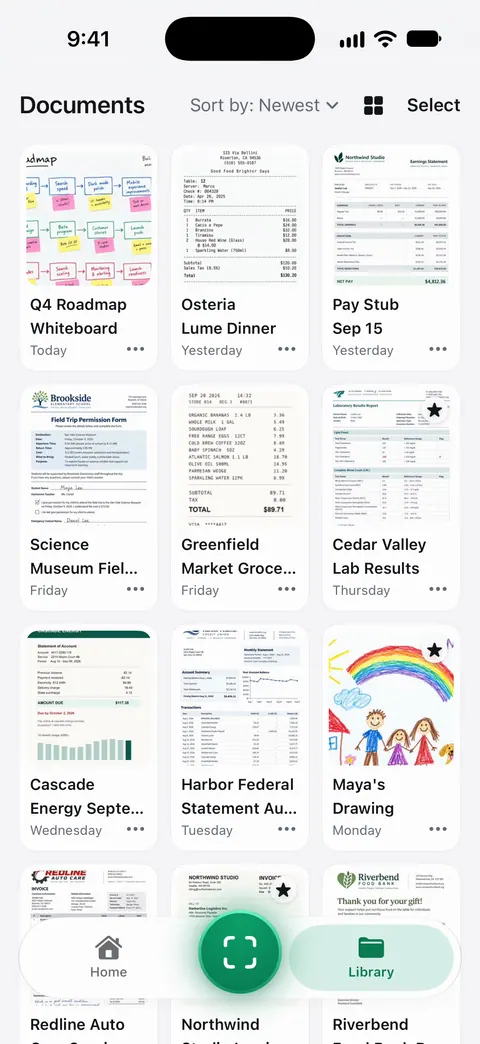
The big screen suits the reading side: Search looks inside the text of every document and shows the matching line and page. You can sign and annotate documents. Signing and markup are limited on a free account: Free accounts can sign and mark up 3 documents a month. On a free account, pages you share, print or export carry a small “Scanned with Scanner One” label at the bottom right. Pro removes it.
On where documents live: Documents stay on your iPhone unless you share them or turn on iCloud Sync.
What it doesn’t do: it doesn’t run on a Mac, and an iPad is still a bulky scanner. For a quick page, the iPad’s own Camera scan is fast. The iPad options are compared in scanner apps for iPad, and the iPhone version of this guide is how to scan documents on iPhone.
Questions and answers
Does the iPad Camera app scan documents?
On supported models with iPadOS 27, yes: in Photo mode, point it at a page and tap Scan Document. On other models, use Notes, Files or Preview.
Where do iPad scans go?
A Camera scan goes where you choose after Done: Files, Preview or a share. A Notes scan is saved as a PDF in the note. A Files scan goes to the folder you pick. A Preview scan becomes a PDF file.
Is an iPad better than an iPhone for scanning?
The scanners are the same. The iPad’s big screen makes checking pages easier, but it’s harder to hold steady over a page, and some models have no flash.
Can I sign a scanned document on iPad?
Yes. In Notes, tap the document, tap Markup, tap the Add button and choose Signature, or sign by hand with your finger or an Apple Pencil on a compatible iPad.
Sources
What this page says about Scanner One was checked against the app on .
- iPad User Guide (iPadOS 27), Scan documents with your iPad camera — Scan Document in the Camera app, the choices after Done, and the flash tip for shadows; read 2026-11-13
- iPad User Guide (iPadOS 27), Scan text and documents in Notes — Notes scanning on iPad, Flash on supported models; read 2026-11-13
- iPad User Guide (iPadOS 27), Scan text and documents in Preview — Preview scanning on iPad; read 2026-11-13
- Apple Support, How to scan documents on your iPhone or iPad (article 108963) — the Files steps and signing with Apple Pencil on a compatible iPad; published 2026-02-13
- Apple Support, Continuity Camera on Mac (article 102332) — an iPad can scan into a Mac app too; published 2026-10-26
- Scanner One on the App Store — the app’s own listing
Get Scanner One
Scanner One is free, with generous limits: scanning, clean PDFs and text search never stop.

Scanner OneScan, sign and ask anything
Scanner One is free, with generous limits: scanning, clean PDFs and text search never stop.