
Guide
Scan straight into the Files app
Open the Files app and go to the folder where the scan should go. Tap the More button, then Scan Documents. Hold the iPhone over the page and it captures automatically (or tap the Shutter button, adjust the corners and tap Keep Scan). Add more pages, tap Done, check the location and tap Save. The result is a PDF file in that folder, ready to rename, tag, share or upload.

Scan a document into a folder
These steps follow Apple’s iPhone User Guide for iOS 27 and Apple’s support article published February 13, 2026. They’re the same on iOS 26.
- Open the Files app and tap Browse.
- Open the location and folder where the scan should go, such as a “Home” folder in iCloud Drive.
- Tap the More button, then tap Scan Documents.
- Hold the iPhone so the page is in view. In iOS 26 and later you can also choose the flash or an image filter here.
- In automatic mode, the page is captured as soon as the edges are found. To capture it yourself, tap the Shutter button or press a volume button, drag the corners to fit the page, and tap Keep Scan.
- Scan the next page, or tap Done.
- Check the location shown, change it if needed, and tap Save.
The scan is now a PDF file in that folder. Unlike a Notes scan, it isn’t attached to anything: it’s a file like any download or attachment.
If Scan Documents isn’t in the menu
- Open a location first. Scan Documents is in the More menu of a location or folder, so start from Browse and open one.
- Try another location. Some locations, such as a connected service, may not offer every option. Apple notes, for example, that if you don’t see New Folder, you can’t create a folder in that location. Scan into iCloud Drive or On My iPhone, then move the file.
- Check iCloud Drive is on if it’s missing from Locations: Settings, your name, iCloud, Drive, Sync this iPhone.
Choose where the scan lives
The location you save to decides who can see the scan and where you can reach it.
- iCloud Drive syncs the file to every device signed in to the same Apple Account, including the Finder on a Mac and iCloud.com. Turn it on in Settings, your name, iCloud, Drive, Sync this iPhone.
- On My iPhone keeps the file on this phone only. Good for something private; remember it goes with the phone if the phone is lost and not backed up.
- Other services you’ve added in Files, such as Dropbox, also show below Locations. See scanning to iCloud Drive, Google Drive or Dropbox.
Make the file easy to find
Right after saving is the moment to do this; later you’ll have forgotten what “that PDF from Tuesday” was.
- Rename it. Touch and hold the file, tap Rename, and type a name with the date first: “2026-11-13 Car insurance renewal”. When a folder is sorted by name, a date at the front keeps scans in date order. More ideas in naming scanned documents.
- Tag it. Touch and hold, tap Tags, pick one or more (Taxes, Medical, Home), and tap Done. To see everything with a tag, tap Browse, then the tag below Tags.
- Use folders. Tap the More button, then New Folder. A handful of folders by area (Home, Car, Health, Money, IDs) is easier to keep up than dozens.
- Mark busy folders as favorites. Touch and hold the folder, tap Favorite, and it shows on the Browse screen.
- Color the folder if it helps you spot it: touch and hold it and choose Customize Folder & Tags.
A full layout for a home filing system is in organizing documents on iPhone.
Do more with the scan
- Send it: touch and hold, tap Share, then choose AirDrop, Messages or Mail.
- Copy or move it: touch and hold, then Copy, Move or Duplicate.
- Edit pages: Files doesn’t edit pages. Open the PDF in Preview (iOS 26 and later) to crop, rotate, reorder, add, or delete pages, sign it, or lock it with a password.
- Make it searchable: in Preview, use Export with Embed Text turned on.
- Several at once: tap the More button, tap Select, choose files, then use the buttons at the bottom, such as Share, Move or Delete.
A note on Compress: it makes a ZIP file. It saves space, but many forms and offices won’t accept a ZIP. To make the PDF itself smaller, use Preview’s Export options instead.
Files or Notes?
| Files | Notes | |
|---|---|---|
| What you get | A PDF file in a folder | A PDF inside a note |
| Best for | Sending, uploading, keeping papers in folders | Keeping a scan next to your own notes |
| Find it by | File name, folder, tags | Note title, and text in the scan |
| Edit pages | In Preview | In the note (rotate, filters, crop) |
Notes’ version of this guide is scanning with the Notes app.
Where Scanner One helps, and where it doesn’t
Files gives you a PDF and a folder, and leaves naming and filing to you, every time. Point your camera at any piece of paper. Scanner One finds the edges, straightens the page, cleans it up and saves a real PDF. Then it reads the text, names the document, tags it and puts it in the right folder. Scanner One makes searchable PDFs. Search looks inside the text of every document and shows the matching line and page.
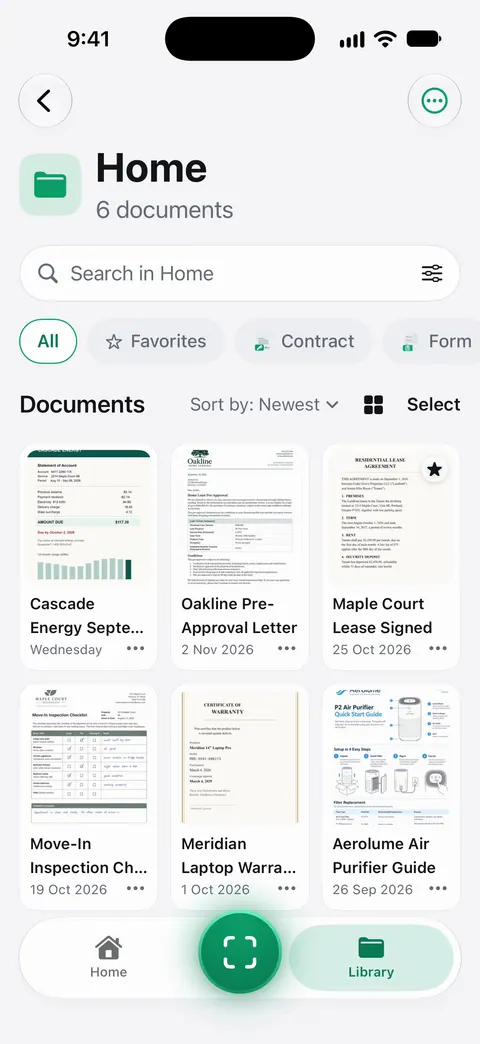
To get documents back into Files as PDFs, auto-export saves new documents to a folder you choose. Pro adds redaction, the smart eraser, edit text, auto-export and five alternate app icons. On a free account you share each document out yourself. On a free account, pages you share, print or export carry a small “Scanned with Scanner One” label at the bottom right. Pro removes it. Free accounts get smart filing for 10 documents a month.
When the built-in way is enough: Files is a solid, free scanner when you’re happy to name and file each PDF. The two are compared in detail in Scanner One vs the Files app scanner.
Questions and answers
Where is Scan Documents in the Files app?
Open a location or folder, then tap the More button at the top. Scan Documents is in that menu, next to New Folder and Connect to Server.
Where does a Files scan get saved?
In the location you pick before tapping Save, usually the folder you started from. It’s a normal PDF file you can move, rename or share.
Can I edit a scan after saving it in Files?
Files itself doesn’t edit pages. Open the PDF in Preview (iOS 26 and later) to crop, rotate, reorder, add or delete pages, or to sign it.
Is Files or Notes better for scanning?
Files when you want a PDF file in a folder to send or upload. Notes when you want the scan next to your notes and searchable inside Notes.
Sources
What this page says about Scanner One was checked against the app on .
- Apple Support, How to scan documents on your iPhone or iPad (article 108963) — the Files steps: More button, Scan Documents, flash or filter in iOS 26, choose a location, Save; published 2026-02-13
- iPhone User Guide (iOS 27), Send files from the Files app — scan from the location or folder you open; sharing a file and the Compress tip; read 2026-11-13
- iPhone User Guide (iOS 27), Organize files and folders in Files — New Folder, Rename, Move, Duplicate, Compress, tags and favorites; read 2026-11-13
- iPhone User Guide (iOS 27), Modify files and folders in Files — the More menu with Scan Documents, folder colors and icons; read 2026-11-13
- iPhone User Guide (iOS 27), Set up iCloud Drive — turning on iCloud Drive and where it appears; read 2026-11-13
- Scanner One on the App Store — the app’s own listing
Get Scanner One
Scanner One is free, with generous limits: scanning, clean PDFs and text search never stop.

Scanner OneScan, sign and ask anything
Scanner One is free, with generous limits: scanning, clean PDFs and text search never stop.