
Guide
How to see what changed in a document someone sent back
In a Word file, go to Review, Tracking and choose All Markup: tracked changes show as underlined additions and struck-through deletions, one color per reviewer. If nothing was tracked, use Review, Compare, Compare Documents with your own version. In Google Docs, open version history, or use Tools, Compare documents. In Pages on iPhone, open Change Tracking and choose Markup. A PDF has no tracking: compare it with your version, or ask for the editable file.

Ask for tracked changes before you send
The easiest way to see what someone changed is to have them track it. Before you send a draft, turn on change tracking yourself, or ask the other person to edit with it on: Track Changes in Word, suggesting or version history in Google Docs, Change Tracking in Pages. Then every edit comes back marked, with their name on it.
When that didn’t happen, the steps below still get you there.
| What came back | Where to look |
|---|---|
| A Word file with tracked changes | Review, Tracking, All Markup |
| A Word file without tracked changes | Review, Compare, Compare Documents, with your version |
| A Google Doc | Version history, or Tools, Compare documents |
| A Pages document | Change Tracking, Markup |
| A PDF | Compare with your version, or ask for the editable file |
| A signed copy | Compare it with the version you agreed |
Word: see the tracked changes
Microsoft’s guide explains the views. On the Review tab, in the markup list, choose:
- All Markup to see every change, with different colors for each reviewer. Deletions are struck through and additions underlined.
- Simple Markup to see only a red line in the margin where something changed.
- No Markup to see the document as if every change were accepted.
- Original to see the document before the changes.
To go through them one at a time, on the Review tab select Tracking, then Next (or Previous). Select a change to see who made it, and Accept or Reject it.
Two things catch people out. First, if someone sent the document back in Simple Markup, it can look as if little changed; switch to All Markup. Second, Microsoft notes that if a document was shared with you for review, you may not be able to turn Track Changes off.
Word: when the changes weren’t tracked
If the other person edited with Track Changes off, the file looks clean. Compare it with your own copy:
- Open one of the two versions.
- On the Review tab, select Compare, then Compare Documents.
- Choose your version as the Original document and theirs as the Revised document, then select OK.
Word makes a new copy showing every difference as revision marks, and leaves both originals untouched.
Google Docs: version history and Compare
If you both work in the same Google Doc, the history is already there. Google’s help shows the Last edit note at the top, which says who changed the file last and when; a blue dot means someone updated it since you last looked. From there you can browse earlier versions. You need permission to edit the file to see its version history.
If you have two separate files, use Tools, then Compare documents on a computer. You can compare a Google Doc with another Google Doc, or with a Word file stored in your Drive. Google creates a third document that shows the differences as suggested edits.
Pages on iPhone: Change Tracking
If the document came back as a Pages file, Apple’s guide explains the views. Open Change Tracking from the document’s options and choose:
- Markup to show deleted text struck through and new text in a different color;
- Markup Without Deletions to show only the additions;
- Final to hide the marks while tracking continues.
Tap a marked change, then Accept or Reject. Apple notes one trap: when someone sends you a document with tracking, it opens on iPhone or iPad in Final view, with the changes hidden, until you switch the view.
A PDF came back
A PDF has no built-in tracking. If the edits matter, ask for the editable file, Word or Pages, with tracked changes on. If you can’t get it, compare the PDF with your own last version: how to compare two PDFs on iPhone gives three ways, from page by page to Word’s Compare after converting the PDF to Word.
Watch for changes a compare tool doesn’t see: handwritten notes, crossed-out lines and initials on a printed-and-scanned page.
A signed copy came back
When a contract comes back signed, check that it is the version you agreed before you file it or countersign. Compare the page count, every number and date, the names of the parties, and each clause you negotiated. A changed page in the middle of a long document is easy to miss. What to check in a contract before you sign it has the full list.
Where Scanner One helps, and where it doesn’t
Scanner One is not a word processor: it doesn’t show Word’s tracked changes or Google Docs’ history. Open those files in Word, Google Docs or Pages. For two plain texts, our free compare two texts tool marks every word that changed, in your browser.
It helps with the paper and PDF side. Point your camera at any piece of paper. Scanner One finds the edges, straightens the page, cleans it up and saves a real PDF. Scanner One makes searchable PDFs. So a printed, marked-up and scanned version can be searched like the original. Scanner One exports to Word, keeping headings, lists and tables, and to Excel and CSV.
Ask your documents anything. When does the lease end? What did I spend at the shop? The answer comes back with the page it came from. In the screenshot below, two documents are compared side by side in a table.
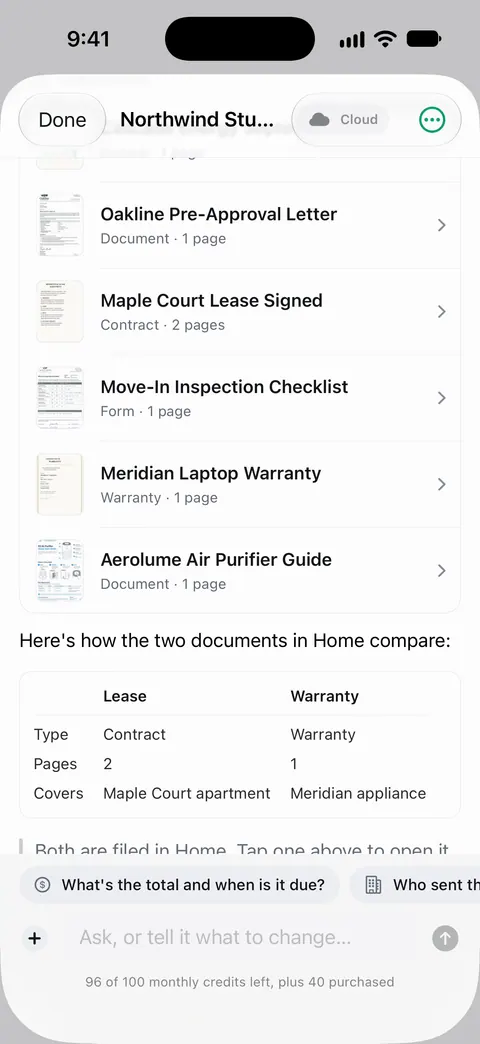
On a free account you can ask 3 questions a day. Use any list of differences as a starting point, and check each one on the page.
What changed compares the new version of a lease or policy with the one you signed.
You can sign and annotate documents. Free accounts can sign and mark up 3 documents a month. Documents stay on your iPhone unless you share them or turn on iCloud Sync.
If the document lives in Word or Google Docs, their own tools show the changes best.
Questions and answers
Why can’t I see the changes in a Word document?
The view may be hiding them. On the Review tab, choose All Markup to see every change in color. Simple Markup shows only a red line in the margin, and No Markup hides the changes completely.
Can I see changes if Track Changes was off?
Not inside that file, but you can compare it with your own copy. In Word, use Review, Compare, Compare Documents; in Google Docs, use Tools, Compare documents. Both mark every difference.
How do I see who changed what in Google Docs?
Open the document’s version history to browse earlier versions. You need permission to edit the file to see them. Google’s help also covers seeing who changed a specific part of a document.
Someone sent back a signed PDF. How do I check it’s what I agreed?
Compare it with the last version you agreed: the page count, every number, date and name, and each clause you negotiated. If anything differs, ask before you sign or file it.
Sources
What this page says about Scanner One was checked against the app on .
- Microsoft Support, Track changes in Word — turning Track Changes on, the Simple Markup, All Markup, No Markup and Original views, moving between changes, and accepting or rejecting them; read 2026-11-13
- Microsoft Support, Compare and merge two versions of a document — Review, Compare, Compare Documents, with differences shown as revision marks in a new copy; read 2026-11-13
- Google Docs Editors Help, Find what’s changed in a file — the Last edit indicator and version history, which needs edit permission; read 2026-11-13
- Google Docs Editors Help, Compare documents in Google Docs — Tools, Compare documents, with Google Docs or Word files in Drive, shown as suggested edits in a new document; read 2026-11-13
- Apple Support, Track changes in Pages on iPhone — turning on Change Tracking, the Markup, Markup Without Deletions and Final views, accepting and rejecting changes, and documents opening in Final view; read 2026-11-13
- Scanner One on the App Store — the app’s own listing
Get Scanner One
Scanner One is free, with generous limits: scanning, clean PDFs and text search never stop.

Scanner OneScan, sign and ask anything
Scanner One is free, with generous limits: scanning, clean PDFs and text search never stop.