
Guide
How to compare two PDFs on iPhone
The iPhone opens PDFs well, but we found no compare feature in Apple’s guides. For a short document, check them page by page with a list: headings, numbers, dates and names. For a long text, convert both PDFs to Word and use Compare Documents in Word on a computer, or Compare documents in Google Docs, which show every difference as marked edits. Or use an app that reads both documents and lists the differences, then check each one on the page.

First, what kind of PDFs are they?
Before you pick a method, check what you have:
- A PDF made from a document (exported from Word, or sent by a company’s system) has real text. You can select a word and search it. These compare well.
- A scan or a photo saved as a PDF is a picture of each page until text recognition reads it. A compare tool can’t compare pictures. Make it searchable first; making a scanned PDF searchable shows how.
A quick test: open the PDF and try to select a word. If you can, it has text.
Route 1: page by page, with a list
For a short document, a lease addendum, or two versions of a one-page form, your eyes are enough, as long as you check the right things in the right order.
- Open both PDFs from the Files app, one after the other.
- Check the page count. A missing or extra page is the biggest change there is.
- Go section by section, not word by word. Compare each heading, then the paragraph under it.
- Check every number: amounts, percentages, dates, durations, quantities. Search each PDF for the numbers that matter most.
- Check every name and party, including addresses and account numbers.
- Write down every difference as you find it, with its page.
This catches the changes that matter in most short documents. It does not reliably catch a single changed word in a long paragraph. For that, use a compare tool.
Route 2: Word’s Compare Documents, on a computer
Microsoft Word has a built-in compare. Microsoft’s steps:
- Open one of the two versions in Word.
- On the Review tab, select Compare, then Compare Documents.
- In the Original document list, choose the original.
- In the Revised document list, browse to the other version, then select OK.
Word builds a new copy based on the original, and revision marks show every difference introduced by the revised copy. The two originals are untouched.
Word compares Word files, so convert both PDFs to Word first. The PDF to Word guide covers converting on iPhone. Convert both PDFs the same way, with the same tool, so the layout differences don’t drown the real ones.
Route 3: Google Docs, on a computer
Google Docs has the same idea. Google’s steps:
- On your computer, open the first document in Google Docs.
- Click Tools, then Compare documents.
- Choose the document to compare against. It can be another Google Doc, or a Word (.docx) file stored in your Google Drive.
- Click Compare, then Open.
Google creates a third document that shows the differences as suggested edits. Its help page notes that changes to column layout and table column widths aren’t compared, which is another reason to read numbers in tables yourself.
Which route to use
| Situation | Best route |
|---|---|
| 1 to 3 pages, mostly numbers and dates | Page by page, with a list |
| Long text, both PDFs have real text | Convert to Word, then Word’s Compare or Google Docs |
| One or both are scans | Make them searchable, then convert and compare |
| You need the answer on your phone, now | An app that reads both, then check each difference |
| You will sign it | Any of the above, then read the final version anyway |
What any comparison can miss
A compare tool compares text. It can miss:
- changes inside images, logos, signatures or stamps;
- handwriting and anything added by hand to a scan;
- text the recognition misread, such as 8 for B or 1 for l;
- a page that is in one file but was never converted.
It also only compares the two files you give it. If someone sent you a “final” version, compare it with the version you agreed, not with an older draft. If the document came back from someone with edits, how to see what changed in a document someone sent covers tracked changes and version history, which are often better than comparing after the fact.
Where Scanner One helps, and where it doesn’t
Scanner One does not run Word’s word-by-word compare on your iPhone. For a quick check of two texts in any browser, paste them into our free compare two texts tool: nothing you paste leaves the page.
It helps at each end of the job. Point your camera at any piece of paper. Scanner One finds the edges, straightens the page, cleans it up and saves a real PDF. Scanner One makes searchable PDFs. Scanner One exports to Word, keeping headings, lists and tables, and to Excel and CSV. So a paper version and a PDF version can both become Word files to compare. On a free account, the PDF tools and exports run 3 a week.
Ask your documents anything. When does the lease end? What did I spend at the shop? The answer comes back with the page it came from. In the screenshot below, two documents are compared side by side in a table.
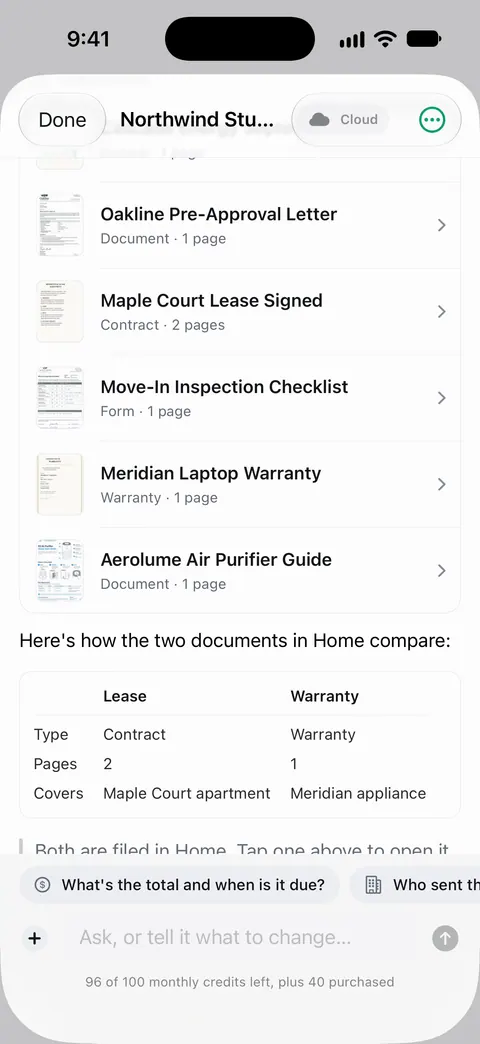
On a free account you can ask 3 questions a day. Treat any list of differences as a starting point, and check each one on the page.
What changed compares the new version of a lease or policy with the one you signed. The What changed feature page shows how it works, and comparing two versions of a lease walks through a real case.
Documents stay on your iPhone unless you share them or turn on iCloud Sync. Cloud AI is off until you switch it on, and page images are a separate permission.
If you have Word or Google Docs on a computer and the documents are text PDFs, their compare tools are the most thorough option.
Questions and answers
Can I compare two PDFs on iPhone without an app?
Only by eye. You can open both from the Files app and go through them page by page, but we found no compare feature in Apple’s guides. For a reliable word-by-word comparison, use Word’s Compare Documents or Google Docs on a computer.
Why does the comparison show changes on every line?
Usually because one PDF was converted differently, so line breaks, spacing or hyphens moved. Compare the text, not the layout, and look for changes in words and numbers.
Can I compare a scanned PDF?
Only once its text has been recognized. A scan is a picture of a page until text recognition turns it into words, and a comparison tool needs words. Make the scan searchable first, then convert or compare.
Does comparing replace reading the final version?
No. A tool can miss changes in images, signatures, handwriting or layout, and it can only compare the two files you give it. Read the version you are going to sign or rely on.
Sources
What this page says about Scanner One was checked against the app on .
- Microsoft Support, Compare and merge two versions of a document — Review, Compare, Compare Documents; differences shown with revision marks in a new copy, the original untouched; read 2026-11-13
- Google Docs Editors Help, Compare documents in Google Docs — Tools, Compare documents, on a computer; works with Google Docs and Word files in Drive; creates a third document with the differences as suggested edits; column layout and table widths not compared; read 2026-11-13
- Scanner One on the App Store — the app’s own listing
Get Scanner One
Scanner One is free, with generous limits: scanning, clean PDFs and text search never stop.

Scanner OneScan, sign and ask anything
Scanner One is free, with generous limits: scanning, clean PDFs and text search never stop.