
Guide
Sign a Word document on iPhone
Turn the Word file into a PDF first, then sign the PDF. Open the .docx in Pages, tap the More button, tap Export, then PDF, and save it to Files (in the Microsoft Word app: File, Export, PDF). Open the PDF in Files, tap the Add button, tap Add Signature, sign with your finger and drag the signature onto the line. Then share the signed PDF. Sending a PDF keeps the layout and your signature where you put them.

Offer letters, contractor agreements and consent forms often arrive as Word files (.docx). iPhone’s signing tools work on PDFs, so the job is two steps: make a PDF, then sign it. This page puts both steps together for a Word file. The individual steps also have their own pages: Word to PDF on iPhone and signing a PDF on iPhone.
Why convert before you sign
You could paste a picture of your signature into the Word file. It’s usually a bad idea:
- The layout can shift. A Word file reflows on a different computer or with different fonts. Your signature can end up on the wrong line or a different page.
- Anyone can edit it. The text above your signature can be changed after you send it.
- The sender usually wants a PDF anyway. A signed agreement is normally kept as a PDF.
A PDF freezes the pages as they look on your screen. Signing the PDF puts your signature in a fixed spot.
Step 1: Turn the Word file into a PDF
With Pages (free from Apple)
Pages opens .doc and .docx files and can save them as PDFs.
- Save the Word file to Files first if it came by email: touch and hold the attachment, then choose Save to Files.
- Open the Pages app and tap the document. If you don’t see it, tap Browse or Recents, or search for it.
- If a missing font notice appears, check that the text still looks right. Pages can swap a font it doesn’t have.
- Tap the More button in the toolbar, tap Export, then tap PDF.
- Choose a sending or saving option, such as Save to Files, and pick a folder.
Apple notes that changes to the exported copy don’t affect the original, so your .docx stays as it was.
With the Microsoft Word app
If you have Word on your iPhone, Microsoft’s steps are: tap the File button at the top left, choose Export, then PDF.
If the file won’t open
In Files, touch and hold the document and choose Open With to pick Pages or Word. Without either app installed, Apple says the file opens as a preview in Quick Look, which is for reading. The Word to PDF guide covers files that open with odd formatting.
Check the PDF before you sign it
Open the new PDF and scroll through it once before you add anything. Things to look for:
- Comments and markup. If the Word file has comments, Pages leaves them out of the PDF unless you turn on the option for comments when you export. Usually you want them out of a signed copy.
- Blank or split pages. A table or a long paragraph can spill onto an extra page after conversion. Make sure the signature block didn’t end up alone on a page of its own.
- Fill-in blanks. If the Word file has blanks for your address or start date, type them in Pages before you export. Text typed in the document is cleaner than text boxes added on top.
- A locked file. Apple notes that if the original has a password, it applies to the exported PDF too, so you or the recipient will need it to open the copy.
Step 2: Sign the PDF
- Open the new PDF in the Files app. If you’re prompted, tap Save.
- Tap the Add button, then tap Add Signature.
- Sign with your finger, then tap Done. Tap Clear to try again; turning the phone sideways gives you more room.
- Drag the signature onto the signature line. Drag a blue dot on its box to resize it.
- For your printed name or the date, tap the Add button, tap Add Text Form Box, and type.
- Tap the Menu button, then tap Export, Print or the Share button. Tap the Back button to save.
iPhone keeps your signature for next time. If the document needs initials on each page too, the guide to initialing every page shows how to save them as a second signature.
Step 3: Send it back
- Name the file clearly: “Offer letter, signed, Jane Doe.pdf” is easier for both of you than “Document1.pdf”.
- Reply to the original email and attach the signed PDF, so it stays in the same thread.
- Open the file you’re attaching and check the signature is on it. A signature added to one copy doesn’t appear on another.
- Keep your copy in a folder you’ll find again.
If the sender needs the Word file back with your signature in it, ask whether a signed PDF will do. Most people say yes.
When a drawn signature isn’t the right tool
Some documents need more than a drawn signature: a particular e-signature service, a certified digital signature, or ink on paper. If the sender named a method, use that one. The plain-words page on electronic vs digital signatures explains the difference.
If you want a signature image to reuse in other places, our free signature maker lets you draw one in your browser.
Where Scanner One helps, and where it doesn’t
Pages or Word plus Markup in Files does this job for free, and adds nothing to the page. For one document, use them.
Scanner One puts both steps in one app. The To PDF tool turns files and photos into PDFs. You can sign and annotate documents. The Word file becomes a PDF in your Library, you sign it there, and the signed copy stays filed with your other papers.
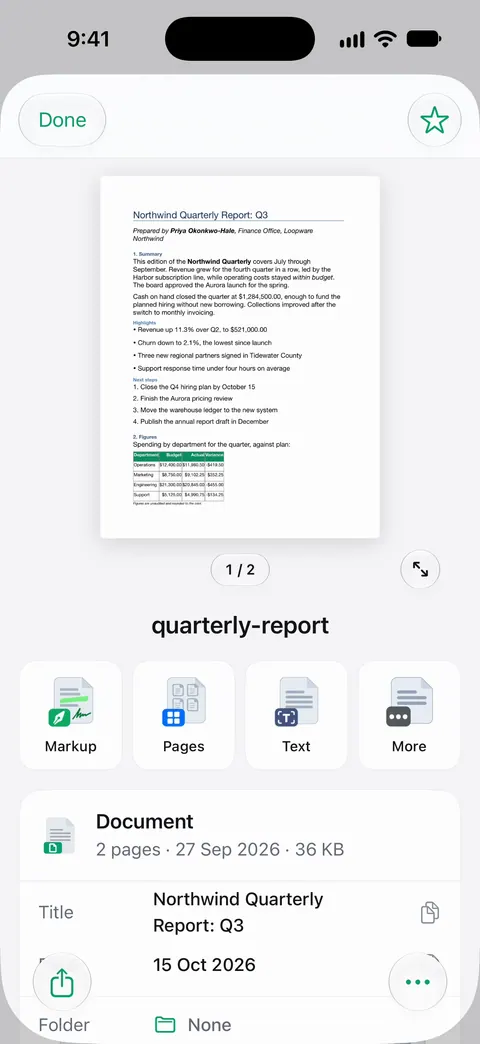
Files can come in through the share sheet: Other apps can send a file to Scanner One with Save to Scanner One in their share sheet.
The limits, plainly:
- Free accounts can sign and mark up 3 documents a month. Pro removes every limit.
- On a free account, pages you share, print or export carry a small “Scanned with Scanner One” label at the bottom right. Pro removes it. If the label matters on a signed agreement, the Pages and Files route adds none.
- Scanner One doesn’t replace a signing service when the sender asks for one.
Questions and answers
Can I sign a Word document directly on my iPhone without converting it?
Apple’s Markup signs PDFs and images, not .docx files. Converting to PDF takes a few taps in Pages or Word and gives the other person a file whose layout won’t change, so it’s the better route anyway.
Should I send back the Word file or a PDF?
A PDF, unless the sender asks for the Word file. In a .docx, a signature image can move when the file is opened on another computer, and anyone can edit the text. A PDF looks the same everywhere.
What if I don’t have Pages or Word?
Pages is Apple’s own app and free on the App Store. If you’d rather not install it, Scanner One’s To PDF tool turns files into PDFs, or you can ask the sender for a PDF version.
Is a typed name in a Word document a valid signature?
Sometimes. Many everyday agreements accept a typed or drawn signature, while others need a specific signing service, a certified digital signature, or ink. Follow what the sender asks for.
Can Scanner One sign a Word file?
It turns it into a PDF first, like the built-in route. The To PDF tool turns files and photos into PDFs. You can sign and annotate documents. Free accounts can sign and mark up 3 documents a month.
Sources
What this page says about Scanner One was checked against the app on .
- Apple Pages User Guide for iPhone, Open a document in Pages on iPhone — Pages opens .doc and .docx files and can save them as PDF; reading view and Edit; missing font warnings; undated, read 2026-11-13
- Apple Pages User Guide for iPhone, Convert to Word, PDF, or another file format in Pages on iPhone — More, Export, PDF, then a sending or saving option; changes to the exported copy don’t affect the original; a password carries over; undated, read 2026-11-13
- Microsoft Support, Save or convert to PDF or XPS in Office Desktop apps — on iOS, tap File, then Export, then PDF; undated, read 2026-11-13
- Apple iPhone User Guide, Fill out forms, sign documents, and create signatures on iPhone — Add Signature, Add Text Form Box, saved signatures, Export, Print or Share; undated, read 2026-11-13
- Apple iPhone User Guide, Find and view files and folders in Files on iPhone — touch and hold a file, then Open With; Quick Look opens files whose app isn’t installed; undated, read 2026-11-13
- Scanner One on the App Store — the app’s own listing: To PDF, signing
Get Scanner One
Scanner One is free, with generous limits: scanning, clean PDFs and text search never stop.

Scanner OneScan, sign and ask anything
Scanner One is free, with generous limits: scanning, clean PDFs and text search never stop.