
Guide
Highlight text in a PDF on iPhone
On iOS 26 and later, open the PDF in Preview, touch and hold the first word, drag the grab points across the text, then tap Highlight and choose a color, or tap underline or strike through. If the PDF is a scan and the text won’t select, use Markup instead: tap the Markup button, choose the marker, and draw over the line. Both ways are free and built into iPhone.

Highlight text in Preview on iOS 26 and later
Preview, Apple’s PDF app on iPhone from iOS 26, highlights real text: the highlight follows the line exactly, the way it would in a book. These are Apple’s steps.
- Open the Preview app and open the PDF.
- Touch and hold the first word you want to highlight, then move the grab points to the end of the passage.
- Tap Highlight.
- Choose a highlight color, or tap the underline or strike through button instead.
To undo a highlight you just made, tap the More button, then tap Undo.
Looking for a passage in a long document? Tap the Search button first, type a word from it, and Preview takes you to the page. Then select and highlight.
Highlight a scan or any PDF with the Markup marker
When the PDF is a scan, or you’d rather draw, use Markup’s marker. It works in the Files app, Notes, Books and Preview, on any page, because it draws over the page instead of selecting text.
- Open the PDF and tap the Markup button to show the Markup toolbar.
- Tap the marker tool.
- Tap the marker again to change the line weight, and drag the slider to change the opacity. A thick, half-transparent stroke looks like a real highlighter.
- Tap the Color Picker button, tap Grid, Spectrum or Sliders, and choose a color. Yellow and light green leave black text readable.
- Draw over the line with your finger.
- Tap the Done button when you’re finished, then save or share the PDF.
Get straight lines
A finger stroke across a line of text rarely stays level. Apple’s Ruler tool fixes that:
- In the Markup toolbar, tap the Ruler tool.
- Drag the ruler with one finger so its edge sits just under the line. Use two fingers to rotate it if the scan is slightly tilted.
- Choose the marker and draw along the ruler’s edge.
- Tap the Ruler tool again to hide it.
Fix a stroke
- Erase part of it: tap the eraser and scrub over the part you want gone.
- Remove the whole stroke: tap the eraser, tap Object Eraser, then touch the stroke.
- Move it: tap the Lasso tool, circle the stroke, then touch and hold it and drag.
Highlight so someone else can follow
When you send a highlighted PDF to someone, such as a lease to a partner or a contract to a lawyer, a little order helps them.
- Give each color one meaning and say what it is in your message: yellow for “check this”, green for “agreed”, pink for “question”.
- Highlight less than you think. A page that’s half yellow points at nothing. Mark the clause, the date, the amount.
- Add a short note next to the important ones, so they don’t have to guess why it’s marked.
- Send a copy and keep a clean original, so you can start again on the next draft.
Underline, strike through or circle
Highlighting isn’t always the clearest mark.
- Underline suits a single term or a date in a dense paragraph. In Preview, select the text, tap Highlight, then tap the underline button.
- Strike through shows wording you disagree with in a draft. Same steps, with the strike through button. It’s a note, not an edit: the words underneath remain.
- Circle or box a total or a date: in Markup, draw a circle in one stroke and pause, and it snaps into a clean shape. Or tap the Add button, then Add Shape.
- Add a comment beside the highlight with a text box; the guide to adding text to a PDF has the steps.
When the text won’t select
If touching and holding a word selects nothing, or selects the whole page as a picture, the PDF has no text layer. That’s normal for scans and for PDFs made from photos.
You have two choices:
- Use the Markup marker, as above. It looks the same to the reader.
- Make the PDF searchable, then highlight the text in Preview. On iOS 27, Preview’s Export has an Embed Text option that runs text recognition. The guide to making a scanned PDF searchable has the steps and a quick test.
Highlighting is not hiding
A highlight in black, or a thick black marker stroke, looks like it covers the words. It doesn’t remove them: the text is still in the file, and anyone can copy it out from under the mark or delete the stroke. If you need to hide an account number or a name before sending, use real redaction. The guide to redacting a PDF properly explains the difference and how to check.
Where Scanner One helps, and where it doesn’t
For highlighting, Preview and Markup are enough, and free. Use them.
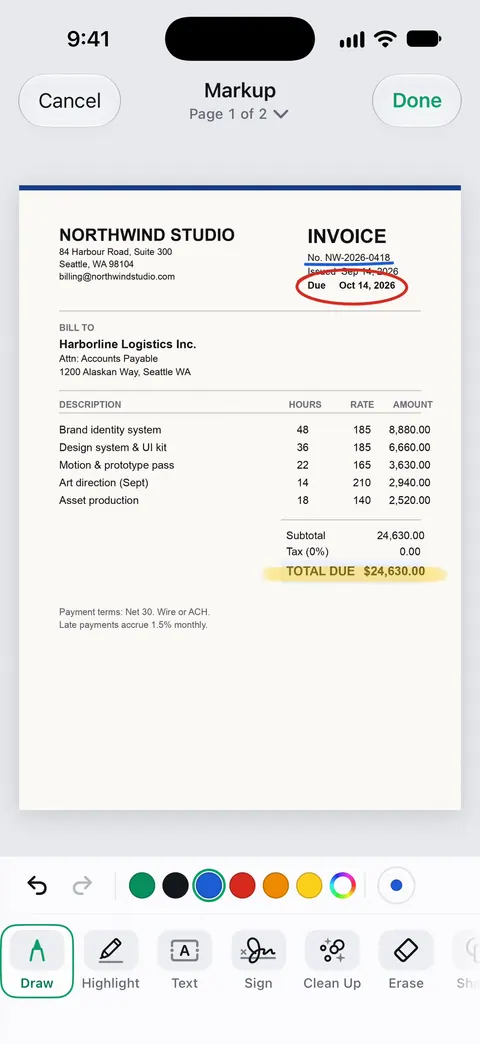
Scanner One helps when the PDF is one of your scans and you want the marks where the document lives. You can sign and annotate documents. Its Markup can highlight, circle and underline on the page, as on the invoice below.
Text recognition runs on every page for everyone, free or Pro. That means scans have text you can search, which helps you find the passage before you mark it.
The limits, plainly:
- Free accounts can sign and mark up 3 documents a month. Pro removes every limit.
- On a free account, pages you share, print or export carry a small “Scanned with Scanner One” label at the bottom right. Pro removes it. If the label matters, the built-in tools add none.
See sign and mark up for the rest of the tools.
Questions and answers
Why can’t I highlight text in my PDF on iPhone?
The PDF probably has no text layer: it’s a scan, a picture of the page. Text highlighting needs selectable text. Use the Markup marker to draw over the line instead, or make the PDF searchable first so the text can be selected.
How do I change the highlight color?
In Preview, select the text, tap Highlight, then choose a color. With the Markup marker, tap the Color Picker button and choose a color from Grid, Spectrum or Sliders before you draw.
How do I remove a highlight?
Right after adding it, tap the More button in Preview, then Undo. For a marker stroke, choose the eraser in the Markup toolbar and tap Object Eraser, then touch the stroke to remove it.
Can I highlight a PDF in the Books app?
Yes, with Markup. Open the PDF in Books, tap the page, then tap the Markup button to use the drawing tools, including the marker.
Does a black highlight hide text?
No. A highlight sits on top of the words; the text is still in the file and can be copied or uncovered. To hide something for real, use redaction.
Sources
What this page says about Scanner One was checked against the app on .
- Apple iPhone User Guide, Annotate a PDF or image in Preview on iPhone — selecting text, then Highlight with a color, underline or strike through; Undo; undated guide page for iOS 26 and 27, read 2026-11-13
- Apple iPhone User Guide, Draw and handwrite with Markup on iPhone — the marker tool, line weight, opacity, color picker, ruler and erasers; undated guide page for iOS 26 and 27, read 2026-11-13
- Apple iPhone User Guide, Read PDF documents in the Books app on iPhone — opening a PDF in Books and marking it up with the Markup button; undated guide page for iOS 26 and 27, read 2026-11-13
- Apple iPhone User Guide, Open and view PDFs and images in Preview on iPhone — Preview’s Search button, used to find a passage before highlighting it; undated guide page for iOS 26 and 27, read 2026-11-13
- Scanner One on the App Store — the app’s own listing: signing and annotating documents
Get Scanner One
Scanner One is free, with generous limits: scanning, clean PDFs and text search never stop.

Scanner OneScan, sign and ask anything
Scanner One is free, with generous limits: scanning, clean PDFs and text search never stop.