
Guide
PDF won’t open on your iPhone
First save the file to Files and open it from there: in Mail, touch and hold the attachment and choose Save to Files, then open it in Files or Preview. If it’s blank or stuck, wait for it to finish downloading, then try another app with Open With (Preview, Books or Quick Look). If it asks for a password, you need it from the sender. If no app opens it, the file is damaged or isn’t really a PDF: ask the sender to send it again.

You tap a PDF and get a blank white page, a spinning wheel, a gray icon or a message that it can’t be opened. The cause is nearly always one of a few things, and most take a minute to fix. Work down this page in order: the quick checks come first.
Quick fixes that solve most cases
- Wait a moment. A big attachment or a file stored in iCloud Drive has to download before it shows. A blank page often just means “still loading.”
- Save it to Files and open it from there. In Mail, touch and hold the attachment and choose Save to Files. Then open the Files app and tap the PDF. Files from the web usually land in the Downloads folder: tap Browse, then Downloads (if you don’t see it, tap iCloud Drive).
- Try a different app. In Files, touch and hold the PDF, choose Open With, and pick another app, such as Preview or Preview with Quick Look.
- Open it in Books. Tap the PDF, tap the Share button, then tap Books.
- Quit and reopen the app. Open the App Switcher, swipe up on the app, then open it again. Apple’s advice is to restart your iPhone if it’s still unresponsive.
If none of that works, the problem is the file itself. Read on.
The file didn’t finish downloading
The most common cause. Signs: a blank page, a spinner, or a file that’s much smaller than it should be.
- From Safari: tap the Download button in Safari to check whether the download finished. If it failed, download it again on a steadier connection.
- From Mail: open the message on Wi-Fi and wait for the attachment to download fully before tapping it.
- From iCloud Drive or another cloud folder: wait for the file to download in Files before opening it.
- From a website portal (a bank, a school, a doctor’s office): some portals hand out a link that expires. Download it again from the portal.
It’s protected with a password
If the file asks for a password, it was locked on purpose. Apple’s Preview, for example, can lock a PDF with a password and turn on Require Password.
- Ask the sender for the password. Banks and payroll services often use a set pattern, such as part of your date of birth or account number, explained in the email.
- If it’s your own file and you’ve forgotten the password, there’s no built-in way back. Next time, keep an unlocked copy: Apple suggests tapping Duplicate before you lock a PDF in Preview.
The guide to password-protecting a PDF covers sending passwords safely.
It isn’t really a PDF
A file can end in .pdf without being one, or arrive as something else entirely:
- A Word or Pages file renamed. It may open in Pages or Word instead. Try Open With.
- A “winmail.dat” or similar attachment from an Outlook sender instead of the PDF. Ask them to resend it as a PDF.
- A secure-message link or wrapper. Some encrypted email services send a file you can only open through their own website or app. Follow their instructions.
- A photo or a screenshot. If what you have is an image, the guide to turning photos into a PDF shows how to make a real PDF from it.
Apple notes that if the app that created a file isn’t installed, Files shows a preview in Quick Look. That’s a sign the file is a different type.
The file is damaged
If no app can open it, the file is probably corrupt: cut off during sending, damaged on the sender’s side, or broken by a program that created it badly. There’s nothing to fix on your iPhone.
- Ask for it again, ideally by a different route (a download link instead of an attachment, or the other way round).
- Ask for a smaller file if it’s very large; big attachments are the ones that get cut off.
- Open it on a computer if you have one, to tell whether the problem is the file or the phone.
It opens but looks wrong
- Pages are blank but the page count is right. Usually a slow download or a heavy PDF with large images. Wait, or try Preview or Books.
- Odd characters instead of text. The PDF uses fonts it didn’t include. It will usually still print and read on a computer; ask for a version with fonts embedded.
- Forms show empty boxes. Some forms built for desktop Acrobat show warnings or blank fields in other viewers. Ask the sender for a plain PDF, or fill it as a flat form: see the guide to filling a PDF with no fillable fields.
- Only the first page shows. Scroll, or tap the page count to see all the thumbnails.
Make one app the default for PDFs
If PDFs keep opening in an app that struggles with them, change it. In Files, touch and hold a PDF, choose Get Info, then tap the menu next to Always Open With and pick the app. iPhone asks whether to change it for that file or for all files of that type.
Where Scanner One helps, and where it doesn’t
For opening a PDF, iPhone needs no extra app. Files, Preview and Books cover it, and most failures are a download or a password, which no app can fix.
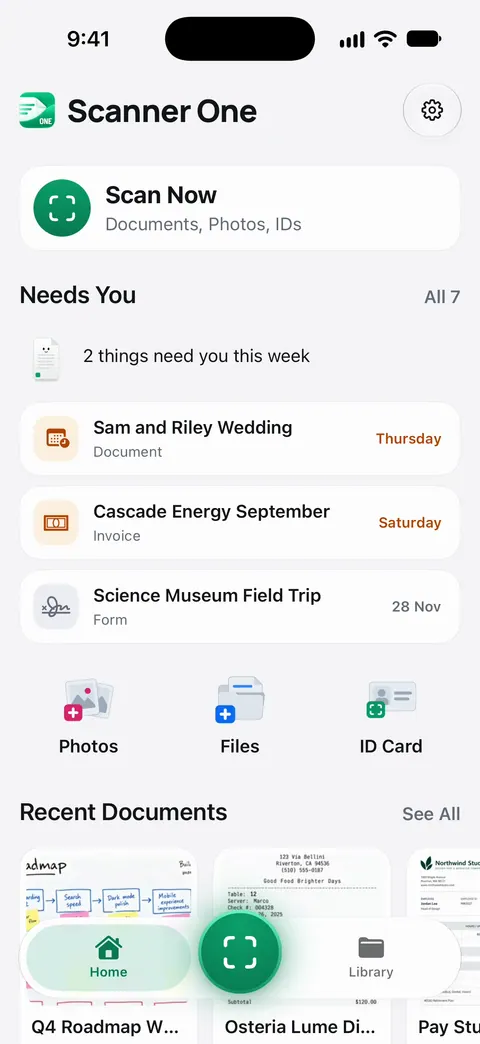
Scanner One helps when the file opens fine but you want to keep it with your other papers, or when what you got isn’t a PDF yet. From Home you can bring in pictures from Photos and files from the Files app, or scan an ID card. Other apps can send a file to Scanner One with Save to Scanner One in their share sheet. The To PDF tool turns files and photos into PDFs.
The limits, plainly:
- Scanner One can’t repair a damaged PDF or open one without its password.
- On a free account, pages you share, print or export carry a small “Scanned with Scanner One” label at the bottom right. Pro removes it.
- If the sender’s file is broken, the fix is a fresh copy from them.
Questions and answers
Why is my PDF blank on iPhone?
Most often it hasn’t finished downloading, especially a large attachment or a file in iCloud Drive. Wait a moment, or save it to Files and open it from there. If it stays blank, try another app such as Preview or Books.
Why does my iPhone say it can’t open this PDF?
The file may be incomplete, damaged, protected with a password, or not really a PDF despite its name. Try it in Preview or Books. If nothing opens it, ask the sender for a fresh copy.
What app opens PDFs on iPhone?
Files opens them directly, and Preview (iOS 26 and later) and Books open them too. You don’t need to download an app just to read a PDF.
How do I open a password-protected PDF?
Tap it and enter the password when asked. The sender should give it to you, ideally by text or a call rather than in the same email. There’s no legitimate way around a password you don’t have.
Can Scanner One open a PDF the iPhone can’t?
It can’t repair a damaged file. It can take in a file from Files or another app’s share sheet, and turn files and photos into PDFs. Other apps can send a file to Scanner One with Save to Scanner One in their share sheet. The To PDF tool turns files and photos into PDFs.
Sources
What this page says about Scanner One was checked against the app on .
- Apple iPhone User Guide, Download email attachments in Mail on iPhone — touch and hold an attachment, then Save to Files or Share to open it in another app; filtering for mail with attachments; undated, read 2026-11-13
- Apple iPhone User Guide, Find and view files and folders in Files on iPhone — Open With, Always Open With in Get Info, Preview with Quick Look, and Quick Look for files whose app isn’t installed; undated, read 2026-11-13
- Apple iPhone User Guide, Find your downloaded files on iPhone — the Downloads folder in Files, and the Download button in Safari to check a download’s status; undated, read 2026-11-13
- Apple iPhone User Guide, Lock PDFs in Preview on iPhone — a PDF locked with a password, and keeping an unlocked duplicate; undated, read 2026-11-13
- Apple iPhone User Guide, Read PDF documents in the Books app on iPhone — opening a PDF from another app in Books with the Share button; undated, read 2026-11-13
- Apple iPhone User Guide, Quit and reopen an app on iPhone — quitting from the App Switcher, reopening, and restarting iPhone if an app stays unresponsive; undated, read 2026-11-13
- Scanner One on the App Store — the app’s own listing: Save to Scanner One, To PDF, bringing in files from Files
Get Scanner One
Scanner One is free, with generous limits: scanning, clean PDFs and text search never stop.

Scanner OneScan, sign and ask anything
Scanner One is free, with generous limits: scanning, clean PDFs and text search never stop.