
Guide
Turn a picture of a table into an Excel sheet
If you have Excel on your iPhone, open a workbook and tap Insert, then Data from Picture. Frame the table until a red border surrounds it, tap the capture button, fix any cells Excel flags, then tap Insert. Without Excel, copy the table’s text with Live Text, paste it into Numbers, tidy the columns and export as Excel. Whichever way, check every number against the paper.

This page is about a picture of a table: a printed price list, a photographed timetable, a page of a bank statement, a whiteboard grid. If your table is already inside a PDF, the guide to turning a PDF into an Excel sheet covers that case.
The quickest way: Excel’s Data from Picture
Microsoft built this into Excel. If you already use Excel for Microsoft 365 on your iPhone, start here.
- Open Excel on your iPhone and open (or create) a workbook.
- Tap Insert, then Data from Picture.
- Point the camera at the table and move closer until a red border surrounds the data, then tap the capture button.
- If the picture shows more than the table, drag the sizing handles at its edges to crop it.
- Excel converts the image to a table and points out anything it isn’t sure of. For each one, tap Ignore to keep it or Edit to correct it.
- Tap Insert. The data appears in the grid.
Microsoft’s page lists the languages the feature reads: English and about 20 European languages. A table in another script may not work.
Microsoft’s Image to Table
The Microsoft Copilot app for iOS has a similar Image to Table action. Take a picture or pick one from your photo album, crop it to the table, tap Done, then tap Open. If the app marks “Items need your review”, tap Review to fix them first or Open anyway to fix them in Excel. This is the route to take for a photo you already have in Photos.
Without Excel: Live Text and Numbers
Apple’s own apps can do it too, with more tidying.
- Open Camera and point it at the table (or open the photo in Photos).
- When the yellow frame appears, tap the Detect Text button, then Select All or drag to select just the table, and tap Copy.
- Open Numbers and paste into a new spreadsheet.
- Check how it landed. Often each value comes through on its own line instead of in columns; move them into the right columns, or paste one column at a time.
- Tap the More button, tap Export, then choose Excel or CSV, and choose how to send or save it.
For more on copying text from images, see copying text from a photo. This route suits a table of five or ten rows. Beyond that, the retyping and rearranging add up.
Take a picture the converter can read
The picture decides most of the result. Microsoft’s own tips and plain experience agree:
- Light it evenly. Daylight from a window beats the ceiling light right above you. Avoid your own shadow over the page.
- Shoot straight on, with the phone parallel to the paper. An angle bends the columns and the converter mixes up rows.
- Fill the frame with the table and only the table. Crop out headers and notes that aren’t part of it.
- Flatten the page. A curl at the edge of a book or a folded statement shifts the last column.
- Avoid glare on glossy paper and screens: tilt slightly until the white patch is gone.
Check the numbers before you use them
A table that looks right can still hold a wrong digit. Before you trust it:
- Compare a row total or the column total with the paper. If the paper has a total, add a SUM in the sheet and see if it matches.
- Look at the cells that should be numbers. A value aligned to the left of its cell is often text, which a formula ignores.
- Check dates: a converter may read 03/04 as March 4 or 3 April depending on your region settings.
- Look for merged rows, where two lines of a cell became one value, and for minus signs and brackets that went missing.
Excel or CSV
| Format | Use it when | Note |
|---|---|---|
| Excel (.xlsx) | Someone will open it in Excel, or you need several sheets | Keeps formatting and formulas |
| CSV | You’re importing into accounting, budgeting or tax software | Plain values only, one table per file |
Receipts and expense lists are a common reason for all this: see organizing receipts for a small business and scanning receipts for taxes.
Where Scanner One helps, and where it doesn’t
If you have Excel and the table is clean, Data from Picture is fast and built for this. Use it.
Scanner One helps when the table is part of a paper you want to keep: a statement, an invoice, a price list. You scan the page, which straightens it and evens out the light before anything is read, and export the table from the same document. Scanner One exports to Word, keeping headings, lists and tables, and to Excel and CSV.
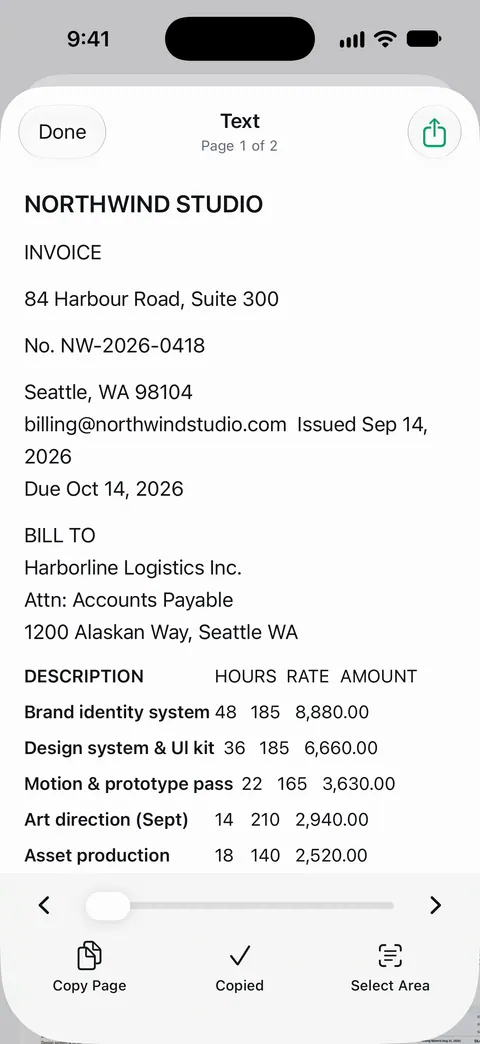
The scan stays in your library as a searchable PDF, so you can go back to the original when a number looks off.
The limits:
- Free accounts can run the PDF tools and the Word, Excel and CSV exports 3 times a week, from one shared allowance.
- On a free account, pages you share, print or export carry a small “Scanned with Scanner One” label at the bottom right. Pro removes it.
- Handwritten figures, faint print and tables without lines are hard for any converter. Check the sheet against the paper, as above.
More on the export itself: Word, Excel and CSV export.
Questions and answers
Can Excel on iPhone read a table from a photo?
Yes. Microsoft’s Data from Picture feature, under Insert in Excel for Microsoft 365 on a phone, captures a table with the camera and turns it into cells after you review any flagged values.
Can I use a photo I already took?
Microsoft’s Image to Table action in the Microsoft Copilot app lets you take a picture or select one from your photo album. Excel’s Data from Picture page describes capturing with the camera.
Why are some numbers wrong after the import?
Shadows, glare, a skewed angle, small type and handwritten figures all cause misreads, and 1, 7, 5 and 8 are the usual suspects. Fix the flagged cells, then compare the totals with the paper.
Should I save it as Excel or CSV?
Excel keeps several sheets and formatting. CSV is plain values separated by commas, which accounting and budgeting tools often ask for when you import.
Sources
What this page says about Scanner One was checked against the app on .
- Microsoft Support, Insert data from picture — Excel on a phone: Insert, Data from Picture, red border, capture, Ignore or Edit flagged issues, Insert; applies to Excel for Microsoft 365; supported languages listed; Image to Table in the Microsoft 365 app; undated page, read 2026-11-13
- Microsoft Support, Actions in the Microsoft Copilot app for iOS — Image to Table: crop, Done, Open, Review or Open anyway, the table opens in Excel; undated page, read 2026-11-13
- Apple iPhone User Guide, Use Live Text with your iPhone camera — Detect Text, Select All and Copy in the Camera; undated guide page, read 2026-11-13
- Numbers User Guide for iPhone, Export to other file formats — More, Export, Excel, CSV or TSV; one worksheet per sheet or per table; undated guide page, read 2026-11-13
- Scanner One on the App Store — the app’s own listing
Get Scanner One
Scanner One is free, with generous limits: scanning, clean PDFs and text search never stop.

Scanner OneScan, sign and ask anything
Scanner One is free, with generous limits: scanning, clean PDFs and text search never stop.