
Guide
Scan sheet music on iPhone or iPad
Lay each page flat in even light, scan it with Scan Documents in Preview or Files, or with the Camera’s Scan Document button on supported iPads, and keep all the pages of one piece in one PDF. Use a grayscale or black-and-white filter so the staves are crisp, crop just outside the music, and check the smallest notes are sharp. Then import the PDF into your score reader: forScore, for example, works best with one multi-page PDF per piece.

Musicians scan music for two reasons: to read from an iPad instead of a stack of paper, and to keep a safe copy of parts that are falling apart. Both need the same thing: one sharp PDF per piece, with straight staves and nothing cut off.
Scan with what you have
Every route below saves a multi-page PDF. Pick the one you like.
- Preview on iPhone or iPad (iOS and iPadOS 26 and later): tap Scan Documents, and the camera captures each page automatically. Tap Auto so it reads Manual if you’d rather press the Shutter button yourself.
- Files: open the folder for your music, tap the More button, then Scan Documents. The PDF lands in that folder.
- The Camera on a supported iPad: in Photo mode, point at the page and tap Scan Document. When you’re done, save the scan to Files or open it in Preview.
Apple’s steps are the same on iPhone and iPad. The iPhone is lighter to hold flat above a page; the iPad is where you’ll read. Save to iCloud Drive and the PDF is on both. More iPad specifics are in scanning documents on iPad.
Set up the page
- Even light. Daylight from a window beside you, or two lamps on either side. Shadows across the staff lines are the biggest problem in music scans. Apple notes that on supported iPads you can turn on the flash to remove shadows, but on glossy paper the flash can leave a bright patch.
- A dark, plain surface under loose sheets, so the scanner finds the edges.
- Flat pages. Loose sheets are easy. For bound scores and books, see below.
Scan a piece, page by page
- Start a scan with one of the routes above.
- Hold the device directly above the first page, parallel to it, so the staves come out straight rather than fanned.
- Let Auto capture it, or tap the Shutter button. Check that the corners sit just outside the printed music, including the title, tempo marks and page number.
- Turn to the next page and repeat until the piece is done.
- Tap a thumbnail to crop, rotate or adjust its coloring. Apple’s Preview steps describe all three.
- Tap Done and save. Name the file for the piece, such as “Faure Pavane, flute part”.
Grayscale or black and white?
Music is black on white, so a grayscale or black-and-white filter usually gives the crispest notes and the smallest file. Two cases to watch:
- Pencil markings (fingerings, breath marks, bowings) can fade in a strong black-and-white filter. Use grayscale to keep them.
- Old yellowed paper turns muddy in color. Grayscale cleans it up without losing faint notes.
Zoom in after each page. Ledger lines, dots and small accidentals blur first; if they do, rescan with more light.
Bound scores and thick books
Bound collections curve toward the spine, which bends the staves and shrinks the notes nearest the binding.
- Open the book as flat as it will go without cracking the spine.
- Press the pages down at the outer edges with your fingertips, outside the music.
- Scan one page at a time rather than the whole spread, so each page is square.
If the curve still bends the staves, the methods in scanning a book without the curve help. Oversized scores and parts larger than the camera can frame in one go are covered in scanning large documents.
One piece per PDF
Score readers are organized around files. forScore’s own documentation says it works best when each file holds all the pages of a single piece, and that if you have separate PDFs or images for each page you’ll need to combine them into one multi-page PDF first.
- Scan a whole piece in one session, so the pages land in one PDF in order.
- If you scanned pages separately, combine them: see merging PDFs on iPhone, or use our free merge PDF tool.
- If pages are out of order, reorder them before importing, so your page turns are right.
Import into forScore or another reader
In forScore, open the main menu and tap the import button to pick files from your device or a connected cloud service, or drag files into the library on iPad. forScore also has its own Scan feature that photographs pages and makes a PDF, if you’d rather scan inside the reader. Other score readers import PDFs from Files in a similar way.
A word on copyright
Printed music is copyrighted unless it’s old enough to be in the public domain, and many publishers attach license terms. The U.S. Copyright Office explains that fair use depends on four factors: the purpose of the use, the nature of the work, how much is used, and the effect on the market for the original. A copy of music you own, for your own iPad, is a different case from copies handed out to a whole ensemble. When it matters, check with the publisher.
Where Scanner One helps, and where it doesn’t
Scanner One runs on iPhone and iPad. A scan can have many pages, and you can reorder them. That matters for page turns. Book spreads are split into two pages and curved lines are flattened. So a bound score opened flat can be captured as a spread and saved as two straight pages.
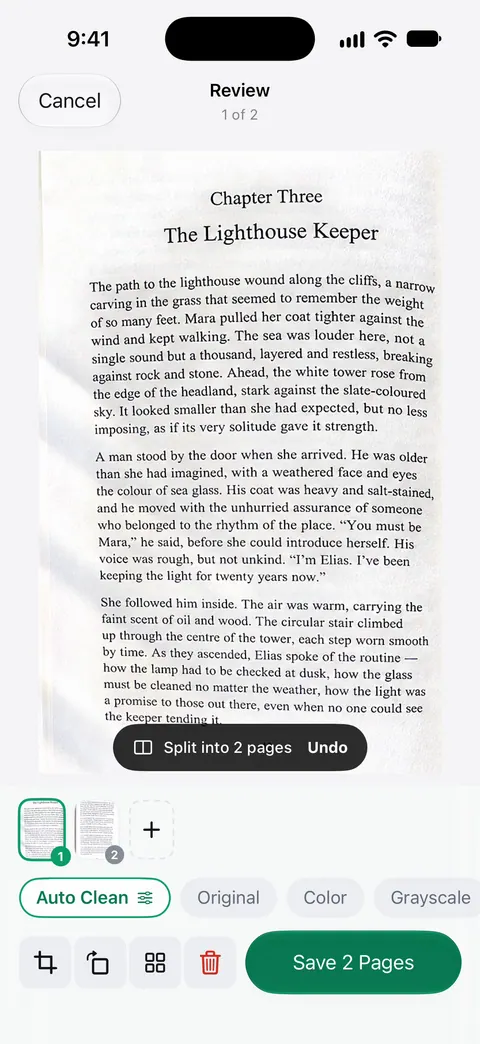
Scans come with Auto Clean, Color, Grayscale and Receipt filters. Grayscale is the one to try first for music. The PDF tools merge, split, compress, password-protect, add page numbers and watermarks, and extract text. Merging and splitting fit scores: split a collection into one PDF per piece for your reader. Free accounts can run the PDF tools and the Word, Excel and CSV exports 3 times a week, from one shared allowance.
The limits: On a free account, pages you share, print or export carry a small “Scanned with Scanner One” label at the bottom right. Pro removes it. Sending a score on to forScore or another reader is an export, so on a free account those pages carry the label; Pro removes it. Documents stay on your iPhone unless you share them or turn on iCloud Sync.
What it doesn’t do: it doesn’t read music notation, transpose, play back or turn pages for you. Those are jobs for notation apps and score readers. When the built-in way is enough: for a few loose pages, Preview or Files makes a clean PDF your reader will open.
Questions and answers
How do I turn sheet music into a PDF?
Scan each page with Scan Documents in Preview or Files, or the Camera’s Scan Document on a supported iPad, adding pages until the piece is done. The scanner saves all the pages as one PDF.
Should I scan sheet music on iPad or iPhone?
Either works for scanning; the iPhone is easier to hold steady above a page. The iPad is where most musicians read scores, so scan with whichever you like and keep the PDF in Files or iCloud Drive so both devices see it.
How do I get scanned music into forScore?
Save the PDF to Files, then use forScore’s Import in its main menu to pick it, or drag it into the library on iPad. forScore suggests one PDF per piece, with all its pages.
Can I scan sheet music I bought?
Copying printed music is governed by copyright law and by any license that came with it. A personal copy for your own use is a different case from sharing copies with a group. When in doubt, check with the publisher.
Can a scanner app turn sheet music into editable notation?
Not a document scanner. Turning printed music into notes you can edit or play back needs optical music recognition, which some notation apps offer. A scan gives you a clean picture of the page.
Sources
What this page says about Scanner One was checked against the app on .
- iPad User Guide, Scan documents with your iPad camera — Camera’s Scan Document on supported iPads, manual capture, flash to remove shadows, saving to Files or opening in Preview; read 2026-11-13
- iPad User Guide, Scan text and documents in Preview on iPad — Preview scanning, Auto to Manual, adjusting crop, rotation and coloring; read 2026-11-13
- iPhone User Guide (iOS 27), Scan text and documents in Preview — the same steps on iPhone; read 2026-11-13
- forScore documentation, Adding files — works best with one file per piece; combine page images into one PDF; Import menu and drag and drop; read 2026-11-13
- U.S. Copyright Office, Fair use index — what fair use is and its four factors; updated November 2026
- Scanner One on the App Store — the app’s own listing
Get Scanner One
Scanner One is free, with generous limits: scanning, clean PDFs and text search never stop.

Scanner OneScan, sign and ask anything
Scanner One is free, with generous limits: scanning, clean PDFs and text search never stop.