
Guide
Scan a paper document into Word on iPhone
In Notes, open a note, tap the Attachments button, tap Scan Text, point the camera at the page, select the text and tap Insert. Then tap the Share button, tap Open in Pages, and in Pages tap More, Export, Word. You get an editable .docx with the words but not the layout. For a long page with headings, lists or tables, a scanner app that exports to Word keeps more of the structure.

This page is for a paper in front of you that needs to become a Word file you can edit: an old letter to update, a printed form to retype, a handout to adapt. If you already have a PDF, the guide to converting a PDF to Word is the better fit.
What iPhone can do on its own
iPhone has no “scan to Word” button. It does have the two pieces you need: text recognition that reads printed words from the camera (Live Text and Notes’ Scan Text), and Pages, Apple’s free word processor, which exports .docx files. Put together, they turn a page into an editable Word file in a few minutes.
What you get is the words. Headings, columns, bullet lists, tables and fonts are not rebuilt; you add those back by hand. For a few paragraphs that’s fine. For a five-page report with tables, it’s a lot of retyping.
Scan the text into Notes, then export to Word
1. Scan the text into a note
- Open Notes and start a new note.
- Tap the Attachments button, then tap Scan Text.
- Hold the iPhone so the text is inside the camera frame. Good light and a flat page help.
- Drag, or use the grab points, to select the text you want, then tap Insert.
- Repeat for the next part of the page or the next page.
Scan Text works in supported languages only. Notes’ other option, Scan Documents, saves a picture of the page as a PDF, which Pages shows as an image, not as text you can edit. Use Scan Text for this job.
2. Open the note in Pages
- Make sure Pages is installed and up to date.
- In the note, tap the Share button, then tap Open in Pages.
3. Export as Word
- In Pages, tap the More button in the toolbar.
- Tap Export, then tap Word.
- Choose how to send or save the .docx file.
The Word copy is separate: changes you make to it don’t affect the note or the Pages document.
Another way: copy from the camera with Live Text
For a single paragraph, you can skip Notes.
- Open Camera and point it at the text.
- When a yellow frame appears around the text, tap the Detect Text button.
- Tap Select All, or touch and hold and drag the grab points, then tap Copy.
- Paste into a Pages document (or into Word, if you have the Word app) and save.
Live Text isn’t available in every region or language. If you don’t see the button, it may be turned off: in Settings > Camera, check Show Detected Text.
Microsoft’s own route
If you use Microsoft’s apps, the Microsoft Copilot app for iOS has an Image to Text action: take a picture or pick one from your album, crop to the text, tap Done, then Copy the text or Share it to another app such as Word. Like the Apple route, it gives you the words to paste; the formatting is up to you.
Clean up the text before you send it
Text recognition makes small, predictable mistakes. Go through the document once with these in mind:
- Line breaks. Each printed line may arrive as its own paragraph. Join them.
- Look-alike characters. 0 and O, 1 and l, rn and m. Numbers matter most: amounts, dates, account numbers.
- Hyphenated words split at the end of a line.
- Headers and page numbers from each page, mixed into the body.
- Tables arrive as loose words in a row. Rebuild them with Pages’ table tool, or keep the table as a scan.
For why this happens and how to reduce it, see why text recognition gets words wrong. Handwritten pages have their own guide: converting handwriting to text.
Scan to Word or scan to PDF
Ask what the other person will do with the file. If they need to edit it, send Word. If they need to read, sign or file it, send a PDF: it looks the same on every device and nobody can shift your layout by accident. Most official forms want a PDF. See how to scan to PDF on iPhone for that route.
Where Scanner One helps, and where it doesn’t
For a paragraph or a short letter, Notes and Pages do the job for free. Use them.
Scanner One helps when the page has structure you don’t want to rebuild. You scan the paper once; the app straightens it and reads the text, then exports it. Scanner One exports to Word, keeping headings, lists and tables, and to Excel and CSV. Text recognition runs on the device, in 29 languages.
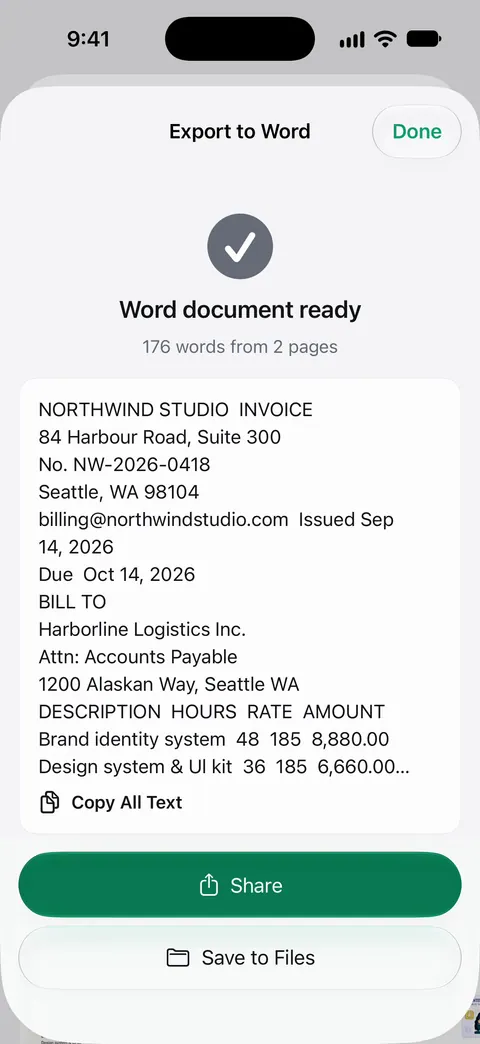
The same scan stays in your library as a searchable PDF, so you keep the original look as well as the editable copy.
The limits:
- Free accounts can run the PDF tools and the Word, Excel and CSV exports 3 times a week, from one shared allowance.
- On a free account, pages you share, print or export carry a small “Scanned with Scanner One” label at the bottom right. Pro removes it.
- No converter gets every word right on a creased page, faint print or handwriting. Read the Word file before you send it, whichever app made it.
For how the export works in more detail, see Word, Excel and CSV export.
Questions and answers
Can I scan a document to Word on iPhone for free?
Yes. Notes' Scan Text puts the words into a note, and Pages (free from Apple) exports the note as a Word file. You keep the text but lose most of the layout.
Why is the Word file full of line breaks?
Text recognition reads a page line by line, so each printed line can arrive as its own paragraph. In Pages or Word, join the lines of each paragraph before you send it, or use a converter that rebuilds paragraphs.
Can I scan handwriting into Word?
Clear printed handwriting often works with Scan Text or Live Text; joined-up writing much less so. Check every line, and see the guide to converting handwriting to text for tips.
I already scanned the page as a PDF. What now?
Then you are converting a PDF, not scanning. The guide to converting a PDF to Word on iPhone covers that, including scans with no text layer.
Sources
What this page says about Scanner One was checked against the app on .
- Apple iPhone User Guide, Scan text and documents in Notes using the iPhone camera — Attachments button, Scan Text, select and Insert; Scan Documents saves a PDF; undated guide page, read 2026-11-13
- Apple iPhone User Guide, Export or print notes on iPhone — Share button, Open in Pages; scanned documents and PDFs appear as thumbnail images in Pages; undated guide page, read 2026-11-13
- Pages User Guide for iPhone, Convert to Word, PDF, or another file format — More button, Export, Word (.docx); undated guide page, read 2026-11-13
- Apple iPhone User Guide, Use Live Text with your iPhone camera — Detect Text button, Copy and Select All in the Camera; Live Text not in all regions or languages; undated guide page, read 2026-11-13
- Microsoft Support, Actions in the Microsoft Copilot app for iOS — Image to Text: take or pick a picture, crop, then Copy or Share the text; undated page, read 2026-11-13
- Scanner One on the App Store — the app’s own listing
Get Scanner One
Scanner One is free, with generous limits: scanning, clean PDFs and text search never stop.

Scanner OneScan, sign and ask anything
Scanner One is free, with generous limits: scanning, clean PDFs and text search never stop.