
Guide
Start a scan with the Action button or Back Tap
Make a shortcut that opens your scanner, then assign it. On iPhone 15 Pro or later, go to Settings, Action Button, swipe to Shortcut, tap Choose a Shortcut and pick it. On other iPhones, go to Settings, Accessibility, Touch, Back Tap, choose Double Tap or Triple Tap, and pick the shortcut there. The simplest shortcut just opens Notes, Files or your scanner app, ready for Scan Documents.

This page sets up a physical shortcut to scanning: the Action button on newer iPhones, or Back Tap on any iPhone that has it. Finding documents by voice is a different job, covered in finding documents with Siri and Shortcuts.
How it works in one sentence
The Action button and Back Tap can both run a shortcut, so you make one shortcut that gets you into your scanner, and assign it to whichever you have.
Step 1: make the shortcut
The dependable version: open your scanner app
Every iPhone can do this.
- Open the Shortcuts app and tap the add button to make a new shortcut.
- Search the actions for Open App and add it.
- Tap the app placeholder and choose Notes, Files, or the scanner app you use.
- Name the shortcut something short, like Scan, and tap done.
When it runs, the app opens and you tap Scan Documents: in Files, Apple’s steps start from the More button; in Notes, from the attachments button in a note. That’s one press and one or two taps.
You can skip the shortcut on an Action button: Apple’s list of actions describes the Shortcut option as a way to open an app or run your favorite shortcut.
The faster version, if your iPhone offers it
Many apps include built-in shortcuts. Apple’s Shortcuts guide says they appear under App Shortcuts in the Shortcuts app, and you can use them in your own shortcuts.
- In Shortcuts, open the list of App Shortcuts and look under Notes, Files and your scanner app for anything that starts a scan.
- Or, while building a new shortcut, search the actions for scan.
- If you find a scanning action, add it and name the shortcut Scan.
What you’ll see depends on your iOS version and which apps you have. Apple’s support pages don’t list a scan action by name, so check on your own phone. If there isn’t one, the open-app version above is nearly as quick.
Step 2: put it on the Action button
On supported models (iPhone 15 Pro or later):
- Open Settings and tap Action Button.
- Swipe through the actions until you reach Shortcut.
- Tap Choose a Shortcut and select the one you made.
To use it, press and hold the Action button. Apple warns that if you choose Shortcut but don’t pick a specific shortcut, the button does nothing, so make sure your shortcut’s name shows under the action.
Or put it on Back Tap
Back Tap runs a shortcut when you double-tap or triple-tap the back of the phone.
- Open Settings, tap Accessibility, then Touch.
- Scroll down and tap Back Tap.
- Choose Double Tap or Triple Tap.
- Scroll to the Shortcuts section and choose your shortcut.
Triple Tap is a good choice: a double tap can fire by accident when you set the phone down on a table. To turn it off later, go back and choose None.
When nothing happens
- Action button: check that a shortcut’s name shows under the Shortcut action in Settings. Press and hold, don’t just click.
- Back Tap: tap firmly near the middle of the back, in a quick rhythm. Try the other option (Double Tap or Triple Tap) if one doesn’t register.
- The shortcut itself: open the Shortcuts app and tap the shortcut. If it doesn’t work there, it won’t work from a button. Re-pick the app in its Open App action.
- After an update: if the app the shortcut opens was deleted and reinstalled, pick it again in the shortcut.
Make it a habit
- Keep the scanner’s last settings in mind. If you scan receipts, set the filter you like once; if you scan photos, keep the flash off.
- Put a dark mat by your desk so every one-press scan finds the edges right away. See the best light for scanning.
- Add a Home Screen icon too. In Shortcuts, a shortcut can also be added to the Home Screen, handy for anyone in the family who doesn’t use the Action button.
For the scan itself, scanning with the Notes app and scanning straight into Files walk through every button.
Where Scanner One helps, and where it doesn’t
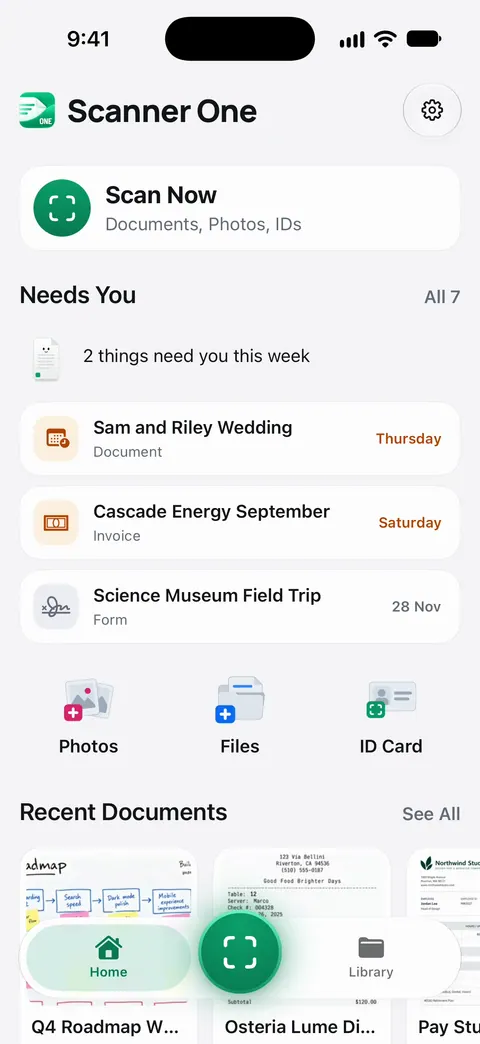
Scanner One opens on Home, with Scan Now at the top and a row for bringing in Photos, Files and ID cards, as the screenshot shows. Set the Action button or Back Tap to open the app and you’re one tap from the camera.
With Siri and Shortcuts you can open, find, share and ask your documents by voice, and see what’s due. Those actions also appear in the Shortcuts app, so a shortcut can find or share a document after you scan it. Then it reads the text, names the document, tags it and puts it in the right folder.
What it doesn’t do: it can’t change what Apple lets the Action button and Back Tap do. They run a shortcut or open an app, so opening the app is the dependable route in. Scanning is free: Scanner One is free, with generous limits: scanning, clean PDFs and text search never stop.
When the built-in way is enough: an Action button that opens Notes or Files gets you scanning in one press without any extra app. See Siri and Shortcuts for the rest of what the app’s shortcuts do.
Questions and answers
Which iPhones have the Action button?
Apple’s Shortcuts guide says the Action button is on iPhone 15 Pro or later supported models, in place of the Ring/Silent switch. Other iPhones can use Back Tap instead.
Can the Action button start a scan directly, without opening an app first?
Only if a scanning action is offered as a shortcut or control on your iPhone, which depends on your iOS version and apps. Opening the scanner app with one press works on every model with an Action button, and Scan Documents is then one more tap.
I set the Action button to Shortcut and nothing happens. Why?
Apple notes that for the Controls, Shortcut and Accessibility actions you must pick a specific option, otherwise the button does nothing. Go back to Settings, Action Button, and tap Choose a Shortcut.
Does Back Tap work with a case on?
Usually, with a normal case. A very thick case or a wallet case can make taps harder to detect. Try Triple Tap, which is less likely to fire by accident.
Sources
What this page says about Scanner One was checked against the app on .
- Shortcuts User Guide (iOS 27), Run shortcuts with the Action button — iPhone 15 Pro or later; Settings, Action Button, swipe to Shortcut, tap Choose a Shortcut; read 2026-11-13
- iPhone User Guide (iOS 27), Use and customize the Action button — press and hold to run the action; the Shortcut action opens an app or runs a shortcut; Controls and Shortcut need an option picked or the button does nothing; read 2026-11-13
- Shortcuts User Guide (iOS 27), Run shortcuts by tapping the back of your iPhone — Settings, Accessibility, Touch, Back Tap, Double Tap or Triple Tap, choose a shortcut; read 2026-11-13
- Shortcuts User Guide (iOS 27), Run app shortcuts — apps' built-in shortcuts appear under App Shortcuts and can be used in your own shortcuts; read 2026-11-13
- Apple Support, How to scan documents on your iPhone or iPad (article 108963) — Scan Documents in Notes and Files; published 2026-02-13
- Scanner One on the App Store — the app’s own listing
Get Scanner One
Scanner One is free, with generous limits: scanning, clean PDFs and text search never stop.

Scanner OneScan, sign and ask anything
Scanner One is free, with generous limits: scanning, clean PDFs and text search never stop.