
Guide
Scan a whole notebook or journal into one PDF
Open the notebook on a dark, plain surface in even daylight. In Notes, tap the Attachment button and then Scan Documents, or tap Scan Documents in Preview. Capture one page at a time, front to back, and keep adding pages to the same scan before you tap Done, so the whole notebook lands in one PDF. Name it with the subject and dates. Notes can then search typed and handwritten text in supported languages.

This page is about the job of scanning a whole notebook, journal or term of class notes, start to finish, into one tidy PDF. If you want tips on getting a single page of handwriting readable, see scanning handwritten notes. For printed books with a deep curve at the spine, see scanning a book without the curve.
Plan the file before you start
A notebook has dozens of pages and a fixed order. Decide two things first, because they are hard to change later:
- One PDF or several. One PDF per notebook works for a journal or a single class. If one notebook holds three subjects, scan three PDFs, one per subject.
- What to skip. Blank pages, the cover and doodle pages only add size. You can skip them now or delete them later, but skipping is faster.
Write the name you’ll use on a sticky note: subject or title, and the date range, such as “Biology notes, Sep to Dec 2026” or “Journal 2019 to 2021”. You’ll type it at the end.
Set up a scanning station
You’ll repeat the same motion 50 or 100 times, so the setup is worth five minutes.
- Pick a dark, plain, matte surface. White paper on a dark background lets the scanner find the page edges every time.
- Use soft daylight from a window, coming from in front of you or from the side, so your own shadow doesn’t fall on the page. More detail is in the best light for scanning.
- Sit, don’t stand. Rest your elbows on the table so the phone stays at the same height above each page.
- Keep the flash off. On glossy notebook paper or pencil, the flash leaves a bright spot.
Scan the notebook in one session
Notes and Preview both build a multi-page PDF as you go. The steps below use Notes; Preview works the same way.
- Open Notes, create a new note and type the notebook’s name as the first line.
- Tap the Attachment button, then tap Scan Documents.
- Open the notebook to the first page you want and hold the phone straight above it, with the page filling most of the screen.
- Let automatic capture take the page: Apple says the iPhone captures it when it detects the page boundaries. Keep the phone still for a moment.
- Turn the page and repeat. The scanner keeps adding pages to the same document.
- When you’re done, tap the Done button. The scan is saved as a PDF in the note.
In Preview (iOS 26 and later), tap Scan Documents, scan each page, and tap Done; then save the PDF where you want it in Files.
Spiral notebooks
Fold the notebook back on itself so only one page faces up. The page lies almost flat and the scanner sees a clean rectangle. Scan all the right-hand pages, flip the notebook over and scan the backs, then fix the order afterwards, or simply turn each page as you go if you can hold it flat.
Bound journals and composition books
A sewn or glued notebook won’t fold flat. Two choices:
- Scan one page at a time, pressing the inner edge down with a finger well away from the writing, and drag the corners to that one page if the scanner grabs both. Switch to manual capture (in Preview, tap Auto so it reads Manual) when automatic capture keeps picking the whole spread.
- Scan the spread as one image if the curve is gentle and the text is large. It’s faster but the inner lines may bend. The book scanning guide covers splitting a spread into two pages.
Pencil and faint ink
Pencil is gray and shiny. Use daylight rather than a lamp, and check one page at full zoom before you scan the rest. If the strokes look washed out, try a black-and-white or grayscale filter on that test page and keep whichever reads best.
Check the order, then fix it
Flip through the finished PDF once before you put the notebook away.
- A page out of order: open the PDF in Preview, tap the page count to show the thumbnails, touch and hold the page and drag it into place.
- A missed page: in the thumbnails, touch and hold the page before the gap, tap Scan Pages, scan the missing page, then move it if needed.
- A blurry page: delete it in the thumbnails (touch and hold, then Delete Page) and scan it again with Scan Pages.
If the file ends up large because it’s long and in color, see scanning several pages into one PDF for keeping the size in check.
Make the notes findable later
A scanned notebook is only useful if you can find the page you need.
- Search in Notes. Apple says Notes search includes typed and handwritten text, in supported languages, and text in scanned documents. To search inside one note, tap the More button, tap Find in Note, and turn on Include Attachments to search the PDF.
- Add typed keywords. Handwriting recognition misses messy or slanted writing. Under the notebook’s title, type the topics it covers (“cell division, genetics, lab 4”), which search will always find.
- Locked notes hide their contents. If you lock the note, search shows only its title, so put the important keywords in the title.
If you want the handwriting as typed text you can edit, that’s a different job: see converting handwriting to text.
For students clearing out a whole year of folders and notebooks at once, scanning schoolwork at the end of the year has a plan for the pile.
Where Scanner One helps, and where it doesn’t
For a long notebook, the parts that matter are page handling and search afterwards.
A scan can have many pages, and you can reorder them. That means a page scanned out of turn can be dragged back into place without leaving the app.
Book spreads are split into two pages and curved lines are flattened. For a bound journal you can scan open, that saves pressing each page flat or scanning the two halves separately.
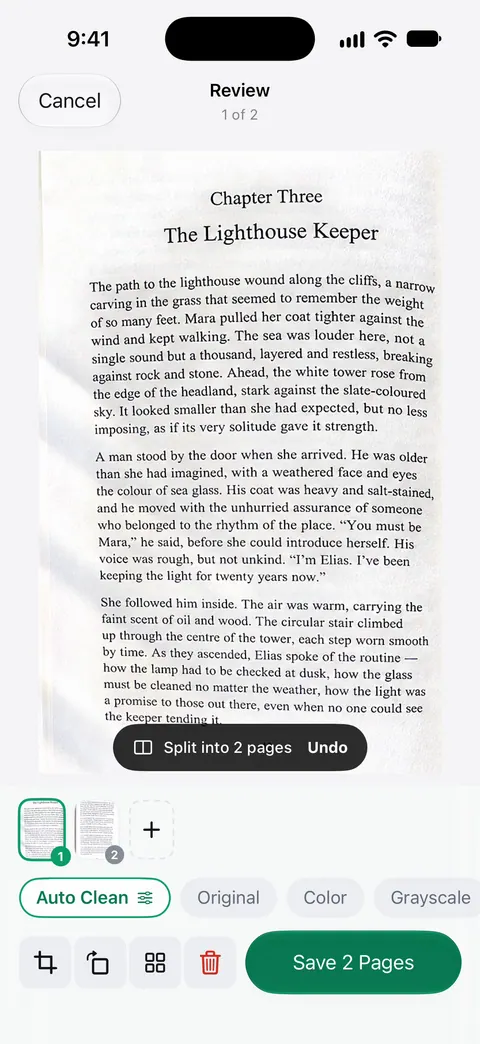
Scanner One makes searchable PDFs. Search looks inside the text of every document and shows the matching line and page. Text recognition runs on every page for everyone, free or Pro. Recognition works best on clear handwriting and print; it will miss some words in messy writing, so typed keywords in the name still help.
What it doesn’t do: it doesn’t turn a page faster than you do, and it can’t recover writing that’s too faint for the camera to see. If you share or export the PDF from a free account, the pages carry a small label: On a free account, pages you share, print or export carry a small “Scanned with Scanner One” label at the bottom right. Pro removes it.
When the built-in way is enough: for a single notebook you’ll mostly keep in Notes, Notes alone does the job well, including searching your handwriting. More scanning guides are in Guides.
Questions and answers
How long does it take to scan a 100-page notebook?
With automatic capture and a steady rhythm, roughly 15 to 30 minutes for 100 pages. Setting up the light and surface first saves more time than anything else, because you won’t have to redo pages.
Should I scan the notebook as one PDF or one file per page?
One PDF per notebook is easiest to keep, search and back up. If the notebook covers several subjects, scan one PDF per subject or per term instead.
Can I search my handwriting after scanning?
In Notes, yes, in supported languages: Apple says Notes search covers handwritten text and text in scanned documents. Messy handwriting will be found less reliably than print, so add a few typed keywords to the note title.
Do I have to cut the spiral off to scan it?
No. Fold a spiral notebook back on itself so one page lies flat and scan it single. Cutting the binding gives the flattest pages, but only do it if you don’t need the notebook as an object.
What if I miss a page halfway through?
Scan the missing page on its own, then add it to the PDF in Preview: show the thumbnails, touch and hold a thumbnail, tap Scan Pages, then drag the new page into place.
Sources
What this page says about Scanner One was checked against the app on .
- iPhone User Guide (iOS 27), Scan text and documents in Notes — Scan Documents in a note, automatic and manual capture, adding pages, saved as a PDF in the note; read 2026-11-13
- iPhone User Guide (iOS 27), Scan text and documents in Preview — Scan Documents in Preview, Auto and Manual, scanning additional pages; read 2026-11-13
- iPhone User Guide (iOS 27), Search through your notes — Notes search covers handwritten text in supported languages and text in scanned documents; locked notes show only titles; read 2026-11-13
- iPhone User Guide (iOS 27), Add, delete, rotate, move, or crop PDF pages in Preview — inserting scanned pages and moving pages in an existing PDF; read 2026-11-13
- Scanner One on the App Store — the app’s own listing
Get Scanner One
Scanner One is free, with generous limits: scanning, clean PDFs and text search never stop.

Scanner OneScan, sign and ask anything
Scanner One is free, with generous limits: scanning, clean PDFs and text search never stop.