
Guide
Scan homework and submit it as a PDF
In Canvas, open the assignment, tap Submit Assignment, then File Upload, then Scanner: scan each page, tap Save to merge them into one PDF, then tap Submit. In Google Classroom, open the assignment, tap Expand on the Your work card, tap Add work, then Scanner or Upload, and finish with Turn In. Or scan in the Files app first and pick the PDF with Files or Upload.

Teachers who grade on a screen want one PDF, with the pages in order, straight and readable. Photos of homework rarely get there: they come out at an angle, with a shadow, and as five separate files. This guide is about getting a handwritten assignment into the learning platform. If you’re still choosing an app for school in general, the student scanner app comparison covers that.
Get the pages ready
A minute of preparation saves a rescan.
- Write darker than you think. Light pencil is the most common reason a scan is hard to read. If you can, finish in pen or press harder.
- Number the pages in a corner, and put your name on the first one. If pages get shuffled, the grader can still follow.
- Tear out cleanly or fold a spiral notebook back so the page lies flat.
- Find even light. Daylight from a window, with your shadow not falling across the page. The best light for scanning explains why.
- Use a dark, plain surface. White paper on a dark table makes edge detection easy.
Submit in Canvas with its own scanner
The Canvas Student app on iPhone has a document scanner built into the upload step. Instructure’s steps:
- Open the course, tap Assignments, then the assignment.
- Tap Submit Assignment, then tap File Upload.
- Tap Scanner. (The other sources are Camera, Library and Files.)
- Hold the page in view and tap the shutter button. You can change the flash and filters.
- Tap a page’s thumbnail to fix it: Adjust for the corners, Filters, Rotate, Delete or Retake.
- Scan the remaining pages. When you scan several, a number appears on the thumbnail; tap Save to merge them into one PDF.
- Check the file shown, then tap Submit.
If your instructor accepts only some file types, the assignment page lists them. If File Upload doesn’t appear, the assignment isn’t set up for files: ask your instructor rather than sending it by email.
Submit in Google Classroom
Google Classroom on iPhone also offers a scanner when you add work. Google’s steps:
- Open Classroom, tap the class, then Classwork, then the assignment.
- On the Your work card, tap Expand.
- Tap Add work, then choose Scanner to scan now, or Upload to pick a PDF you already made. (Add from Drive, Camera and Insert Link are the other choices.)
- Select the file and tap Add.
- Tap Turn In and confirm. The status changes to “Turned in”.
Adding the file isn’t enough on its own: the assignment is only handed in when you tap Turn In. To change it before the due date, open it again, tap Unsubmit, fix it, and turn it in again.
Or scan first, then upload anywhere
Some platforms (Moodle, Blackboard, Schoology, a school website) have no scanner of their own. Make the PDF first, then pick it from the upload button.
- Open Files, go to a folder, tap the More button, then Scan Documents.
- Capture each page. In Auto mode iPhone takes the picture itself; manually, tap the shutter, fit the corners and tap Keep Scan.
- Tap Done, choose a folder, and tap Save.
- In the platform’s upload box, choose Files or Choose Files, and pick the PDF.
Name the file the way your teacher asks, often “Lastname Assignment 4”. The guide to uploading a scan to a website covers the upload menu and what to do when a file won’t attach.
Pick the right filter for handwriting
| What you wrote with | Filter | Why |
|---|---|---|
| Pencil | Grayscale | Black and white can drop light strokes |
| Dark pen | Black and white or grayscale | Crisp, small files |
| Colored pens, graphs, diagrams | Color | Colors often carry the meaning |
| Worksheet with pencil answers | Grayscale | Keeps both the print and your answers |
More detail is in scanning handwritten notes.
When the file is too big
Long assignments in color can be larger than a platform allows. Fixes, in order:
- Rescan in grayscale. Color is the biggest cost and rarely needed for math or essays.
- Crop to the page so no desk shows.
- Export a smaller copy in Preview: open the PDF, tap the Actions Menu button, tap Export, choose PDF, turn on Optimize Images for Screen and Save Images as JPEG, then save.
Then zoom in on your smallest writing before you submit. The size limit guide has more on this.
Check before you submit
- Every page is there, in order, and the right way up.
- The faintest writing on the page is still visible when you zoom in.
- Nothing is cut off at the edges, especially the last line.
- It’s one file, unless your teacher asked for separate ones.
- After submitting, the platform shows it as submitted or turned in.
Where Scanner One helps, and where it doesn’t
If your school uses Canvas or Google Classroom, their built-in scanners are enough for most homework. Try them first.
Scanner One helps if you scan a lot, or your platform has no scanner. Scanner One finds the edges of the page automatically and corrects the perspective. A scan can have many pages, and you can reorder them. Scans come with Auto Clean, Color, Grayscale and Receipt filters. Book spreads are split into two pages and curved lines are flattened. So a page from a bound workbook lies flat.
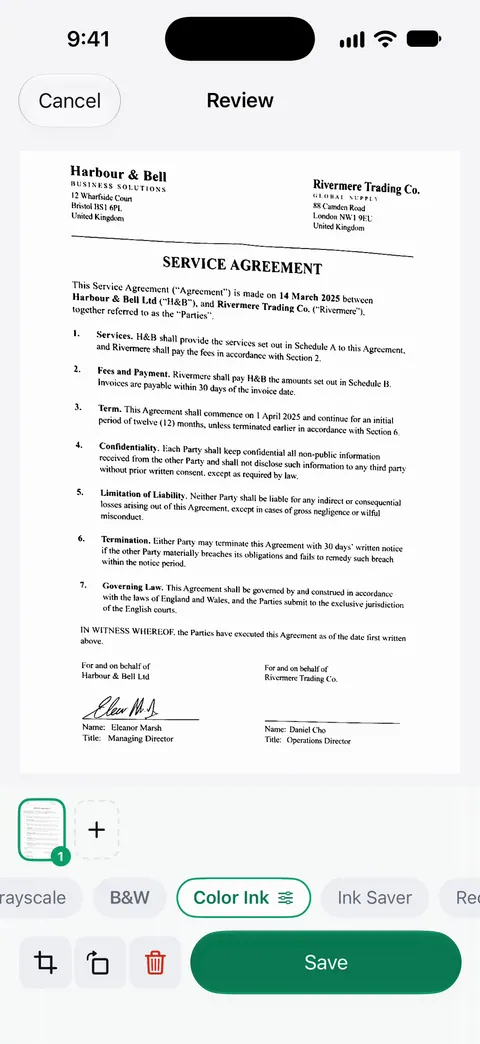
The To PDF tool turns files and photos into PDFs. The PDF tools merge, split, compress, password-protect, add page numbers and watermarks, and extract text. Compress shows the new size beside the old one, which helps when a platform has a limit.
The limits, plainly:
- On a free account, pages you share, print or export carry a small “Scanned with Scanner One” label at the bottom right. Pro removes it. Teachers usually don’t mind, but if yours asks for clean copies, that’s worth knowing.
- Free accounts can run the PDF tools and the Word, Excel and CSV exports 3 times a week, from one shared allowance. Scanning itself never stops on the free plan. Pro removes every limit.
- It doesn’t submit the assignment for you. You still upload the PDF in Canvas, Classroom or your school’s site.
More study and scanning guides are in Guides.
Questions and answers
Can I submit a photo of my homework instead of a PDF?
Only if your teacher allows images. Most ask for one PDF because photos come out crooked, shadowed and in separate files that are easy to grade in the wrong order. A scan fixes all three.
How do I put several pages of homework into one PDF?
Scan them in one session. The Canvas scanner merges the pages when you tap Save, and the Files and Notes scanners keep adding pages until you tap Done. If you already have separate files, merge them before you upload.
I turned in the wrong file in Google Classroom. Can I fix it?
Yes, before the due date. Open the assignment, tap Expand on the Your work card, tap Unsubmit, change the attachment and tap Turn In again. In Canvas, you can resubmit if your instructor allows it.
Why does my teacher say my scan is unreadable?
Usually pencil that a black-and-white filter washed out, a shadow from your phone, or pages cut off at the edge. Use grayscale for pencil, scan near a window and check every page before you submit.
Sources
What this page says about Scanner One was checked against the app on .
- Instructure Community, How do I upload a file as an assignment submission in the Canvas app on my iOS device? — Submit Assignment, File Upload, then Camera, Library, Files or Scanner; scanned pages merged into one PDF with Save; then Submit; undated guide, read 2026-11-13
- Google for Education Help, Turn in an assignment (iPhone and iPad) — Your work card, Add work with Add from Drive, Camera, Scanner, Upload or Insert Link; Turn In; Unsubmit; undated help page, read 2026-11-13
- Apple Support, Scan documents on your iPhone or iPad (article 108963) — scanning in Files and Notes, Auto mode and Keep Scan; published 2026-02-13
- iPhone User Guide, Export or compress PDFs and images in Preview on iPhone — Optimize Images for Screen and Save Images as JPEG for a smaller PDF; undated guide page, read 2026-11-13
- Scanner One on the App Store — the app’s own listing: multipage scans, To PDF, compress
Get Scanner One
Scanner One is free, with generous limits: scanning, clean PDFs and text search never stop.

Scanner OneScan, sign and ask anything
Scanner One is free, with generous limits: scanning, clean PDFs and text search never stop.