
Comparison
Copying text on iPhone: Live Text vs Google Lens vs Scanner One
For a few lines, use Live Text: it is built into the iPhone (XS or later, iOS 15 or later), works in Photos and the Camera, and copies or translates with a tap. Google Lens, in the free Google app, copies and translates text too and adds search on what you see, but the Google app’s privacy label lists a long set of data linked to you. For whole pages you want to keep, search and export, a scanner such as Scanner One reads text on the device and saves a searchable PDF.

Scanner One is our app. Facts about the Google app and Lens come from the Google app’s US App Store page and Google’s Lens page, read on November 13, 2026. Live Text steps come from Apple Support.
This page helps you choose a method. If you just want the steps to copy text from one photo, copy text from a photo on iPhone has them for every app.
The quick rule
- A line or two, right now: Live Text. It’s already on your iPhone.
- Text plus “what is this?”: Google Lens, when you also want to search what you see.
- Whole pages you want to keep: a scanner that makes a searchable PDF.
Live Text: built in, and usually enough
Live Text reads text in photos, videos and images online, and through the Camera. Apple’s steps to copy text from a photo:
- Open the Photos app and select a photo or video, or an image online.
- Touch and hold a word and move the grab points to adjust the selection. If the text is in a video, pause it first.
- Tap Copy. To select all of the text in the photo, tap Select All.
From the Camera, point at text and tap the Live Text button. To translate, open the photo, tap the Live Text button, then tap Translate; you might need to tap Continue and choose a language.
Apple lists the requirements: an iPhone XS, iPhone XR or later with iOS 15 or later (iPadOS 15.1 on iPad), and iOS 16 for text in video. If you don’t see it, open Settings, tap General, tap Language & Region and turn on Live Text.
What Live Text doesn’t do is keep anything. The text goes to the clipboard, and the photo stays a photo.
Google Lens: copy, translate and search
Google Lens lives inside the Google app on iPhone. Google’s Lens page lists “copy or translate text,” including copying text to your phone or computer, and says to try it in the Google app. The App Store description adds searching what you see with your camera, identifying plants and animals, finding similar products, reverse image search, and translating over 100 languages on signs and menus by pointing your camera at text. The buttons inside the Google app change from version to version, so follow what’s on screen.
Lens’s strength is what comes after the copy: searching the web for what’s in the picture. If you’re reading a label in a shop, a menu abroad or a page of homework, that is useful.
The cost is privacy. The Google app’s privacy label lists Data Linked to You across Purchases, Financial Info, Location, Contact Info, Contacts, User Content, Search History, Browsing History, Identifiers, Usage Data, Diagnostics and Other Data, with Location, Search History, Browsing History, Identifiers and Usage Data listed for third-party advertising. For a menu that’s fine. For a bank letter, you may prefer Live Text.
A scanner: when you want the page, not just the words
Both Live Text and Lens work on one image and give you text on the clipboard. When the paper is a lease, a statement or a chapter, you usually want the page itself, readable and searchable later.
Point your camera at any piece of paper. Scanner One finds the edges, straightens the page, cleans it up and saves a real PDF. Text recognition runs on the device, in 29 languages. Scanner One makes searchable PDFs. Search looks inside the text of every document and shows the matching line and page.
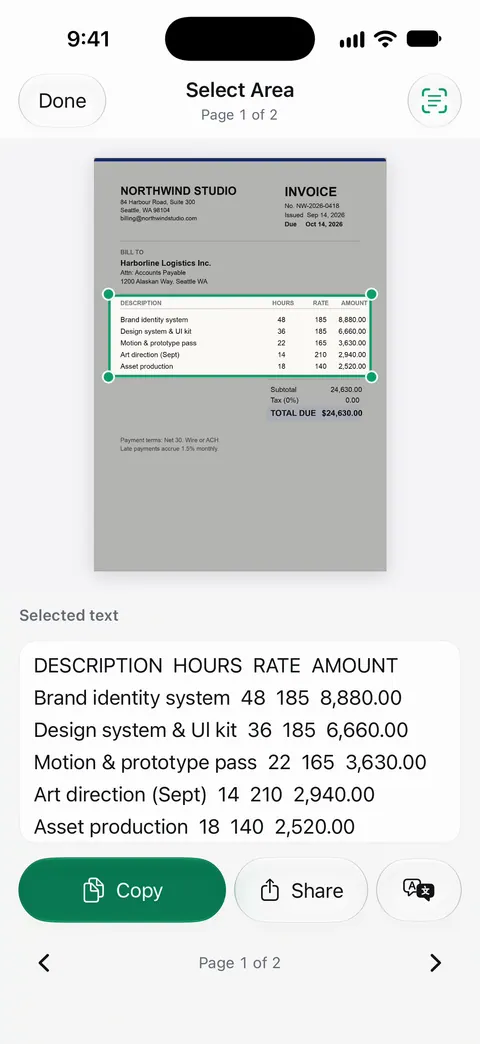
To copy just a part, draw a box with Select Area and the text inside it is read. To get everything out, Scanner One exports to Word, keeping headings, lists and tables, and to Excel and CSV. Plain text and Markdown are in Share & Export too: Share & Export saves a document as a PDF, Word, Excel, PowerPoint, JPG, PNG, a long image, plain text, Markdown, Rich Text, a web page or CSV.
Side by side, checked November 13, 2026
| Live Text | Google Lens (Google app) | Scanner One | |
|---|---|---|---|
| Price | Built into iOS | Free app; Google storage and AI plans from $0.89 to $99.99 | Free download. Pro at $4.99 a month, $29.99 a year or $59.99 once |
| Copy text | Touch and hold, or Select All | Yes, per Google’s Lens page | Select Area, or export the whole text |
| Translate | Yes, with the Translate button | Over 100 languages from the camera | Not listed |
| Keeps a document | No: text goes to the clipboard | No | Saves a searchable PDF |
| Multi-page | One image at a time | One image at a time | A scan can have many pages, and you can reorder them. |
| Privacy label | Part of iOS | Linked to you: Purchases, Financial Info, Location, Contact Info, Contacts, User Content, Search History, Browsing History, Identifiers, Usage Data, Diagnostics, Other Data | No account, no tracking |
| Needs | iPhone XS or later, iOS 15 or later | iOS 17.0 or later | iOS 17 or later |
For translating a whole document, see translate a document on iPhone.
Picking by situation
- A phone number on a flyer, a Wi-Fi password, an address: Live Text from the Camera.
- A menu or sign in another language: Live Text’s Translate, or Lens if you want to search the dish too.
- “What is this thing?”: Lens. That’s what it is for.
- A contract or a long letter you’ll need again: scan it to a searchable PDF.
- A PDF where nothing selects: it has no text layer. Why you can’t copy text from a PDF explains the fix, and our free is my PDF searchable tool checks in the browser.
Where Scanner One helps, and where it doesn’t
Where it helps: when the text should stay with the page. Text recognition runs on every page for everyone, free or Pro. Scanner One makes searchable PDFs. Search looks inside the text of every document and shows the matching line and page. Documents stay on your iPhone unless you share them or turn on iCloud Sync.
Where it doesn’t:
- No visual search. It won’t identify a plant or find a product; Lens does that.
- No translation feature is listed for Scanner One. Live Text’s Translate is built in.
- Free caps and the label. Word, Excel and text exports share the free allowance: Free accounts can run the PDF tools and the Word, Excel and CSV exports 3 times a week, from one shared allowance. On a free account, pages you share, print or export carry a small “Scanned with Scanner One” label at the bottom right. Pro removes it.
- When Live Text is enough. For a few words, the iPhone already does it, with no app to open.
Questions and answers
Is Google Lens better than Live Text on iPhone?
For copying text, both do the job. Live Text is built in and needs no app or account. Google Lens needs the Google app and adds search on what you see, such as products, plants and similar images, and translation in over 100 languages, per the App Store description.
Why don’t I see the Live Text button?
Apple says Live Text needs an iPhone XS, iPhone XR or later with iOS 15 or later. Check that it is on: open Settings, tap General, tap Language & Region, and turn on Live Text.
Can I copy text from a whole multi-page document?
Live Text and Lens work on one image at a time. For many pages, scan them into a searchable PDF. In Scanner One, Scanner One makes searchable PDFs. and Scanner One exports to Word, keeping headings, lists and tables, and to Excel and CSV.
Can I copy text from a PDF that won’t let me select anything?
That PDF is usually a picture of text with no text layer. Run text recognition on it first; our guide on why you can’t copy text from a PDF shows how.
Sources
What this page says about Scanner One was checked against the app on .
- Apple Support, Copy and translate text from photos on your iPhone or iPad (article 120004) — the Live Text steps for Photos, Camera and Translate, the device and iOS requirements, the setting; published 2026-05-01
- Google on the App Store — Google Lens in the Google app, translation in over 100 languages, in-app purchases, privacy label, version 446.3, iOS 17.0 requirement; read 2026-11-13
- Google Search, Google Lens — copy or translate text, copy text to your phone or computer, try it in the Google app; read 2026-11-13
- Scanner One on the App Store — the app’s own listing
Get Scanner One
Scanner One is free, with generous limits: scanning, clean PDFs and text search never stop.

Scanner OneScan, sign and ask anything
Scanner One is free, with generous limits: scanning, clean PDFs and text search never stop.